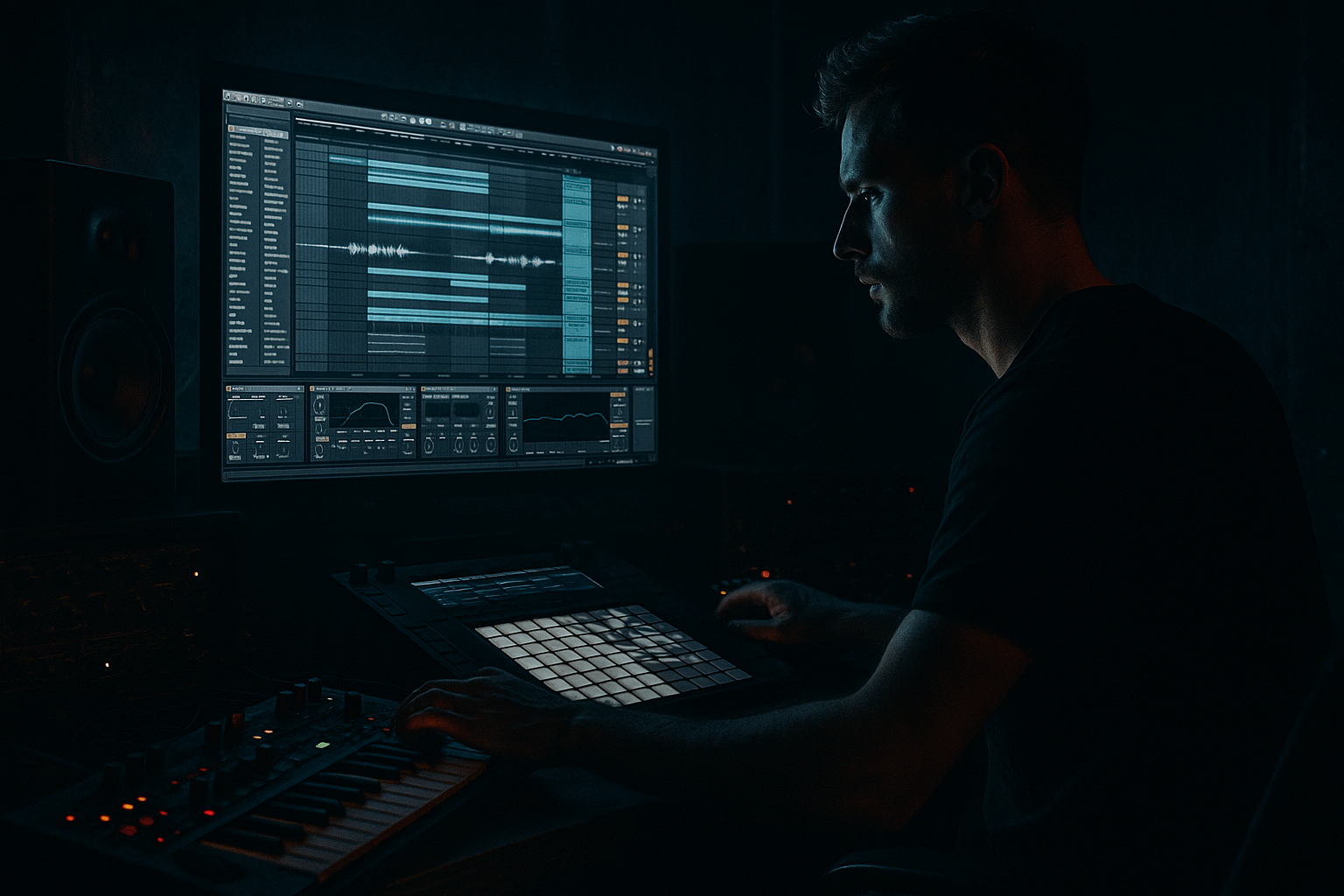
Main tutorial
Vinyl Heat: Ableton Live 12 Edit Deep Dive
Modern punch + vintage soul for jungle / oldskool DnB vibes 🥁🔥
---
1. Lesson overview
In this lesson, you’ll build a Vinyl Heat edit in Ableton Live 12: a drum and bass arrangement that feels like it came off a dusty dubplate, but still hits with modern low-end power and crisp transient impact.
This style sits between:
- oldskool jungle energy
- rolling DnB discipline
- vinyl-era warmth, grit, and chop feel
- modern mix clarity and punch
- tight modern drums
- sub control
- sampled break character
- tape/vinyl texture
- strong edit structure
- intro edits
- breakdown-to-drop transitions
- B-section switches
- VIP-style reworks
- jungle-flavoured DnB arrangements
- a chopped breakbeat groove
- a sub bass foundation
- a soulful vinyl-textured sample or stab
- modern punch on the drums
- filter movements and transition effects
- a drop-ready arrangement with tension and release
- one Amen-style break
- one secondary break or top loop
- a sub sine
- a rewound vocal, horn, piano, or jazz stab
- a noise riser / impact / reverse FX
- Drum Rack
- Simpler
- EQ Eight
- Drum Buss
- Saturator
- Glue Compressor
- Auto Filter
- Redux
- Sampler or Simpler for sample chopping
- Utility
- Reverb
- Delay
- Gate or Envelope Follower if needed
- 170–174 BPM for classic jungle / rolling DnB
- 165–169 BPM if you want a slightly heavier, more spacious modern feel
- Swing 16
- subtle MPC-style groove
- light shuffle on break edits
- duplicate the break and manually cut slices in Arrangement View
- use Slice to New MIDI Track
- use Simpler Slice mode and trigger slices via MIDI
- EQ Eight
- Drum Buss
- Saturator
- Utility
- Kick layer: clean, short, punchy
- Snare layer: sharp crack + body
- Break layer: gives motion, shuffle, and authenticity
- EQ Eight
- Saturator
- Glue Compressor
- boost 180–250 Hz for body if needed
- boost 2–5 kHz for snap
- add a short room reverb send:
- Oscillator A: sine
- filter mostly unnecessary
- unison off
- glide: subtle if you want slides
- velocity mapping optional
- short notes on the downbeats
- syncopated offbeats
- occasional call-and-response phrases
- rests are important
- keep sub phrases simple
- let the break carry rhythmic complexity
- add movement with filter or volume modulation, not huge note density
- Utility
- EQ Eight
- Saturator
- a jazz piano stab
- a soul vocal chop
- a horn hit
- a dub chord
- a vinyl-resampled phrase
- Auto Filter
- Redux
- Echo
- Reverb
- add a slight pitch drift
- use warp markers carefully
- layer soft vinyl noise
- bounce the sample and re-import it for a more “printed” feel
- Vinyl Distortion style effect with Saturator, Redux, or Erosion
- Erosion with noise mode very lightly for edge
- Bars 1–4: filtered intro with break fragments and sample tease
- Bars 5–8: groove opens up, sub enters, drums tighten
- Bars 9–12: main edit phrase, full break + bass + stab interplay
- Bars 13–16: switch-up, fill, stop, reverse, or snare build into next section
- filter automation
- drum mutes
- reversed cymbals
- fake drop-outs
- one-bar fill before the turnaround
- vinyl stop or pitch-down effect
- reverb tails into silence
- break re-chops for the second half
- Duplicate your 4-bar phrase and change only one element per repeat
- Remove the kick for 1/2 bar before the next phrase
- Use a snare pickup into the next section
- Add a reverse crash into the downbeat
- Cut the bass for a single beat to create impact when it returns
- reverse cymbal
- sub drop
- filtered noise sweep
- tape stop / vinyl stop
- delay throw on a vocal stab
- impact with short room tail
- Auto Filter
- Echo
- Reverb
- Utility
- Freeze/Flatten if you want to print a weird texture
- Simpler for reverse one-shots
- Resampling into audio for better edit control
- Echo
- Reverb
- Auto Filter
- Saturator
- snare hits
- vocal chops
- stab notes
- break fragments
- EQ out unnecessary low-end rumble
- use Drum Buss for weight and knock
- Glue Compressor for cohesion, not squashing
- EQ Eight for very gentle cleanup only
- Glue Compressor if needed, 1 dB max
- Limiter only for reference loudness, not final destruction
- lock in the groove
- print FX tails
- create new chop material
- make the arrangement feel more “recorded”
- ghost notes
- vocal delay tails
- reversed hits
- distorted break fragments
- sub 30–90 Hz
- kick 50–120 Hz
- break low-end mostly reduced
- minor
- Phrygian
- Dorian
- bluesy/jazz minor flavors
- Saturator
- Pedal
- Drum Buss
- Erosion
- sub layer
- mid-bass layer
- Wavetable
- Saturator
- Auto Filter
- Chorus-Ensemble very subtly if needed
- one beat of silence before the snare return
- bass dropouts before phrase changes
- filtered drum-only bars
- a clean punchy mix
- a gritty printed version
- 1 breakbeat loop
- 1 sub bass
- 1 chopped soul or jazz sample
- 1 FX hit
- 1 riser or reverse crash
- The break must be re-chopped at least once
- The bass must leave at least 2 moments of silence
- The sample must be filtered in the intro and more open later
- You must include at least one fill into bar 8
- Does the groove swing?
- Does the sub support the drums?
- Does the edit evolve every 2–4 bars?
- Does it feel vintage, but still hit hard?
- dusty break character
- tight modern low-end
- soulful chopped samples
- clear arrangement movement
- controlled grime
- Use Ableton’s slice and drum tools to turn breaks into playable material.
- Keep the sub mono and clean.
- Process drums with light saturation, Drum Buss, and gentle compression.
- Use filter automation and arrangement edits to make the track feel alive.
- Add vinyl texture as a layer, not a replacement for impact.
- Resample often to create new material and commit to your sound.
- oldskool but not dated
- rough but not messy
- warm but still punchy 🎚️🔥
The goal is not to make everything sound lo-fi. Instead, you’ll learn how to combine:
This is especially useful for:
We’ll stay practical and use stock Ableton devices wherever possible.
---
2. What you will build
By the end, you’ll have a short but fully arranged 8- to 16-bar edit section featuring:
Sound palette
Use any combination of:
Ableton tools you’ll likely use
---
3. Step-by-step walkthrough
Step 1: Set the project foundation
#### Tempo
Set your project to a DnB-friendly tempo:
For this lesson, try 172 BPM.
#### Groove
If you want a more human feel, browse Ableton’s grooves:
Don’t overdo it. For DnB, groove should feel alive, but not sloppy.
---
Step 2: Build the drum foundation
#### A. Load your break
Drag an Amen-style break, break loop, or any dusty 1- to 2-bar drum sample into Simper or directly into an audio track.
If using Simpler:
1. Drop the break into Simpler.
2. Set mode to Classic or Slice depending on your source.
3. If using a full break loop, start with Classic and play it as a loop.
4. Use the Warp modes carefully:
- Beats for drum loops
- preserve transients
- avoid over-warping old breaks too much
#### B. Chop the break
For jungle-style edits, you want the break to feel re-sequenced.
Try one of these approaches:
For a practical edit, use Slice to New MIDI Track:
1. Right-click the break audio clip.
2. Choose Slice to New MIDI Track.
3. Slice by:
- transient markers
- fixed grid if you want a more rigid edit
4. Choose Drum Rack as the destination.
Now you can play kick, snare, ghost hits, hats, and little break fragments like an instrument.
#### C. Tighten the core hits
Your break should still have impact even after chopping.
Use this basic processing chain on the break group:
EQ Eight → Drum Buss → Saturator → Utility
Suggested starting settings:
- high-pass around 25–35 Hz to remove rumble
- small cut around 250–400 Hz if muddy
- gentle boost around 4–8 kHz if the break needs crack
- Drive: 5–20%
- Boom: subtle, or off if sub will carry the low end
- Crunch: light, especially for grit
- Soft Clip: on
- Drive: 2–6 dB
- use gain staging to keep the break from overshooting the mix
🎯 Tip: If your break is meant to feel oldskool, preserve some roughness. Don’t flatten all the dynamics.
---
Step 3: Program the kick and snare anchor
Even if your break is doing most of the work, you often want a solid anchor underneath.
#### Layering concept
#### Kick processing
On the kick track, use:
EQ Eight → Saturator → Glue Compressor
Suggested settings:
- low-pass only if the kick has noisy top-end
- boost a little around 50–70 Hz if needed
- small cut around 200–300 Hz if boxy
- Drive: 2–4 dB
- Soft Clip on
- Ratio: 2:1
- Attack: 10–30 ms
- Release: Auto or 0.1–0.3 s
- just 1–2 dB of gain reduction
#### Snare processing
For jungle/oldskool energy, the snare needs presence.
Use:
EQ Eight → Drum Buss → Reverb Send
Suggested settings:
- decay: 0.4–0.8 s
- pre-delay: 10–20 ms
- keep it subtle so it doesn’t wash the groove
🧠 If your snare is too polite, layer it with a clap or rimshot and transient-shape the result.
---
Step 4: Create the sub-bass
Oldskool DnB can be ragged on top, but the sub should still be intentional.
#### Build the sub
Use a Wavetable, Operator, or Simpler sine wave.
Best approach in Live:
1. Load Operator.
2. Use a sine oscillator only.
3. Keep it mono.
Suggested settings:
#### MIDI bassline
Write a bassline that supports the break, not fights it.
For jungle-flavoured DnB:
Try this philosophy:
#### Sub processing
Use:
Utility → EQ Eight → Saturator
Suggested settings:
- Width: 0% or mono
- low-pass around 120–180 Hz if needed
- remove mud above the sub region
- very mild drive to improve translation on smaller systems
🎯 Important: Keep the sub clean and centered. If the bass feels wide, it will lose power.
---
Step 5: Add the vintage soul element
This is where your edit gets character.
Use one of these:
#### How to make it feel authentic
1. Chop the sample into short phrases.
2. Place it in call-and-response with the drums.
3. Slightly detune or pitch-shift for grime.
4. Filter it so it sounds sampled, not pristine.
Use this chain:
Auto Filter → Redux → Echo or Delay → Reverb
Suggested settings:
- low-pass cutoff: automate between 200 Hz and 8 kHz
- slight resonance for movement
- Bit depth: subtle reduction
- Downsample: just enough for texture, not destruction
- short slap or dub delay
- filtered feedback
- small or medium space
- dark tone
#### Vinyl trick
To mimic vinyl sampling:
You can also use:
---
Step 6: Make the edit feel like an edit
This lesson is about edits, not just loops. You need shape and contrast.
#### Common DnB edit structure
Try this 16-bar template:
#### Arrangement ideas
Use these devices and techniques:
#### Practical edit techniques
This is how you make the arrangement feel like a DJ-friendly jungle edit rather than a static loop.
---
Step 7: Add transitions and FX
Use a few well-placed FX elements rather than stacking too many.
#### Good transition elements for this style
#### Ableton stock tools
#### Practical setup
Create an FX return track with:
Then send little amounts from:
This keeps the mix cleaner and gives you a shared room/space.
---
Step 8: Glue the mix without killing the vibe
You want the edit to hit hard, but still sound musical.
#### Drum bus
Group your drums and use:
EQ Eight → Drum Buss → Glue Compressor
#### Mix bus
On the master, keep it light:
If the track stops breathing, back off the processing.
🎛️ DnB note: modern punch comes from balance, not just loudness.
---
Step 9: Print, resample, and refine
A great edit often becomes better when you commit to audio.
#### Why resample?
Resampling helps you:
#### How to do it
1. Route your drum group or sample chain to a new audio track.
2. Record 4–8 bars.
3. Chop the rendered audio.
4. Reuse the printed hits as new fills or transitions.
This is especially effective for:
---
4. Common mistakes
1. Over-processing the break
If you crush the break too hard, you lose the human, dusty feel that makes jungle work.
Fix: use lighter saturation and preserve transient detail.
2. Too much low-end from multiple layers
If kick, sub, and break all own the same low range, the mix gets muddy fast.
Fix: decide who owns:
3. Making the bassline too busy
Oldskool-flavoured DnB often works because the rhythm is implied, not overcrowded.
Fix: leave space for the break to breathe.
4. No arrangement movement
Looping 8 bars without changing anything makes the track feel unfinished.
Fix: automate filters, mute parts, change chops, and introduce fills every 4 or 8 bars.
5. Vinyl texture everywhere
A little dust goes a long way. Too much crackle or bit reduction can make the mix dull.
Fix: keep texture as seasoning, not the whole dish.
---
5. Pro tips for darker/heavier DnB
If you want this Vinyl Heat edit to lean darker and heavier, try these moves:
A. Use minor or modal source material
Samples in:
These work especially well when chopped into moody stabs.
B. Add controlled distortion on parallel channels
Duplicate the snare or break and process the copy with:
Blend it underneath the clean layer for aggression without losing punch.
C. Make the bass sound more aggressive without losing sub
Split the bass into:
On the mid-bass:
Keep the sub mono and clean.
D. Use negative space
Dark DnB gets heavier when you remove elements before drops or fills.
Try:
E. Add resonance carefully
A small resonant filter sweep on a stab or break can add tension, but too much resonance gets harsh fast.
F. Print a dirty version and a clean version
Create two renders:
Blend them if needed. This is a great way to keep energy and vibe at the same time.
---
6. Mini practice exercise
Exercise: build an 8-bar Vinyl Heat edit
Create a short edit using only:
#### Rules
#### Workflow
1. Set project to 172 BPM
2. Chop your break into a Drum Rack
3. Write a simple sub line with rests
4. Add a filtered sample stab on bars 3 and 7
5. Automate a low-pass filter opening over 4 bars
6. Add a snare fill or break fill on bar 8
7. Resample the whole 8-bar section
8. Re-chop the resample for one final variation
When you finish, ask yourself:
---
7. Recap
A strong Vinyl Heat Ableton Live 12 edit is all about contrast:
Key takeaways
If you do this right, you’ll get that sweet spot where the music feels:
If you want, I can also turn this into:
1. a bar-by-bar Ableton project template, or
2. a device-chain cheat sheet for jungle DnB edits.

