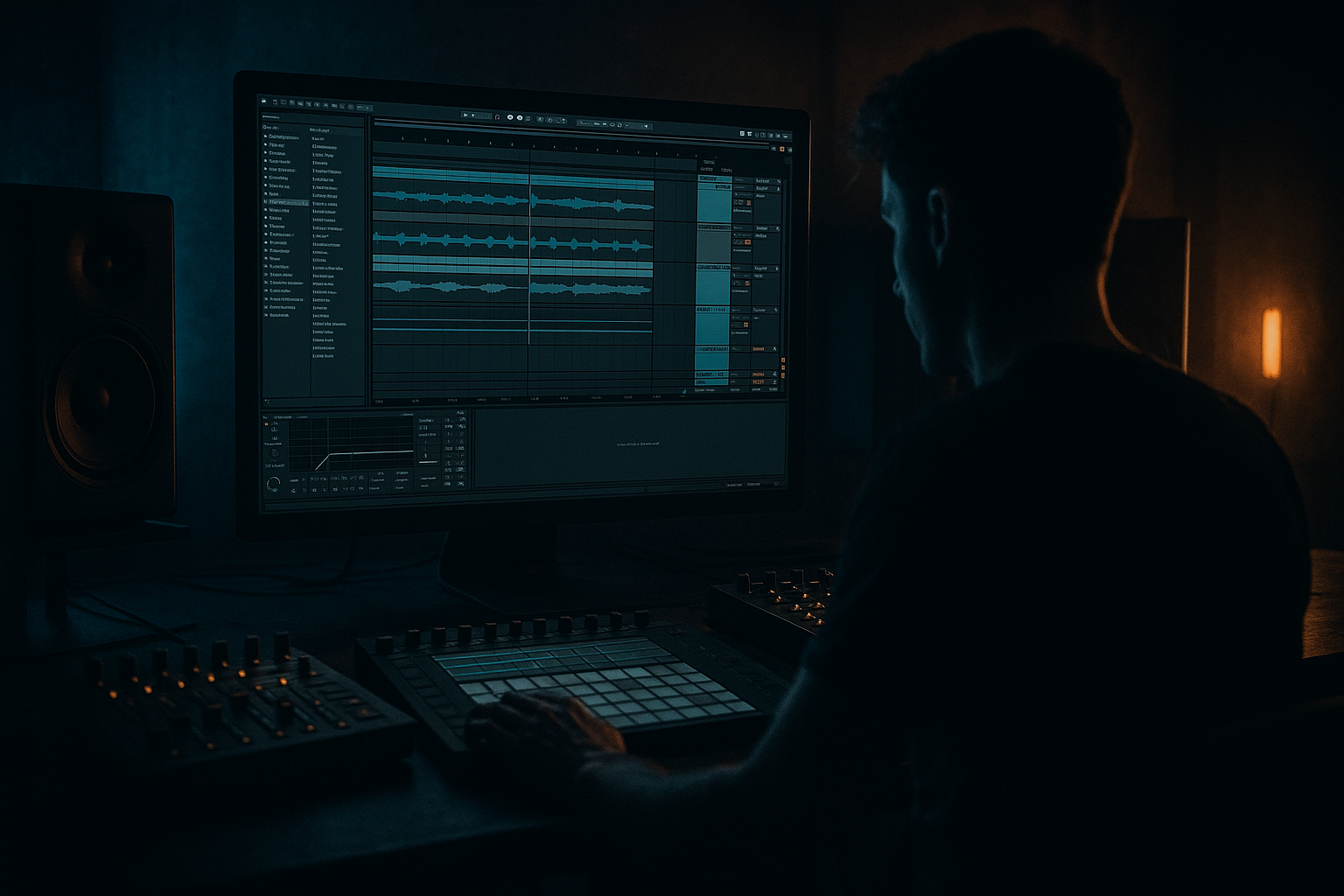
Main tutorial
Transform oldskool DnB shuffle without losing headroom in Ableton Live 12
1. Lesson overview
Oldskool drum & bass shuffle is all about swing, ghost-note energy, and broken-rhythm movement—but if you build it the wrong way, it can easily chew up headroom and turn your mix into a clipped, grainy mess.
In this lesson, you’ll learn how to create a tight, shuffled jungle / DnB drum groove in Ableton Live 12, then resample it safely so you can keep the vibe while preserving clean headroom for your bass, atmospheres, and mix bus. 🥁
We’ll focus on:
- building a classic shuffled break feel
- layering and processing without runaway peaks
- resampling in a controlled way
- trimming and gain-staging the resampled audio
- creating variation for arrangement, not just loops
- classic Amen / Think / funky drummer-style breaks
- modern rolling DnB with oldskool flavor
- jungle edits where the drums need to stay punchy but controlled
- a 4–8 bar shuffled drum loop
- a resampled audio version with better peak control
- a drum bus chain that preserves punch without overloading
- a simple arrangement with:
- Drum Rack
- Simpler
- Auto Filter
- Drum Buss
- Saturator
- Glue Compressor
- Utility
- EQ Eight
- Limiter
- Sampler or Resampling input
- 170–174 BPM for classic rolling DnB
- 160–168 BPM if you want a slightly looser jungle feel
- Kick
- Snare / rim
- Closed hat
- Open hat
- Break slice loop or chopped break hits
- Perc / ghost hit
- If the break is looped, use Slice to New MIDI Track
- Choose:
- Then route slices into Drum Rack pads
- kick placement
- snare accents
- ghost notes
- shuffle timing
- Snare on 2 and 4
- extra ghost snare just before 2 or after 4
- kick on offbeats or before the snare
- shuffled hats between main hits
- occasional break slice fills at bar ends
- Hat lane only for subtle bounce
- Ghost hits + percussion for broken energy
- Full loop groove if the break is too rigid
- start around 54–58% swing feel
- adjust timing rather than pushing everything far off-grid
- keep note starts aligned enough that the kick/snare still hit hard
- keep drum bus peaks around -6 dBFS to -3 dBFS
- leave plenty of room for bass later
- clip gain
- Utility gain
- Drum Buss Drive
- compressor output
- limiter threshold
- trim the clip start and end tightly
- use Warp only if needed
- if the loop drifted, align it to the grid
- crossfade any chopped edits to avoid clicks
- duplicate the printed loop across 4–8 bars
- manually remove one kick, one hat, or one ghost hit every few bars
- create a fill on bar 4 or bar 8
- slice it into a new Drum Rack
- reverse one or two slices for fills
- pitch down a ghost snare for weight
- use a short resampled section as an intro texture
- EQ Eight to remove mud
- Saturator for harmonics
- Auto Filter for movement
- Redux for slightly darker crunch, if needed
- Utility for mono control if the loop is too wide
- old break feel
- modern control
- cleaner arrangement options
- keep the drum group peaking below about -6 dBFS
- check the master before adding bass layers
- use Utility on the bass for gain staging
- if the drums are busy, make the bass simpler
- keep the sub stable and mono
- sidechain lightly from the kick or use volume shaping
- let the drum shuffle occupy the upper-mid groove
- leave the bass space to breathe between snare accents
- Intro: filtered drums, no full low end
- Drop 1: main shuffled loop
- Bar 9–16: add variation fills
- Breakdown: strip back to hats / ghosts
- Drop 2: resampled loop with extra chops or reverse hits
- remove the kick for half a bar
- bring in a ghost snare pickup
- use a filtered resample for breakdowns
- automate Auto Filter cutoff on the drum bus print
- layer a second resampled loop at lower level for extra swing
- Try Soft Clip on Saturator
- Keep drive subtle, then compress lightly
- hats slightly off-center
- percussion spread a bit
- keep kick and snare solidly centered
- vinyl hiss
- crushed room tone
- chopped noise hit
- filtered break loop
- Clean print: controlled drums for the main drop
- Dirty print: more saturation, filtering, or Redux for fills and transitions
- filter cutoff
- Drum Buss drive
- Utility gain
- send levels to reverb/delay
- a groove that feels oldskool and shuffled
- a printed audio loop that stays controlled
- a version ready for bass layering without eating your mix headroom
- build your break groove in Drum Rack or Simpler
- apply swing carefully, especially to hats and ghost hits
- control peaks with Utility, EQ Eight, Drum Buss, Glue Compressor, and Limiter
- resample at healthy levels, not hot levels
- trim and clean the printed audio
- use the resampled loop as a new creative source
- leave space for bass by protecting your headroom early
This workflow is especially useful for:
---
2. What you will build
By the end, you’ll have:
- main loop
- fill
- variation
- resampled “print” for further editing
You’ll use stock Ableton devices like:
---
3. Step-by-step walkthrough
Step 1: Start with a clean drum foundation
Open a new Live 12 set and set the tempo to something DnB-friendly:
Create a MIDI track and load Drum Rack.
#### Suggested drum slots
Use a classic break-based palette:
If you already have a break sample, great. If not, use a short break loop and slice it manually or with Simpler.
---
Step 2: Chop the break for shuffle movement
Drop your break into Simper in Classic mode or Slice mode.
#### For a clean workflow:
- Transient slicing for cleaner breaks
- 1/16 if you want a consistent step workflow
This gives you control over:
#### Basic oldskool drum pattern concept
Try this as a starting point:
Don’t aim for straight grid perfection. Oldskool DnB lives in the microtiming.
---
Step 3: Add groove without wrecking the transients
This is where the shuffle comes alive. In Live 12:
1. Open the Groove Pool
2. Drag in a groove from a MIDI clip or use one of Live’s groove presets
3. Apply a swing/shuffle groove to hats, ghost notes, or the full drum clip
#### Good groove targets
#### Important
Avoid over-grooving kicks and snares at first.
A heavy swing on the main backbeat can make the groove feel late and collapse the impact.
#### Practical tip
Use groove in moderation:
If your groove feels great but peaks are jumping around, you’re probably making the break too wide dynamically. We’ll fix that soon.
---
Step 4: Control the drum peaks before resampling
This is the key to preserving headroom. Before you print audio, tame the bus.
Create a Drum Bus group and route all drums into it.
#### Suggested drum bus chain
Order matters. Try this:
1. Utility
- Gain: set so the bus is not hitting too hard
- Use this as your pre-trim stage
2. EQ Eight
- High-pass only if needed around 25–35 Hz
- Cut harsh buildup if necessary around 3–6 kHz
3. Drum Buss
- Drive: 5–15%
- Crunch: very subtle or off if the break is already gritty
- Transients: small positive amount if needed
- Boom: use carefully; DnB kicks can overload fast
4. Glue Compressor
- Ratio: 2:1
- Attack: 10–30 ms
- Release: Auto or 0.3 s
- Aim for just 1–3 dB gain reduction
5. Limiter
- Only to catch unexpected peaks
- Do not smash it unless you want a printed “hot” version
#### Why this works
You’re shaping the drums before printing, so the resampled audio is already controlled and won’t force your mix to lose headroom later.
---
Step 5: Resample the drum groove in Ableton Live 12
Now print the groove to audio.
You have two good options:
#### Option A: Resampling on an audio track
1. Create a new Audio Track
2. Set its input to Resampling
3. Arm the track
4. Record 4 or 8 bars of your drum loop
This captures exactly what you hear from the master chain. Great for committing to the sound.
#### Option B: Record the Drum Bus only
If you want to avoid printing the whole master chain:
1. Create an audio track
2. Set input to Post Mixer or route from your drum group if you prefer a clean print path
3. Record the bus output only
#### Best practice
Do a test pass first. Watch the meters:
If you’re already clipping before the print, reduce:
---
Step 6: Edit the printed audio for tighter shuffle
Once you have the resampled loop, switch into Arrangement View and zoom in.
#### Clean up the loop
#### Important DnB move
If you want a more “played” feel:
That keeps the shuffle alive and stops the loop from becoming robotic.
---
Step 7: Use resampled drums as a new sound source
This is where resampling becomes creative.
Take the printed drum audio and:
#### Creative processing chain on the resampled audio
Try this on the audio clip or a new audio track:
This is very effective for jungle:
---
Step 8: Keep headroom for the bass
This is the part many producers skip. If the drums are too loud, your sub and reese won’t have space.
#### Do this:
#### Bass workflow idea
If you’re making rolling DnB:
A dirty drum loop sounds great, but only if the low end stays disciplined.
---
Step 9: Build arrangement variation
Don’t just loop 8 bars forever. Oldskool DnB works best when the drums evolve.
#### Simple arrangement structure
#### Variation ideas
This keeps the energy moving without needing more sounds.
---
4. Common mistakes
1. Overdriving the break before resampling
If your source break is already clipped, every extra bus processor makes the problem worse.
Fix: trim input gain first, then add saturation or compression deliberately.
2. Swinging everything equally
Too much swing on kicks and snares can make the groove lazy.
Fix: apply groove mostly to hats, ghost notes, and percussion.
3. Printing too hot
If you resample at near 0 dBFS, you lose flexibility later.
Fix: aim for healthy peaks around -6 dBFS to -3 dBFS.
4. Using too much Drum Buss Boom
Boom can sound huge soloed, but it often eats bass headroom.
Fix: use it lightly or filter the boom from the actual sub range.
5. Not cleaning the resampled loop
Clicks, tails, and messy edges will make later arrangement frustrating.
Fix: trim, fade, and consolidate the audio after recording.
---
5. Pro tips for darker/heavier DnB
Use saturation before compression for density
A subtle Saturator or Drum Buss drive can make the break feel heavier without needing more volume.
Make the drums feel wider, not louder
Use Utility and panning on non-low elements:
Layer a darker texture underneath
A very low-level layer can add grit:
Keep it quiet. The goal is movement, not clutter.
Resample twice for character
Print a clean version and a dirty version:
That gives you options in the arrangement.
Use clip envelopes and automation
In Live 12, automate:
For darker DnB, automate small changes, not huge sweeps. Subtle motion is often heavier than obvious FX.
---
6. Mini practice exercise
Exercise: build a 4-bar shuffled drum print
1. Create a 174 BPM project.
2. Load a break into Simpler and slice it to a Drum Rack.
3. Program a 4-bar loop with:
- snare on 2 and 4
- 2–4 ghost hits
- shuffled hats
- one fill at the end of bar 4
4. Put a drum bus chain on the group:
- Utility
- EQ Eight
- Drum Buss
- Glue Compressor
5. Keep the group peaking below -6 dBFS
6. Record the loop using Resampling
7. Re-import the recorded clip and:
- trim it
- slice one fill
- reverse one slice
- duplicate the loop into 8 bars with one variation
Goal
By the end, you should have:
---
7. Recap
To transform oldskool DnB shuffle without losing headroom in Ableton Live 12:
The big mindset shift is this:
don’t just make the drums sound hard — make them print well too. That’s how you get authentic jungle energy and a mix that still hits cleanly. 🔥
If you want, I can turn this into a Live 12 session template or give you a specific Amen break MIDI + resampling chain next.

