DNB COLLEGE

Drum & Bass Ableton Live 12 Tutorials

LESSON DETAIL

Stepper switch-up sequence approach using Session View to Arrangement View in Ableton Live 12 for jungle oldskool DnB vibes (Intermediate)

An AI-generated intermediate Ableton lesson focused on Stepper switch-up sequence approach using Session View to Arrangement View in Ableton Live 12 for jungle oldskool DnB vibes in the Breakbeats area of drum and bass production.

Back to lessons
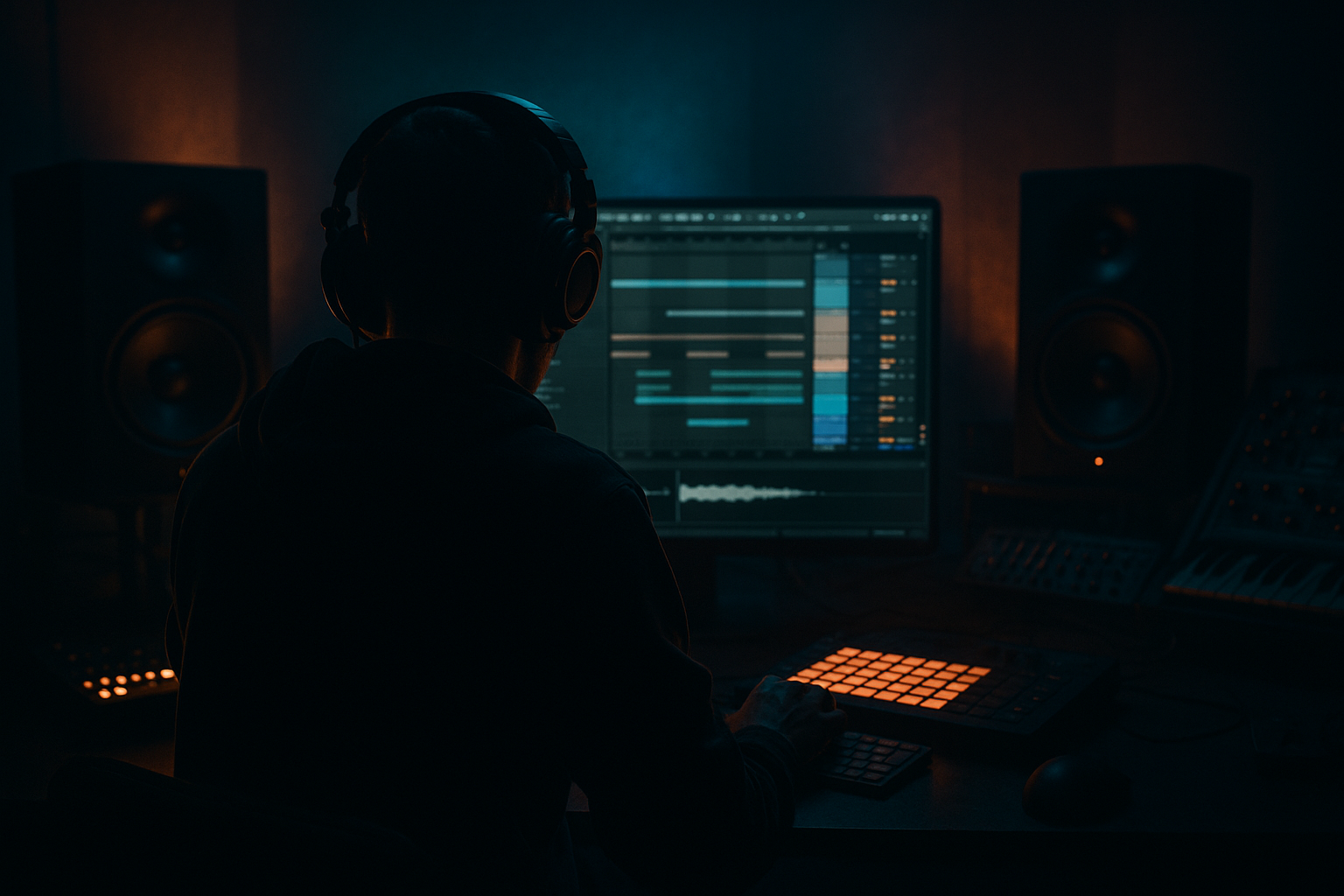
Stepper switch-up sequence approach using Session View to Arrangement View in Ableton Live 12 for jungle oldskool DnB vibes (Intermediate) cover image

Narrated lesson audio

The voice track includes the tutorial plus extra teacher commentary.

Open audio file

Main tutorial

Stepper Switch‑Up Sequence: Session View → Arrangement View (Ableton Live 12)

Intermediate | Breakbeats | Jungle / Oldskool DnB vibes 🔥🥁

---

1) Lesson overview

This lesson is about building classic stepper DnB momentum (steady 2‑step kick/snare drive) and then creating tight “switch‑ups” (fills, edits, drop variations) using Session View as your idea factory, and then recording a performance into Arrangement View for a proper oldskool jungle timeline.

You’ll learn a repeatable workflow:

  • Create 4–8 bar stepper clip variations
  • Use Scenes to structure energy
  • Perform switch‑ups live using Follow Actions (optional) + clip launching
  • Record the whole thing into Arrangement and polish it like a record 🎛️
  • ---

    2) What you will build

    A 64‑bar drum arrangement with:

  • Main stepper groove (kick on 1 & 3, snare on 2 & 4)
  • 2–3 switch‑up clips (amen-style fills, snare rushes, kick drops)
  • Intro → Drop → Mid switch → Drop 2 → Outro structure
  • Plus:

  • A breakbeat bus chain for punch + glue
  • A jungle-style “chop” layer approach (main stepper + edited break layer)
  • ---

    3) Step-by-step walkthrough

    Step 0 — Project setup (DnB-ready)

    1. Set tempo to 172–176 BPM (try 174 BPM).

    2. Global quantization: 1 Bar (top-middle of Live).

    - For more frantic juggling later: switch to 1/2 Bar during performance.

    Session View is where we build clips + scenes. Arrangement View is where we commit the performance.

    ---

    Step 1 — Create your drum groups (clean routing = faster switch‑ups)

    Create three tracks:

    1. Stepper Drums (Group)

    2. Break Layer (Audio track)

    3. Drum Bus (Return or Group bus) (optional but recommended)

    Inside “Stepper Drums” Group, make:

  • Kick (Simpler or Drum Rack pad)
  • Snare (Simpler or Drum Rack pad)
  • Hats/perc (Drum Rack or Simpler)
  • Workflow tip: Put a Drum Rack on a single MIDI track if you prefer, but separate tracks make switch-ups easier to see and automate.

    ---

    Step 2 — Program the core stepper (your “A” clip) 🥁

    On the Kick MIDI clip (length 2 bars to start):

  • Kick: 1.1.1 and 2.3.1 (classic stepper pulse)
  • - Add occasional ghost kick: 1.4.3 (very low velocity)

    On the Snare MIDI clip:

  • Snare: 1.2.1 and 2.4.1 (backbeat)
  • On hats:

  • Closed hat: 1/8 notes with slight velocity variation
  • Optional shuffle: add a hat at 1.1.3 / 1.2.3 etc. (tasteful, not too swingy)
  • Groove:

  • Add Groove Pool: try MPC 16 Swing 54–58 (subtle).
  • Commit groove only to hats/perc first (leave kick/snare tight for that mechanical stepper push).
  • Clip naming:

  • Scene 1: A1 – Stepper Main (2 bars)
  • ---

    Step 3 — Add an oldskool break layer (amen-ish energy)

    1. Drag in an Amen/old funk break audio loop to Break Layer.

    2. Warp mode: Beats

    - Preserve: Transients

    - Set Transient Loop: Forward

    - This keeps crisp chops without smearing.

    3. High-pass the break so it layers nicely:

  • Add EQ Eight:
  • - HP at 120–180 Hz (24 dB/oct)

    - Small dip around 300–500 Hz if boxy

    4. Convert to “chop-friendly”:

  • Right click break clip → Slice to New MIDI Track
  • - Slicing preset: Built-in

    - Then you can trigger chops as switch‑ups later.

    Scene label:

  • Scene 1 still (A1) includes this break playing a simple loop.
  • ---

    Step 4 — Build switch‑up clips (B, C, D variations)

    You want small, controlled differences that feel like a DJ is teasing edits.

    #### Switch‑Up B: “Snare rush into bar 2/4” ⚡

    Duplicate A1 clips to a new Scene:

  • Scene 2: B1 – Snare Rush (2 bars)
  • In the snare MIDI:

  • Add 1/16 snare hits in the last half bar:
  • - Example: 2.3.3 to 2.4.1 as a rising roll

  • Velocity ramp: start ~40 → end ~100
  • Add Auto Filter (on snare track):

  • Mode: HP 12 dB
  • Map cutoff to a Macro (or automate in clip envelopes)
  • In B1 clip: sweep cutoff down slightly toward the downbeat for impact.
  • #### Switch‑Up C: “Kick drop + break speak” (oldskool tension) 🎚️

    Scene 3: C1 – Kick Drop / Break Feature (2 bars)

  • Remove the kick on bar 2 beat 3 (or mute kick for last 1/2 bar)
  • Let the break layer pop out louder:
  • - Clip gain +1 to +2 dB (or automate track volume slightly)

    Add Utility on Break Layer:

  • Width: 120–140% (if it’s not mono)
  • Gain: adjust so it’s exciting but not clipping your drum bus
  • #### Switch‑Up D: “Amen stab fill” (micro-chop) 🔪

    If you sliced the break:

  • Create a new MIDI clip triggering 2–4 slices rapidly at the end of bar 2
  • Keep it musical: repeat one slice, then a different slice, then a stop.
  • Add Beat Repeat (on Break Layer or Break Group):

  • Interval: 1/8
  • Grid: 1/16
  • Chance: 10–20%
  • Gate: 60–80%
  • Turn it on only in Scene 4 (use device on/off automation recorded later)
  • Scene 4: D1 – Amen Fill (2 bars)

    ---

    Step 5 — Build Scenes like a DJ set (energy plan) 🎛️

    Now stack Scenes vertically so launching feels like performing a tune:

    Example 64-bar plan (each scene = 8 bars, or repeat 2-bar clips 4x):

    1. Intro (8–16 bars): break filtered + hats, no full kick

    2. Drop 1 (16 bars): A1 main stepper + break layer

    3. Switch section (8 bars): alternate A1 / B1 every 2 bars

    4. Drop 2 (16 bars): A1 + C1 inserted every 8 bars

    5. Outro (8 bars): remove kick, keep break + FX

    How to do it efficiently:

  • Make clips 2 bars, then use Scene launching to “play” them into longer structure.
  • Keep Global Quantization at 1 Bar so everything lands tight.
  • ---

    Step 6 — Add a Drum Bus chain (stock devices, jungle-friendly)

    On your Stepper Drums Group (or a dedicated Drum Bus track receiving all drums), use:

    1. EQ Eight

    - HP: 25–35 Hz (clean rumble)

    - Small shelf boost: 8–10 kHz if you need air

    2. Glue Compressor

    - Attack: 3 ms

    - Release: Auto

    - Ratio: 2:1

    - Aim for 1–3 dB gain reduction

    - Soft Clip: On (nice for DnB)

    3. Saturator

    - Mode: Analog Clip

    - Drive: 2–6 dB

    - Output: trim so you’re not just getting louder

    4. Drum Buss (yes, use it lightly)

    - Drive: 5–15%

    - Crunch: 0–10%

    - Boom: 0–15% (be careful—DnB sub usually lives elsewhere)

    Tip: If you already have heavy break processing, don’t overcook the group—let the switch-ups provide excitement, not just distortion.

    ---

    Step 7 — Perform the switch‑ups in Session View (then record!) 🎬

    This is the core trick: perform arrangement decisions live.

    1. Arm Arrangement Record (top transport).

    2. Press Global Record and start playing.

    3. Launch Scenes in order:

    - Intro → Drop → Switch → Drop 2 → Outro

    4. During “Switch section,” alternate clips every 2 bars:

    - A1 → B1 → A1 → D1 → A1 → C1

    5. Optional: Use Follow Actions to auto-cycle variations:

    - Clip → Launch tab → Follow Action: Next

    - Action time: 2 bars

    - Great for controlled chaos, but keep it musical.

    When you’re done:

  • Hit Tab to go to Arrangement View and you’ll see your full recorded performance.
  • ---

    Step 8 — Tighten in Arrangement View (edit like a pro) ✂️

    Now you “producer edit” the performance:

    1. Consolidate key sections (Cmd/Ctrl+J) so you can see structure.

    2. Fix messy transitions:

    - Nudge clip start points

    - Add 1/4 bar mutes before drops for impact

    3. Add automation lanes:

    - Auto Filter cutoff on breaks in the intro/outro

    - Reverb throw on a snare hit (use a Return track)

    Classic jungle trick:

  • 1 bar before a drop: mute kick, keep break + snare roll, add a short vocal stab → slam back in.
  • ---

    4) Common mistakes

  • Too many switch-ups too early: If every 2 bars is a different fill, it stops feeling “rolling.” Keep A1 dominant.
  • Break layer fighting the stepper: High-pass the break and/or sidechain it slightly to the kick.
  • Over-swinging the groove: Jungle can swing, but stepper needs a solid spine. Keep kick/snare tight.
  • Launching without quantization awareness: If quantization is too small (1/16), you’ll get messy timing. Start with 1 Bar.
  • Overcompressing the drum bus: If your transients vanish, your groove loses aggression.
  • ---

    5) Pro tips for darker/heavier DnB 🖤

  • Parallel distortion on breaks:
  • - Return track with Saturator (Analog Clip) + EQ Eight (band-pass 200 Hz–6 kHz)

    - Send break to it for gritty midrange without wrecking lows.

  • Subtle kick-to-break sidechain:
  • - Compressor on Break Layer

    - Sidechain input: Kick track

    - Ratio 2:1, fast attack, short release

    - Just 1–2 dB duck = tighter low-end.

  • “Rinse” edits:
  • - Create a scene where the break stops for 1 beat (silence as a weapon).

    - Or reverse a single snare slice leading into the drop.

  • Pitch down break slices:
  • - In Simpler (slice pad), drop -2 to -5 semitones for menace.

    - Add Redux lightly for crunchy oldskool texture.

    ---

    6) Mini practice exercise (15–25 min) ✅

    1. Make three 2‑bar stepper scenes: A1 (main), B1 (snare rush), C1 (kick drop).

    2. Perform a 32-bar arrangement in Session View:

    - 8 bars A1

    - 8 bars A1 with one B1 every 4 bars

    - 8 bars A1 with one C1 at the end

    - 8 bars A1 + extra fill of your choice

    3. Record into Arrangement.

    4. In Arrangement, add:

    - One filter intro automation (break)

    - One reverb throw on a snare fill

    Export a draft and listen away from the DAW. Does it still roll when you’re not watching the screen?

    ---

    7) Recap

  • Build a strong stepper backbone first (A1).
  • Create 2–3 purposeful switch-up clips (B/C/D) that enhance the groove rather than replace it.
  • Use Session View Scenes to perform structure like a DJ. 🎚️
  • Record into Arrangement View, then edit/automate for a finished jungle/DnB arrangement.
  • Keep processing tight: EQ Eight, Glue, Saturator, Drum Buss—tasteful, not crushed.

If you want, tell me your preferred vibe (early metalheadz darkness, ragga jungle, or clean modern roller) and I’ll suggest a switch-up set (clips + processing) that matches it.


Ask GPT about this lesson

Chat with the lesson tutor, get follow-up help, or use quick actions.

Bigup 👽 Ask me anything about this lesson and I’ll answer in context.

Narration script

Show spoken script
Title: Stepper switch-up sequence approach using Session View to Arrangement View in Ableton Live 12 for jungle oldskool DnB vibes (Intermediate)

Alright, let’s build some proper stepper momentum, then start doing those tight little jungle switch-ups that feel like a DJ is teasing edits on the fly. The whole concept today is this: Session View is your idea factory and performance rig, and Arrangement View is where you commit that performance into a real timeline you can polish like a record.

By the end, you’ll have a 64-bar drum arrangement with a solid stepper spine, a break layer for that oldskool spray, and a few controlled switch-up clips you can launch live, record, and then tighten up.

First, set the project up for DnB.
Put your tempo around 172 to 176. I’m going to sit at 174 BPM. Set Global Quantization to 1 Bar. That’s important, because if you’re launching clips while you’re excited and your quantization is too small, you’ll get messy timing. One bar keeps it locked and phrase-friendly.

Now we build the routing, because clean routing equals faster switch-ups.
Create three tracks:
One, a Stepper Drums group. Two, a Break Layer audio track. Three, optionally a drum bus, either as a group bus or you can just process on the Stepper Drums group. The goal is: stepper elements are controllable and readable, and the break is its own character that you can feature or tame.

Inside your Stepper Drums group, create separate tracks for Kick, Snare, and Hats or Perc. Yes, you could do it all in one Drum Rack, and that’s fine, but separate tracks make it way easier to see what’s going on when you’re swapping clips and recording automation. This lesson is about quick decision-making, so we’re going to make it visually obvious.

Now program the core stepper groove. This is your “A” clip, your backbone.
Start with a two-bar loop. On the kick clip, place a kick on bar 1 beat 1, and bar 2 beat 3. That’s the classic stepper pulse: it’s not trying to be too funky, it’s trying to drive. If you want extra movement, add a ghost kick near the end of bar 1, something like bar 1 beat 4 and a bit, but keep the velocity low. Think of that ghost kick like a little nudge, not a headline.

On the snare clip, put the snare on 2 and 4. So bar 1 beat 2, bar 1 beat 4, and same on bar 2. That backbeat is your anchor. In a lot of jungle and oldskool DnB, you can get absolutely wild with breaks, but the snare placement is what tells the listener, “we’re still rolling.”

On hats, do eighth notes to start. Then add tiny velocity differences so it breathes. If you want a hint of shuffle, add an extra hat slightly off-grid, but don’t overdo swing here. Stepper needs a solid spine. The funk can live in the break layer and in the switch-ups.

Now add groove, but do it intelligently.
Open the Groove Pool and try something like MPC 16 Swing around 54 to 58. Subtle. And here’s a pro move: commit that groove to hats and percussion first, not the kick and snare. Let the kick and snare stay tight and mechanical. That’s how you get that “train wheels on track” energy.

Name this first scene something like “A1 – Stepper Main (2 bars).” Naming matters, because later you’re going to perform and you want your brain to read decisions quickly.

Next, bring in the oldskool break layer.
Drag an Amen or any classic funk break onto the Break Layer audio track. Set Warp Mode to Beats, preserve transients, and set transient loop to Forward. The reason is you want crisp chops and stable timing without smearing the transients. Old jungle lives and dies on transients.

Now EQ it so it layers instead of fights.
Add EQ Eight. High-pass it somewhere around 120 to 180 Hz. Choose the spot based on the break. If it’s boxy, dip a little around 300 to 500. You’re trying to make space for the stepper kick and snare to be the “spine,” while the break is the “spray” and the vibe.

And here’s a key fork in the road: make it chop-friendly.
Right-click the break clip and choose Slice to New MIDI Track. Use the built-in slicing preset. Now you’ve got break slices ready to trigger like an instrument, which is basically the jungle superpower for switch-ups.

At this point, Scene 1, your A1 scene, should play: stepper kick and snare, hats, and the break doing a simple loop.

Now we create switch-ups. The rule for good switch-ups is: small, controlled differences that feel intentional. If every two bars is a different circus trick, you lose the roll. So we’re making a palette of a few choices: snare energy, kick dropout, micro-chop fill. That’s it.

Switch-up B: snare rush into the downbeat.
Duplicate your A1 scene into a new scene and name it “B1 – Snare Rush (2 bars).”
In the snare MIDI clip, add 1/16 notes in the last half bar leading into the end of bar 2. So you’re building a roll that ramps into the next phrase. Ramp the velocity too: start soft, end strong. This is one of those classic “rave tension” cues, and it works because the listener knows something is coming.

To make it extra effective, add an Auto Filter on the snare track, set it to high-pass, 12 dB slope. Map cutoff to a macro if you like, or just automate inside the clip. In the B1 clip, sweep the cutoff down a little as you approach the downbeat. That creates the illusion of the snare getting bigger right when it matters.

Switch-up C: kick drop and break feature.
Duplicate again into Scene 3 and name it “C1 – Kick Drop / Break Feature (2 bars).”
Here, remove the kick on bar 2 beat 3, or even mute the kick for the last half bar. The point is negative space. You’re keeping the track moving via snare and break, but the kick disappears just long enough to create that cliff-edge feeling.

Then, let the break layer step forward. You can do that with clip gain up one or two dB, or a tiny volume move. Add Utility on the break track and widen it a little if it isn’t mono, maybe 120 to 140 percent. Just don’t let low end go wide. If there’s low content in the break, keep that closer to mono.

Switch-up D: Amen stab micro-chop.
This is where the sliced break shines. Create a MIDI clip that triggers two to four slices rapidly at the end of bar 2. Keep it musical. A good pattern is: repeat one slice to establish it, hit a different slice as an answer, then maybe a stop. Silence is part of the rhythm.

Optionally add Beat Repeat on the break layer or break group. Set interval to 1/8, grid to 1/16, chance 10 to 20 percent, gate 60 to 80. The key is: don’t leave it on all the time. It’s a switch-up spice, not the meal. Name this scene “D1 – Amen Fill (2 bars).”

Now, before we perform anything, let’s talk about how to think in scenes.
Treat Session View like a variation matrix, not a song list. Each scene should represent a single decision like “snare energy up,” “kick dropout,” “amen fill,” “break goes wide.” Then you combine decisions live. That’s how you avoid making twenty near-identical scenes and getting lost.

Also, here’s a really useful trick: per-clip launch quantization.
Keep Global Quantization at 1 bar, but for your fill clips like B1 or D1, go into the clip Launch box and set launch quantization to 1/2 bar or even 1/4 bar. Now you can throw the fill in on late notice, without ruining the overall timing of your performance. This is huge for jungle, because the best edits often feel like they’re almost last-second, but still tight.

Another trick: Legato.
For break loops or hat loops, enable Legato in the clip launch settings. Now when you switch between break clips, playback position continues rather than restarting. That creates “DJ-style continuity,” like you’re riding the same break but changing accents.

Optional performance realism: scene tempo.
You can put tiny tempo cues in scene names, like “Drop 1 174” and “Switch 175.” Even plus one BPM can add urgency. Keep it subtle. We want momentum, not a noticeable ramp.

Now build your rough structure in Session View.
We’re aiming for 64 bars. The easiest method is: keep your clips two bars, and repeat or relaunch them to build phrases.

A classic jungle map could be:
Intro for 8 to 16 bars: filtered break and hats, not full kick.
Drop 1 for 16 bars: A1 main stepper plus break.
Switch section for 8 bars: alternate A1 and B1 every two bars.
Drop 2 for 16 bars: mostly A1, but insert C1 every 8 bars for tension.
Outro for 8 bars: remove kick, keep break and some FX.

Now let’s get the drum bus chain happening so it feels like a record.
On your Stepper Drums group, or on a dedicated drum bus, add EQ Eight first. High-pass around 25 to 35 Hz just to clean rumble you don’t need. If you want a touch of air, a small high shelf around 8 to 10k can help, but only if the hats aren’t already crispy.

Then add Glue Compressor. Attack around 3 milliseconds, release on Auto, ratio 2:1. Aim for one to three dB of gain reduction. Soft clip on. Glue is there to make the drums feel like one unit, not to flatten them.

Then add Saturator. Analog Clip mode, drive maybe two to six dB, and trim output so you’re not just making it louder. A lot of people fool themselves here: they think it sounds better because it’s louder. Keep the output honest.

Then Drum Buss lightly. Drive five to fifteen percent, crunch near zero to ten, boom near zero to fifteen, but be careful. In DnB the true sub often lives elsewhere, and too much boom can cloud your low end fast. If your break is already heavily processed, don’t overcook the whole bus. Let the arrangement and switch-ups create excitement.

Quick coach check before we record: do a two-stage confidence test.
First, solo drums. Does it drive with no bass and no music? If it doesn’t drive naked, it won’t drive dressed.
Second, listen super quiet. If you can still clearly “read” the snare pattern and the kick feels consistent, you’re in business.

Now the fun part: perform into Arrangement View.
Stay in Session View. Arm Arrangement Record in the transport. Hit Global Record, and start playback.

Launch scenes in order: intro, drop, switch section, drop 2, outro.
During the switch section, alternate every two bars: A1 to B1, back to A1, then maybe D1, back to A1, then C1. Think like a DJ: you’re rinsing the main groove, then dropping in a quick edit, then returning to the pocket.

If you want controlled chaos, try Follow Actions.
On a clip, go to the Launch tab, set Follow Action to Next, and action time to two bars. Or set it to Any if you have multiple variations. If you want weighting, duplicate your “safe” clips so they appear more often. That way you mostly get reliable roll with occasional spice. The point is musical unpredictability, not random nonsense.

And remember: if you finger-drummed something cool and you weren’t recording, use Capture MIDI. Then drag that captured performance into a clip and suddenly your happy accident becomes a repeatable switch-up tool.

When you’re done with your performance, hit Tab to go to Arrangement View. You should see your whole take recorded as a proper timeline.

Now we producer-edit.
First, consolidate important sections so the structure is readable. Then fix transitions. Nudge clip start points if anything feels late. Add tiny mutes before drops. A classic jungle move is one bar before a drop: mute kick, keep break plus a snare roll, maybe a short vocal stab, then slam the kick back in. That’s the “crowd knows what’s coming” moment.

Add automation lanes.
Filter automation on the break in the intro and outro is almost mandatory for this vibe. Add a reverb throw on a snare hit using a return track: just spike the send on one hit, then pull it back. That one little throw can make your switch-up feel expensive and intentional.

If your break slices click at boundaries, do a cleanup pass.
Freeze and flatten, or resample the break layer, and do micro fades on slice points. Jungle edits can be audible, even hard cuts are fine, but they should sound chosen, not accidental.

A few common mistakes to avoid as you refine:
Don’t do too many switch-ups too early. Keep A1 dominant so the listener learns the groove.
Make sure the break layer isn’t fighting the stepper. High-pass it, and if needed, sidechain it slightly to the kick. One to two dB of duck is enough.
Don’t over-swing. Swing hats, not the backbone.
Don’t launch with tiny quantization until you’re confident. Start at 1 bar.
Don’t crush the drum bus. If the transients vanish, the groove loses aggression.

If you want it darker and heavier without wrecking clarity, here are a few upgrades.
Try parallel distortion on the break with a return track: saturator plus a band-pass from about 200 Hz to 6 kHz. Blend it low. That gives you 90s grit without trashing lows.
Keep mono discipline: Utility on the kick set width to zero. Keep low content narrow. Let only the high-passed break and percussion carry width.
Pitch down a few break slices in Simpler by two to five semitones for menace. And if you want true era-correct texture, add a little Redux on a parallel return, not on the main signal.

Now a quick mini practice routine you can do in 15 to 25 minutes.
Make three two-bar scenes: A1 main, B1 snare rush, C1 kick drop.
Perform a 32-bar arrangement in Session View: eight bars A1, then eight bars mostly A1 with one B1 every four bars, then eight bars A1 with a C1 at the end, then eight bars A1 with one extra fill of your choice.
Record it into Arrangement.
In Arrangement, add one filter intro automation on the break and one reverb throw on a snare fill.
Export a drums-only draft and listen away from the screen. If it still rolls when you’re not watching clips, you nailed it.

Let’s recap the mindset.
Build a strong stepper backbone first. That’s your A1.
Create two to three purposeful switch-ups that enhance the groove rather than replace it.
Use Session View scenes to perform structure like a DJ, then record that performance into Arrangement View.
Edit and automate like a producer, and keep processing tasteful: EQ, glue, saturation, light drum buss.

If you tell me your target flavor, early Metalheadz darkness, ragga jungle, or clean modern roller, I can suggest a specific switch-up palette: which clips to build, where to place them in the 64 bars, and what processing moves will sell that vibe.

mickeybeam

Go to drumbasscd.com for +100 drum and bass YouTube channels all in one place - tune in!

Generating PDF preview…