DNB COLLEGE

Drum & Bass Ableton Live 12 Tutorials

LESSON DETAIL

Stack jungle chop using macro controls creatively in Ableton Live 12 (Beginner)

An AI-generated beginner Ableton lesson focused on Stack jungle chop using macro controls creatively in Ableton Live 12 in the Composition area of drum and bass production.

Back to lessons
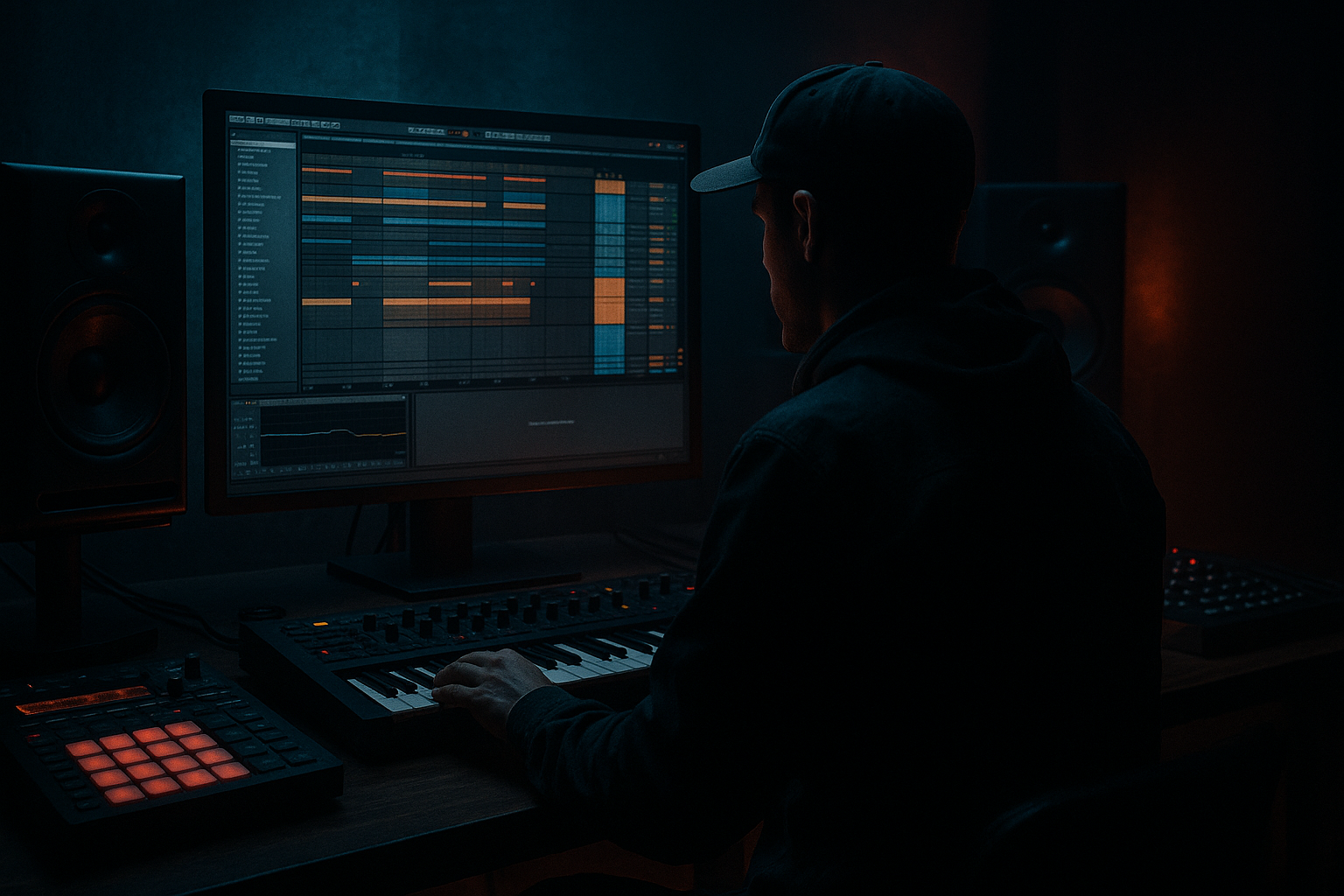
Stack jungle chop using macro controls creatively in Ableton Live 12 (Beginner) cover image

Narrated lesson audio

The voice track includes the tutorial plus extra teacher commentary.

Open audio file

Main tutorial

Stack Jungle Chop Using Macro Controls Creatively in Ableton Live 12

1. Lesson overview

In this lesson, you’ll learn how to build a stacked jungle chop in Ableton Live 12 and control it with Macro knobs so you can perform, automate, and reshape the groove quickly. This is a classic drum and bass composition technique: take a breakbeat, chop it into pieces, layer or “stack” those pieces, then use macro controls to make the rhythm feel alive and musical.

This is perfect for:

  • Jungle-style break programming
  • Rolling DnB fills
  • Switch-ups before drops
  • Dark halftime-to-doubletime transitions
  • Creative arrangement movement without manually editing every slice
  • We’ll use stock Ableton tools like:

  • Simpler
  • Drum Rack
  • Sampler if available in your edition, but Simpler is enough
  • Auto Filter
  • Redux
  • Utility
  • Glue Compressor
  • Saturator
  • Beat Repeat optional
  • Rack Macro Controls and Instrument/Audio Racks
  • By the end, you’ll have a playable jungle chop setup where one knob can change tone, punch, space, and intensity 🎛️

    ---

    2. What you will build

    You will create a stacked break chop rack with:

  • A main breakbeat sliced into multiple hits
  • Extra layers for snare crack, kick weight, and hat texture
  • Macro controls for:
  • - Mix

    - Filter

    - Drive

    - Decay

    - Stereo width

    - Reverb send

    - Reverse or glitch flavor

  • A musical loop that works in a DnB arrangement:
  • - intro

    - build

    - drop

    - variation/fill

    End result

    A playable rack that lets you turn one jungle break into a moving, evolving chop pattern without needing to redraw MIDI every time.

    ---

    3. Step-by-step walkthrough

    Step 1: Choose a good break

    Start with a classic breakbeat or any break-style drum loop at 160–174 BPM.

    Good characteristics:

  • Clear kick and snare
  • Some ghost notes
  • Not too much room reverb
  • Clean transient information
  • If your break is too polished, it may sound flat. If it’s too messy, slice it carefully.

    #### Ableton workflow

    1. Drag the break into an Audio Track.

    2. Right-click the clip and choose Warp if needed.

    3. Set the project tempo to 170 BPM as a starting point.

    4. Make sure the break loops tightly for 1 or 2 bars.

    Step 2: Slice the break into a Drum Rack

    This is the heart of the jungle chop.

    #### Option A: Quick slicing

    1. Right-click the audio clip.

    2. Select Slice to New MIDI Track.

    3. In the dialog:

    - Slicing preset: Transient

    - Create one slice per transient

    - Put slices into a Drum Rack

    Ableton will create a Drum Rack with each slice assigned to pads.

    #### Option B: Manual control with Simpler

    If you want more precision:

    1. Load Simpler onto a MIDI track.

    2. Drop the break into Simpler.

    3. Use Slice mode.

    4. Adjust slice sensitivity until the main kicks, snares, and ghost hits are separated nicely.

    For beginner workflow, Slice to New MIDI Track is usually fastest.

    ---

    Step 3: Build the “stack”

    A stacked jungle chop means you are not relying on one break alone. You layer complementary sounds to make the chop hit harder.

    Create 3 layers:

    #### Layer 1: Main break slices

    This is the core rhythmic identity.

    #### Layer 2: Snare layer

    Add a snare sample on the main 2 and 4-ish backbeats, or reinforce the break snare with a separate one-shot.

    Suggested processing:

  • Saturator with soft clip on
  • EQ Eight to cut low end below 120 Hz
  • Optional Transient shaping if you have a third-party plugin, but stock Ableton devices are enough
  • #### Layer 3: Top loop or hat texture

    Add a light shaker, hat loop, or noisy break top.

    Suggested processing:

  • Auto Filter high-passed around 400–800 Hz
  • Utility to reduce width if needed
  • Very light Redux for grit
  • Why stack?

    A stacked chop gives you:

  • More punch
  • More clarity
  • More movement
  • More control when you automate macros
  • ---

    Step 4: Program a basic jungle chop pattern

    In the MIDI clip, start with a simple 1-bar or 2-bar rhythm.

    A beginner-friendly pattern:

  • Keep the main snare hits strong
  • Use chopped ghost notes before and after the snare
  • Leave a few gaps so the groove breathes
  • Try this mindset:

  • Kick = anchor
  • Snare = statement
  • Ghosts = swing and momentum
  • Hats = speed and energy
  • #### Practical programming tip

    Don’t fill every 16th note. Jungle feels powerful because of space and syncopation.

    Aim for:

  • 2–4 main slices per beat
  • A few quick repeats around the snare
  • Occasional reversed or quiet tails for variation
  • ---

    Step 5: Turn the stack into an Audio Effect Rack or Instrument Rack

    Now we make macro control magic happen ✨

    If your slices are in a Drum Rack:

    1. Select the Drum Rack.

    2. Group it with Cmd/Ctrl + G to create an Instrument Rack if needed.

    3. Show the Macro Controls.

    If you want to control effects on the whole stack:

    1. Group the whole drum stack into an Audio Effect Rack after the drum channels are bounced or routed.

    2. Map macros to the effect parameters.

    For beginners, the simplest is:

  • Keep slices in Drum Rack
  • Put common effects on the Drum Rack chain or track
  • Map macros to device parameters inside the rack
  • ---

    Step 6: Add stock Ableton devices for tone shaping

    Here’s a practical chain for your jungle chop track:

    #### On the drum bus or rack output

    1. EQ Eight

    - High-pass around 25–35 Hz

    - Slight cut if the low mids feel muddy around 250–400 Hz

    2. Saturator

    - Drive: 2–6 dB

    - Soft Clip: On

    3. Glue Compressor

    - Ratio: 2:1 or 4:1

    - Attack: 10 ms

    - Release: Auto or 0.3 s

    - Keep gain reduction modest, around 1–3 dB

    4. Utility

    - Use to control width or mono the low end

    5. Optional Auto Filter

    - Great for macro sweeps and build-ups

    This chain makes the chop feel tighter and more powerful in a DnB mix.

    ---

    Step 7: Map creative Macro controls

    This is where the lesson becomes fun.

    Open Macro Mapping mode and assign useful parameters. Don’t map everything randomly. Think musically.

    #### Macro 1: Tone

    Map to:

  • EQ Eight high shelf
  • Auto Filter cutoff
  • Saturator drive
  • Use:

  • Low setting = darker, muffled chop
  • High setting = bright, aggressive chop
  • #### Macro 2: Punch

    Map to:

  • Drum rack chain volume of the snare layer
  • Transient-heavy slice volume
  • Glue Compressor threshold slightly
  • Use:

  • Low setting = loose
  • High setting = tight and hard-hitting
  • #### Macro 3: Dirt

    Map to:

  • Saturator drive
  • Redux downsample amount
  • Filter resonance slightly
  • Use:

  • Low setting = clean
  • High setting = grimy jungle crackle
  • #### Macro 4: Space

    Map to:

  • Reverb send amount
  • Delay send amount
  • Dry/Wet of Echo or Reverb, if used lightly
  • Use:

  • Low setting = dry and upfront
  • High setting = more atmospheric breaks
  • #### Macro 5: Width

    Map to:

  • Utility width
  • Maybe high-frequency stereo spread if you’re using multiband effects
  • Keep low end mono
  • Use:

  • Low setting = focused center punch
  • High setting = wide hats and ambience
  • #### Macro 6: Chop Motion

    Map to:

  • Sample start on some Simpler slices
  • Beat Repeat mix or gate-style effect
  • Filter cutoff on a top layer
  • Use:

  • Low setting = stable groove
  • High setting = more frantic, switch-up energy
  • ---

    Step 8: Stack multiple macros for performance control

    A really useful beginner strategy is to make macros work together.

    For example:

    #### Macro snapshot idea

  • Tone up
  • Dirt up
  • Space slightly up
  • Width slightly down
  • Punch up
  • That gives you a darker, more focused, aggressive jungle hit.

    Another snapshot:

  • Tone up
  • Width up
  • Space up
  • Dirt medium
  • Punch medium
  • That works well for atmospheric intros or pre-drop movement.

    ---

    Step 9: Automate the macros in arrangement view

    Now place the chop in a song structure.

    #### Suggested arrangement layout for beginner DnB

  • Bars 1–8: filtered intro break
  • Bars 9–16: build up with increasing Dirt and Tone
  • Bars 17–33: drop with full punch
  • Bars 33–41: variation with more Space and Motion
  • Bars 41–49: breakdown or switch-up
  • Bars 49–65: second drop with heavier settings
  • #### Automation ideas

  • Sweep Tone open during the build
  • Increase Dirt for the drop
  • Bring Space down on the first drop and back up for fills
  • Use Chop Motion only on transition bars
  • Snap Punch up on key snare fills
  • This makes the tune feel arranged, not just looped.

    ---

    Step 10: Add fill variations

    Jungle and DnB rely heavily on variation. Don’t keep the chop identical for 16 bars.

    Create duplicate clips and change:

  • One extra ghost note before the snare
  • A reverse slice at the end of every 4 bars
  • One bar with reduced low end
  • One bar with a filter sweep
  • One bar with a more open top layer
  • #### Useful trick

    Make a second MIDI clip with the same break but:

  • remove a few hits
  • shift one snare slightly
  • add a tiny stutter
  • automate Macro 6 for the final beat
  • That gives your arrangement movement with minimal effort.

    ---

    4. Common mistakes

    1. Over-chopping too early

    If you slice every tiny transient and use them all, the groove can become messy.

    Fix: Start with the main kick/snare structure and add ghosts later.

    2. Too much low end in the break

    Break samples often contain bass rumble that clashes with your DnB sub.

    Fix: Use EQ Eight or Utility to clean the low end below 30–40 Hz.

    3. Macros mapped without purpose

    If a macro changes too many unrelated things, it becomes hard to control.

    Fix: Give each macro a musical job:

  • tone
  • punch
  • dirt
  • space
  • width
  • motion
  • 4. Forgetting mono compatibility

    Wide breaks can disappear in clubs or on phones.

    Fix: Keep the low end mono with Utility and widen only the top layers.

    5. Too much reverb on the main chop

    DnB needs impact. A washed-out break can lose drive fast.

    Fix: Use short, filtered ambience and automate it only for transitions.

    6. No arrangement variation

    A loop with no changes sounds like a sketch, not a track.

    Fix: Automate macros and create 4- or 8-bar variations.

    ---

    5. Pro tips for darker/heavier DnB

    If you want a darker jungle or heavier rolling DnB vibe, try these moves:

    Dark tip 1: Filter the top layer, not the whole break

    Use Auto Filter on the hats/top loop so the rhythm stays clear while the brightness is controlled.

    Dark tip 2: Use saturation before compression

    A light Saturator before Glue Compressor can make the chop feel more aggressive and dense.

    Dark tip 3: Add micro-stutters in fills only

    Use Beat Repeat or duplicate MIDI notes for quick 1/32 or 1/64 bursts on the last beat of a phrase.

    Dark tip 4: Keep the snare center-focused

    Use Utility to keep your snare layer narrow and punchy. Wide snares can feel weak in heavier DnB.

    Dark tip 5: Use movement in the mids, not the sub

    Let the sub stay stable while the chopped drums and mids evolve. That keeps the mix powerful.

    Dark tip 6: Create “drop contrast”

    For darker impact:

  • Intro: more reverb, lower filter cutoff
  • Drop: dry, punchy, and more distorted
  • Breakdown: reintroduce space
  • Second drop: harder, cleaner, more controlled
  • This contrast is huge in jungle and DnB arrangement 🔥

    ---

    6. Mini practice exercise

    Try this 20-minute practice challenge:

    Exercise goal

    Build a 2-bar jungle chop rack with 3 macros.

    Steps

    1. Pick one breakbeat.

    2. Slice it to a Drum Rack.

    3. Build a simple 2-bar pattern with:

    - 1 main snare

    - 1 kick anchor

    - 2–4 ghost hits

    4. Add these devices to the rack or drum bus:

    - EQ Eight

    - Saturator

    - Auto Filter

    5. Map 3 macros:

    - Macro 1: Tone

    - Macro 2: Dirt

    - Macro 3: Space

    6. Automate the macros over 8 bars:

    - Bars 1–4: dark and filtered

    - Bars 5–8: brighter, dirtier, and more open

    7. Duplicate the clip once and make a fill variation with one reverse hit or extra stutter.

    What to listen for

  • Does the groove still feel natural when the macros move?
  • Does the break stay punchy?
  • Does the change feel musical, not random?
  • If the answer is yes, you’re on the right track.

    ---

    7. Recap

    You’ve now learned how to build a stack jungle chop in Ableton Live 12 using Macro controls in a way that actually helps your DnB composition.

    Key takeaways

  • Start with a strong breakbeat
  • Slice it into a Drum Rack or Simpler
  • Layer the break with snare and top textures
  • Use stock Ableton devices to shape tone and punch
  • Map macros with clear musical jobs
  • Automate macros for intro/build/drop variation
  • Keep the low end clean and the groove dynamic

Final mindset

In drum and bass, great drum programming is not just about having fast breaks. It’s about control, contrast, and movement. Macro controls let you perform that movement inside your arrangement instead of editing every little detail manually.

Keep experimenting, listen closely to how the chop breathes, and don’t be afraid to make the break feel a little unstable and alive — that’s part of the jungle magic 🥁🔥


Ask GPT about this lesson

Chat with the lesson tutor, get follow-up help, or use quick actions.

Bigup 👽 Ask me anything about this lesson and I’ll answer in context.

Narration script

Show spoken script
Welcome to this beginner Ableton Live 12 lesson on stacking a jungle chop using macro controls creatively.

By the end of this lesson, you’ll know how to take a breakbeat, slice it up, layer it, and shape it with macros so you can perform the groove, automate movement, and make your drum and bass arrangement feel alive. This is one of those classic jungle and DnB techniques that sounds way more advanced than it actually is once you understand the workflow.

We’re going to keep this practical and beginner-friendly, and we’ll use stock Ableton tools the whole way through. That means devices like Simpler, Drum Rack, Auto Filter, Saturator, Utility, Glue Compressor, and a few macro mappings to tie everything together.

First, let’s talk about what we’re actually building.

We’re making a stacked jungle chop. That means we’re not just using one breakbeat loop and calling it done. We’re taking a break, chopping it into slices, then layering extra drum elements on top, like a snare layer and a top texture or hat layer. Then we’ll map important sound changes to macros so one knob can control things like tone, dirt, space, width, and motion.

That gives you a rack you can play and automate like an instrument instead of manually editing every little slice.

So let’s start with the source material.

Pick a solid breakbeat at around 160 to 174 BPM. A classic jungle break, a DnB break, or even a clean drum loop with strong kick and snare hits will work. You want something with clear transients and some ghost notes, but not too much room reverb. If the loop is already super polished, it may not have enough character. If it’s too messy, that’s okay too, but you’ll need to slice it carefully.

Drag the break into an audio track. If it doesn’t line up with the grid, turn Warp on and make sure it loops cleanly. Set your project tempo somewhere around 170 BPM to start, since that’s a great jungle and drum and bass zone. You can always adjust later once the chop feels right.

Now comes the fun part: slicing.

The quickest beginner workflow is to right-click the audio clip and choose Slice to New MIDI Track. In the dialog, choose Transient as the slicing preset so Ableton places slices based on the drum hits. Put the slices into a Drum Rack, and Ableton will create a MIDI track with each slice assigned to a pad.

If you want more control, you can drop the break into Simpler instead and use Slice mode there, but for this lesson, the Slice to New MIDI Track approach is the fastest way to get moving.

Now we build the stack.

A stacked chop works because the break is not doing all the work alone. We’re going to layer the main break slices with a separate snare layer and a top texture layer.

The main break slices are the core groove. That’s your identity.

Then add a snare layer. This could be a one-shot snare that reinforces the backbeat, or a snare with a bit more crack and presence than the one inside the break. Keep it focused. You can process it with Saturator for a little soft clipping, and use EQ Eight to cut low end below about 120 hertz so it doesn’t muddy the mix.

Then add a top layer, like a hat loop, shaker, or noisy break top. High-pass it with Auto Filter or EQ Eight so it stays out of the way of the kick and bass. If needed, reduce the width a bit with Utility, and add just a touch of Redux if you want some grit and texture.

The reason we stack is simple. One break can sound cool, but stacked layers give you more punch, more clarity, and more control when you start moving macros around.

Now let’s program a basic jungle chop pattern.

Open the MIDI clip and start with something simple, maybe one or two bars. Don’t try to fill every empty space right away. Jungle feels powerful because of the push and pull between busy hits and little pockets of air.

Think of it like this: the kick is the anchor, the snare is the statement, the ghost notes create swing and momentum, and the hats or top texture give the whole thing speed and energy.

A good beginner move is to keep the main snare hits strong, then add a few chopped ghost notes before or after the snare to create that rolling movement. You can also add a tiny stutter or a quiet reversed slice at the end of a phrase for a little tension.

A very important teacher tip here: don’t over-chop too early. If every tiny transient gets used all the time, the groove can get messy and lose its impact. Start with the main kick and snare structure, then add flavor around it.

Also, try to think in phrases, not just loops. Make bar two answer bar one. Maybe bar one is tighter and bar two is a little more open. That little conversation between bars makes the chop feel musical instead of mechanical.

Now we’re going to turn this into a rack we can control with macros.

If your slices are in a Drum Rack, that’s already a great start. You can group the Drum Rack if needed and expose the Macro Controls. If you want to control multiple devices on the rack or track, make sure the key effects are sitting on the rack chain or on the drum bus, so you can map macros to them.

Let’s put together a practical stock Ableton processing chain.

Start with EQ Eight. Use it to clean up the low end and any muddiness. A high-pass around 25 to 35 hertz is a good safety move, and if the break sounds boxy, a gentle cut around 250 to 400 hertz can help.

Next, add Saturator. A little drive goes a long way here. Something like 2 to 6 dB of drive with Soft Clip on can add attitude and make the drums feel denser.

Then use Glue Compressor to glue the stack together. You don’t want to crush it. Keep the gain reduction modest, maybe 1 to 3 dB. A 2:1 or 4:1 ratio with a medium attack can give you punch without flattening the groove.

Add Utility if you need to control the stereo image. It’s especially useful for keeping the low end mono while letting the top layer breathe wider.

And if you want sweepable movement, keep Auto Filter in the chain too. That’s one of the easiest things to map to macros for build-ups and transitions.

Now let’s map the macros creatively, because this is where the rack becomes playable.

Macro one can be Tone. Map that to EQ Eight’s high shelf or cutoff, and maybe to Auto Filter cutoff as well. Low tone means darker and more muffled. High tone means brighter and more aggressive.

Macro two can be Punch. Map this to the snare layer volume, maybe one of the stronger break slices, and possibly a small adjustment in Glue Compressor threshold. When you raise it, the drum stack should feel tighter and harder hitting.

Macro three can be Dirt. Map this to Saturator drive and maybe a little Redux downsampling. Keep the range sensible. We want grime, not chaos.

Macro four can be Space. Map it to reverb amount or send level if you’ve got a subtle reverb on the rack. This is great for intro sections, breakdowns, and fills.

Macro five can be Width. Map this to Utility width. Keep your low end centered and let the top layer open up a bit.

Macro six can be Chop Motion. This one is for movement and performance. You might map it to a filter on the top layer, a small change in sample start on select slices, or even a Beat Repeat style effect if you want to get more experimental.

A really important tip from a producer point of view: macro ranges matter. A small move often sounds more professional than a huge one. If a knob only sounds good at the very top or very bottom, tighten the range so it becomes easier to perform musically.

Now let’s talk about how to actually use those macros in a track.

In the arrangement, think in sections. For example, you might start with a filtered intro, then open things up in the build, hit the drop with full punch and dirt, then bring in a more spacious variation, and later return with a second drop that’s even heavier.

A simple arrangement could look like this in your head: first section is dark and filtered, then the build opens the tone and adds some dirt, then the drop hits dry and punchy, then a fill brings in some space and motion, and then the next section comes back harder.

That’s the key idea here. The macros are not just sound design tools. They’re performance tools. You can open the tone during the build, add dirt right on the first hit of the drop, widen the top layer only in fills, and pull the space back so the main groove stays strong and focused.

If you want the drop to feel bigger, use contrast. Make the intro smoother, darker, and more filtered. Then, when the drop lands, make it drier, punchier, and more aggressive. That contrast is a huge part of jungle and DnB energy.

Now let’s add variation, because a loop without variation gets old fast.

Duplicate your MIDI clip and make a few small changes. Add one extra ghost note before the snare. Remove a hit for a little bit of breath. Add a reverse slice at the end of bar four. Maybe make one bar with reduced low end or a more open top layer. These little changes keep the arrangement moving without you having to rebuild everything from scratch.

You can also make answer versions of the chop. One clip can be more empty, one can be busier, and one can end with a little stutter or reversal. Swap them every four or eight bars so the listener hears the groove evolving.

Another very useful move is to automate the macros in short bursts instead of long, obvious sweeps. A quick spike on Chop Motion at the end of a phrase can make a fill hit much harder than a huge, slow automation curve.

Let’s cover a few common mistakes so you can avoid them early.

One mistake is over-chopping. If you use every slice all the time, the groove can become cloudy. Keep one layer simple so the rhythm has room to breathe.

Another mistake is leaving too much low end in the break. Clean it up with EQ Eight or Utility so it doesn’t fight your bass line.

Another big one is mapping macros without a purpose. Every macro should have a job. Tone, Punch, Dirt, Space, Width, Motion. Those are clear, musical jobs, and they’re easy to remember when you’re performing.

Also, don’t forget mono compatibility. Keep the low end centered. Wide breaks can sound great in headphones, but if the low and low-mid content gets too wide, it can fall apart in a club or on smaller speakers.

And finally, don’t leave the arrangement static. Even if the loop sounds great, it still needs movement across the song. Automation is what turns a cool loop into an actual track.

Here are a few extra pro moves you can try once you’re comfortable.

Try layering a tiny click with the kick slices so the kick reads better on smaller speakers. Try pitching one or two slices slightly up or down to make the pattern feel less repeated. Try adding a super quiet ambience layer behind the break, like vinyl noise or a room texture, just enough to make it feel alive.

You can also resample your macro movements once you like them. Record the processed result to audio, then chop that audio again. That’s a classic way to get even more personal and textured results.

For your practice challenge, build a two-bar jungle chop rack with three macros: Tone, Dirt, and Space. Slice one break, add a snare layer, make a basic groove with a kick anchor, a main snare, and a few ghost notes, then automate the macros over eight bars. Start dark and filtered, then make it brighter, dirtier, and more open. Duplicate the clip and add one reverse hit or stutter as a fill.

When you listen back, ask yourself three things. Does the groove still feel natural when the macros move? Does the break stay punchy? Does the change feel musical instead of random? If yes, you’re doing it right.

So let’s recap.

Start with a strong breakbeat. Slice it into a Drum Rack or Simpler. Layer it with a snare and a top texture. Use stock Ableton devices to shape tone and punch. Map your macros with clear musical jobs. Automate those macros to create intro, build, drop, and fill variation. Keep the low end clean and the groove dynamic.

The big mindset here is that great drum and bass programming is not just fast drums. It’s control, contrast, and movement. Macro controls let you perform that movement inside the arrangement instead of editing every tiny detail by hand.

Keep experimenting, listen closely to how the chop breathes, and don’t be afraid to make it a little unstable and alive. That’s part of the jungle magic.

Alright, now let’s get into it and build your stacked chop.

mickeybeam

Go to drumbasscd.com for +100 drum and bass YouTube channels all in one place - tune in!

Generating PDF preview…