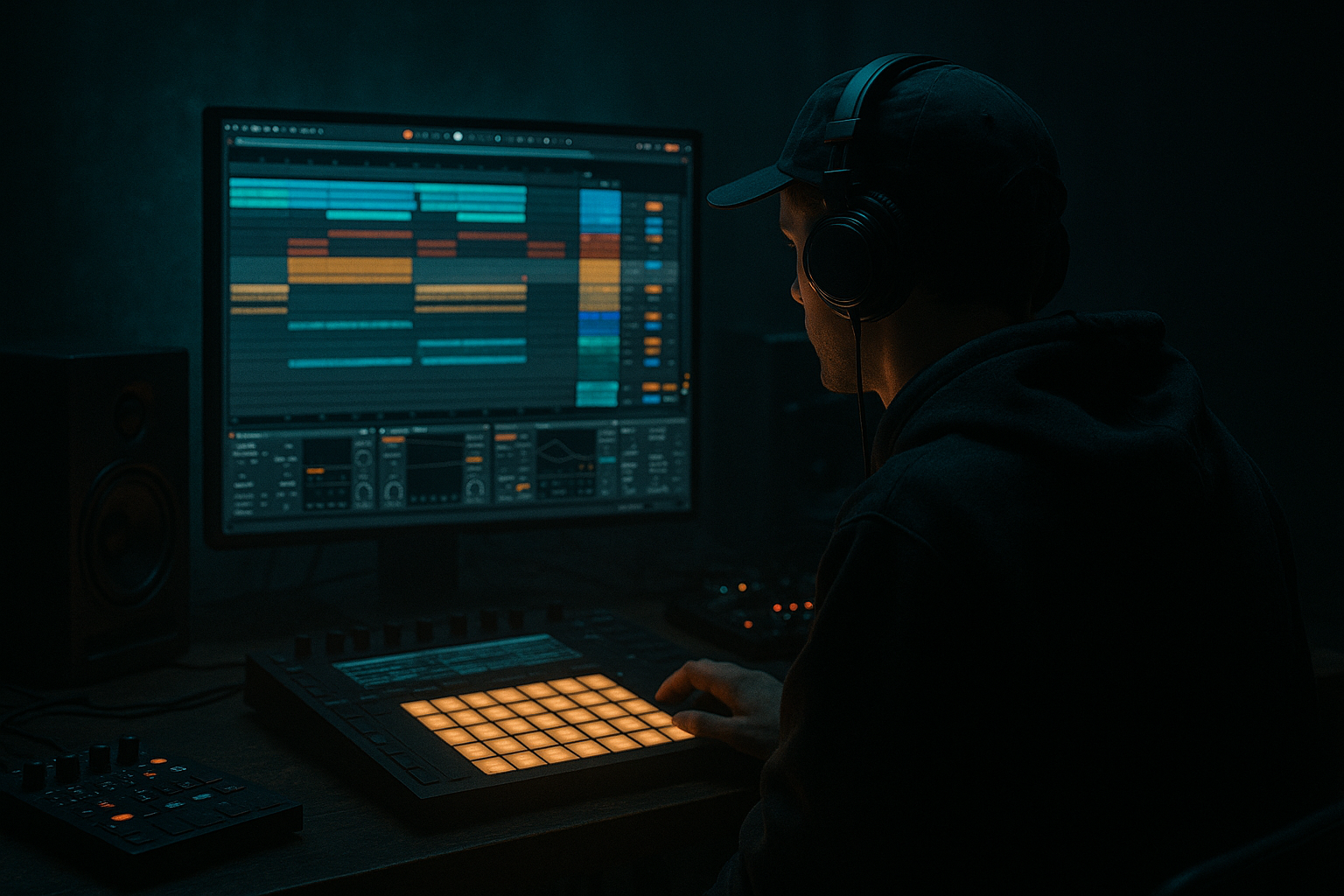
Main tutorial
Slice an Amen-style rewind moment with crisp transients and dusty mids in Ableton Live 12
1. Lesson overview
In this lesson, you’ll build a classic drum and bass / jungle rewind moment: that quick “pull-back, cut-up, slam back in” section you hear before a drop or after an 8/16-bar phrase. The goal is to make it feel DJ-authentic, with crisp transients, dusty mids, and enough controlled chaos to sound like it came off a dubplate, not a sterile loop pack. 🔥
We’ll work in Ableton Live 12, using stock devices and a practical arrangement workflow. You’ll learn how to:
- slice an Amen-style break
- design a rewind effect
- keep the drums punchy
- add dust, grit, and midrange texture
- arrange the moment so it lands like a proper DnB transition
- intro-to-drop transitions
- end-of-8/16-bar phrase resets
- live-set DJ tools
- jungle, rollers, neuro-jungle, and darkstep breakdowns
- a stuttered, sliced Amen break
- a reverse-style rewind pull
- a low-pass / tape-stop illusion
- a re-energized hit back into the groove
- optional vinyl dust / room grime / midrange crackle
- the break gets chopped into tiny segments
- the rhythm momentarily loses forward motion
- transients stay sharp enough to cut through
- mids feel worn, dusty, and a little broken-up
- the drop back in feels bigger because the rewind cleared the air
- Trim silence
- Remove excessive low-end rumble if it muddies the groove
- Keep the break dynamic; don’t squash it yet
- EQ Eight
- Drum Buss
- Saturator
- Glue Compressor or Compressor
- optional Vinyl Distortion for grime
- High-pass gently around 30–40 Hz
- Small cut around 250–400 Hz if boxy
- Slight boost around 3–6 kHz if you need snap
- Don’t over-brighten yet; we’ll shape the rewind separately
- snare hits
- kick-snare combinations
- fast hat tails
- little ghost-note fragments
- maybe a half-bar of the full break reversed or stuttered
- the main snare slices very obvious
- ghost slices quieter
- hat slices more filtered
- one or two “full impact” slices for the return
- Beat 1: strong snare slice
- Beat 1.3: short ghost slice
- Beat 2: kick/snare fragment
- Beat 2.3: reverse-ish or chopped hat slice
- Beat 3: heavier accent
- Beat 4: quick stutter into silence or a riser
- repeated slices
- short note lengths
- velocity changes
- small timing offsets
- momentary gaps
- Shorten notes so slices don’t ring too long
- Use velocity to create a “pull-back” feel:
- Nudge some notes slightly late for a sloppy dubplate feel, but keep the main downbeats tight
- Drive: 5–15%
- Crunch: subtle, 5–20%
- Transients: slightly up for snap
- Boom: usually off or very low for this type of moment unless you want extra sub-hit weight
- Dry/Wet: 30–70% depending on how aggressive the break is
- Soft Clip: On
- Drive: +2 to +6 dB
- Output: compensate to maintain level
- Try Analog Clip if you want a dirtier edge
- Gentle cut around 200–350 Hz if it gets cloudy
- Tiny boost around 4–7 kHz if the snare attack needs more bite
- High shelf only if needed; too much sheen can kill the dusty vibe
- Increase Attack
- Reduce Sustain slightly
- This is excellent for making chopped break transients pop without over-compressing
- High-pass at 150–250 Hz
- Low-pass at 8–10 kHz
- Optional small boost around 900 Hz–2 kHz for dusty nasal character
- Drive: 6–10 dB
- Soft Clip: On
- Bit Reduction: very subtle, 8–12 bits if you want grit without total destruction
- Downsample a little for texture, not lo-fi collapse
- Low-pass sweep down during the rewind
- Use a slightly resonant curve for movement
- Reduce width if the grime layer fights the main hit
- Keep the layer mono-ish for center punch
- often -12 to -20 dB under the main break
- just enough to thicken the mids and give the rewind a worn-in edge
- Start with filter open
- Sweep low-pass downward over 1/2 to 1 bar
- Add resonance carefully
- At the end of the rewind, snap it open or mute it before the drop returns
- Clip Transpose
- Warp position feel
- Simpler filter
- Auto Filter cutoff
- Reverb size / mix
- lower the filter cutoff
- add a touch more saturation
- briefly widen the tail with reverb
- then hard-cut into the drop
- Reverb
- EQ Eight
- Utility
- Decay: 0.3–0.8 s
- Pre-delay: 5–20 ms
- EQ the return to remove low-end clutter
- Echo
- EQ Eight
- Delay time: 1/8 or 1/16 dotted
- Feedback: low to moderate
- Filter the delay heavily so it stays ghostly
- Reverb
- Saturator
- Auto Filter
- End of 8 bars
- End of 16 bars
- Before the drop
- Before a bass switch
- At the end of a breakdown to reset tension
- Bar 1: main groove continues
- Bar 2 beat 3: start a small snare stutter
- Bar 2 beat 4: introduce rewind slices
- Last 1/4 bar: filter closes, grime layer rises
- Final hit: one strong snare or kick accent
- Next bar: full drop returns immediately
- clearly announce a transition
- not hog too much time
- leave enough space for the next section to hit hard
- feel usable in a mix or live set
- Ratio: 2:1 or 4:1
- Attack: 10–30 ms for transient punch
- Release: Auto or 0.1–0.3 s
- Aim for light gain reduction, around 1–3 dB
- Filter cutoff
- Dry/Wet on reverb
- Send levels
- Device drive
- Master or group utility gain
- Reverse tail volume
- Quick dip in volume before the rewind for “vacuum”
- Fast filter close over 1 bar
- Sudden cutoff to silence right before the drop
- One-frame-feeling pause if you want a dramatic DJ reset
- saturation
- subtle bit reduction
- room texture
- slight timing imperfections
- Corpus on a muted layer
- Erosion with subtle noise for metallic grit
- Drum Buss with Crunch on a parallel bus
- high-pass filtering
- utility on the bass bus
- a sub mute or dip during the rewind bar
- bass
- hats
- room return
- reverb tail
- change note order easily
- layer velocity
- swap slices quickly
- macro-morph the tone
- one clean and mix-friendly
- one dirty and aggressive for a dark roller switch-up
- slice the break into playable fragments
- emphasize crisp transients
- add a parallel dusty midrange layer
- automate filter and space for motion
- arrange the rewind as a purposeful transition, not just a fill
- finish with a strong return hit and a clear drop back in
- Simpler
- Drum Rack
- EQ Eight
- Drum Buss
- Saturator
- Auto Filter
- Glue Compressor
- Vinyl Distortion
- Redux
- Echo
- Reverb
- Utility
- Enveloper
This is especially useful for:
---
2. What you will build
By the end, you’ll have a 2-bar rewind scene that includes:
The sound target
Think:
---
3. Step-by-step walkthrough
Step 1: Choose and prep your Amen-style source
Start with an Amen break or an Amen-inspired breakbeat. If you have a clean break sample, great. If it’s already a little dirty, even better for this style.
In Ableton Live:
1. Drag the break into an Audio Track or Simpler.
2. Set the clip to Warp ON if needed.
3. For a break at a fixed tempo, try:
- Warp Mode: Beats
- Transient loop mode: Transients
- Preserve: 1/16 or 1/8 depending on how chopped it is
Clean up the source
Use Clip Gain or Utility before any heavy processing:
Suggested starting chain on the break track:
#### EQ Eight starting point:
---
Step 2: Slice the break into playable pieces
Now we make the rewind controllable.
Option A: Slice to New MIDI Track
1. Right-click the break audio clip.
2. Choose Slice to New MIDI Track.
3. In the dialog:
- Slicing preset: Built-in – Slicing
- Slice by: Transients or 1/16 for tighter control
This creates a Drum Rack with slices mapped to pads.
Option B: Use Simpler in Slice mode
If you want a more surgical workflow:
1. Load the break into Simpler.
2. Switch to Slice mode.
3. Set slicing to Transient.
4. Adjust slice sensitivity so you catch kicks, snares, ghost notes, and key hats.
What slices to focus on
For a rewind moment, you want:
Practical tip
Don’t slice everything equally. A strong rewind usually works better when you keep:
---
Step 3: Build the rewind rhythm
This is the heart of the trick.
A rewind moment usually works in 1 or 2 bars. Think of it as a quick interruption before the drop reloads.
Create a MIDI clip
In the Drum Rack lane, draw a 1-bar or 2-bar MIDI clip and place the slices in a descending or interrupted pattern.
A basic rewind phrase might look like:
Make it feel like a rewind, not just a fill
Use:
A rewind is often about losing momentum on purpose.
MIDI editing tips
- first hit louder
- following hits quieter
- last hit before the drop loud again
---
Step 4: Make the transients crisp
This is where the rewind stays punchy instead of mushy.
On the slice group / Drum Rack:
#### Device chain suggestion:
1. Drum Buss
2. Transient shaping via Envelope / macro-like control
3. Saturator
4. EQ Eight
5. optional Glue Compressor
Drum Buss settings to try:
Saturator settings:
EQ Eight for transient clarity:
If slices need more crack
Use Enveloper on the drum rack chain:
---
Step 5: Add dusty mids without losing definition
The “dusty mids” part is what makes the rewind feel like it belongs in jungle history, not a polished pop transition.
Use a parallel grime layer
Duplicate the rewind break track and process the duplicate heavily.
#### Grime layer chain:
1. EQ Eight
2. Saturator
3. Redux
4. Auto Filter
5. Utility
Settings to try:
#### EQ Eight
#### Saturator
#### Redux
#### Auto Filter
#### Utility
Blend it in
Keep the grime layer quiet:
---
Step 6: Create the rewind motion
A good rewind needs motion, not just chop.
Method 1: Filter pull-back
Automate Auto Filter on the break bus:
Method 2: Reverse-style energy pull
Duplicate a key slice or short break segment, then:
1. Consolidate it if needed
2. Reverse the clip
3. Place it leading into the rewind point
This can create a great “whoosh backwards” feeling. Use it sparingly so it doesn’t sound too EDM.
Method 3: Rewind tape-stop illusion
You can fake a tape stop by automating:
A practical combo:
---
Step 7: Use Send effects for space and impact
A rewind moment often sounds bigger if the tail opens up briefly before the drop slams back in.
Suggested return tracks:
#### Return A: Short Room
Settings:
#### Return B: Dub Delay
Settings:
#### Return C: Grime Wash
Use this very lightly. It can give the rewind a hazy, underground atmosphere.
---
Step 8: Arrange the rewind like a DJ tool
This is where the moment becomes functional.
Best placement options
Practical arrangement structure
Try this:
Good DJ tool behavior
Your rewind should:
---
Step 9: Glue it together with bus processing
If your rewind is on separate layers, route them to a group bus.
On the group:
1. EQ Eight
2. Glue Compressor
3. Saturator
4. optional Limiter
#### Glue Compressor:
This helps the slices move as one statement rather than a set of disconnected bits.
---
Step 10: Final polish with automation
Automation is what makes the rewind feel alive.
Automate:
Good automation curve ideas
Important
Don’t over-automate every parameter. Pick 2–4 main moves and make them intentional.
---
4. Common mistakes
1. Making it too clean
If everything is pristine, the rewind won’t feel like jungle or DnB history. Add:
2. Blurring the transients
Too much reverb, too much low-mid buildup, or over-compression will kill the punch. Keep the attack clear.
3. Using too many slices
A rewind works best when the listener can follow the motion. Too many fragments become random noise.
4. Forgetting the return hit
The rewind is only half the effect. You need a strong re-entry: a snare, kick, bass hit, or full drop cue.
5. Overdoing the tape-stop feel
If everything slows down too much, it can sound generic. In DnB, the best rewinds are often sharp, snappy, and ruthless.
6. Leaving muddy lows in the grime layer
If your dusty layer still has sub or low kick energy, it will blur the drop. High-pass it aggressively.
---
5. Pro tips for darker/heavier DnB
Tip 1: Make the rewind feel “industrial”
Try adding:
This works well for dark rollers and neuro-jungle intros.
Tip 2: Keep the sub out of the rewind
Usually, the rewind should clear the low end so the return drop feels huge. Use:
Tip 3: Use snare emphasis
A classic DnB rewind often leans on the snare because it cuts through systems beautifully. Layer a dry snare or rim shot under the last rewind hit.
Tip 4: Add a tiny pre-drop vacuum
Cut a little bit of:
right before the rewind ends. That tiny emptiness makes the drop more violent. 😈
Tip 5: Resample your own rewind
Once your rewrite moment works, resample it to audio and chop the printed version. Often the printed audio sounds tighter and more “record-like” than the live device chain.
Tip 6: Use simpler, not just audio clips
Simpler’s Slice mode can be faster for live-style variation because you can:
---
6. Mini practice exercise
Exercise: Build a 2-bar rewind into a drop
#### Goal
Create a rewind that transitions from a rolling break section into a heavier drop.
#### Steps
1. Load an Amen-style break into Simpler Slice or Drum Rack.
2. Make a 1-bar MIDI clip with 4–8 sliced hits.
3. Duplicate the clip and create a variation:
- bar 1: mostly clean break fragments
- bar 2: more chopped, with a descending feel
4. Add a parallel grime layer with:
- EQ Eight high-pass
- Saturator
- Redux
5. Automate Auto Filter cutoff downward over the second bar.
6. Add a final strong snare or kick hit on the last 1/8 note.
7. Cut the rewind hard, then bring in the drop with full drums and bass.
#### Challenge version
Do the same but make two versions:
Listen back and compare which one feels more like a proper DJ tool.
---
7. Recap
You’ve now got a practical workflow for building an Amen-style rewind moment in Ableton Live 12 that suits drum and bass, jungle, and rolling bass music.
The key ingredients:
Stock Ableton devices that shine here:
If you want, I can also turn this into a sample-by-sample Ableton project template or a MIDI grid example for the rewind pattern.

