Main tutorial
1. Lesson Overview
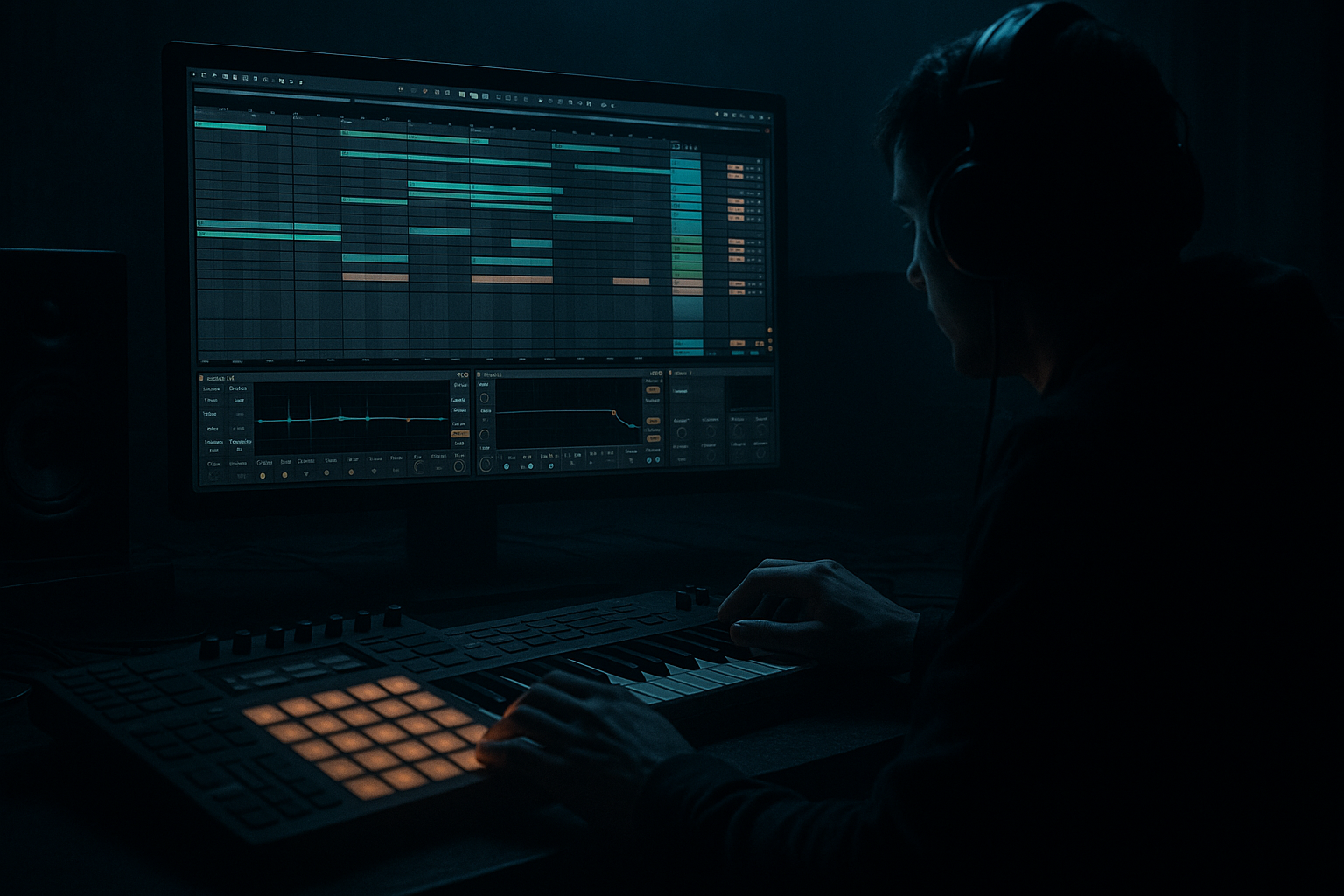
This advanced FX lesson shows you how to slice a Photek talking bass in Ableton Live 12 with DJ-friendly structure. You'll take a classic “talking” bass sample, slice it into playable chunks, build expressive playback options using Live stock devices (Simpler/Sampler, Drum Rack, EQ Eight, Auto Filter, Utility, Saturator, Compressor), and organize clips/scenes so the result is immediate and flexible for live DJ sets and mixing. The emphasis is on preserving the bass character and formants while giving you one-shot pads, performance chops, filtered/stem variations, and cue-ready clips.
2. What You Will Build
- A Drum Rack (or Sampler-based instrument) containing all useful slices of a Photek talking bass.
- A set of ready-to-launch clips/scenes laid out as DJ-friendly elements: intro/filter loop, full loop, chopped fills, dry slices for finger drumming, and pre-rendered stems (dry, filtered, distorted).
- Performance macros (chain macros/return sends) for real-time filtering, grit, sub-control and cueing.
- Follow Actions and clip-loop setups to auto-generate on-the-fly variations while DJing.
- Slicing without consolidating: If you skip consolidating a warped edit, slices will move or rewarp unpredictably.
- Using Warp’s Beats mode for vocal-like bass: Beats/grain warp smears formants — use Complex Pro or avoid warp for one-shots.
- Too many tiny slices: Over-slicing destroys the phrasing and makes performance messy. Aim for musical slice points (syllables) and a few extra grains for variation.
- Ignoring low-end phase: Sliced playback with stereo processing can widen low frequencies and cause phase issues; keep sub mono.
- Mapping everything to Simpler without considering Sampler: Simpler is fine, but Sampler gives better loop editing, pitch envelope and zone control for advanced tweaking.
- No separate resampled stems: Relying only on CPU-heavy racks in a DJ set can crash. Always prepare audio stems.
- Use Sampler when you need to time-stretch individual slices without losing formants (Sampler has more detailed loop and filter options than Simpler).
- Save a Drum Rack preset with macros mapped (Filter, Sub, Drive, Width) so you can load your Photek talking bass instrument in other sets.
- Create two Drum Rack layers: one totally dry (preserve original timbre) and one heavily processed; map a macro to crossfade between them for instant texture changes.
- For live “talking” emphasis, automate a short band-pass via EQ Eight on a Macro to accentuate formant frequencies (approx 900–1500 Hz) during fills.
- Use Follow Actions set to “Previous” + “Random” to create human-feel chops while playing.
- For DJ transitions, pre-render a “tail” (6–12s) of the filtered bass with reverb and delay send on a separate return channel so you can throw out a washed outro while mixing.
- You’ve learned to slice a Photek talking bass in Ableton Live 12 using “Slice to New MIDI Track” (Transient + Drum Rack/Simpler) while preserving formants via Complex Pro warp and per-slice warp settings.
- You built DJ-friendly structure: intro filtered loop, full loop, chopped fills, dry slices and resampled stems, and mapped performance macros for Filter, Drive, Sub and Width.
- You implemented Follow Actions, resampling, cueing/output routing and common mix-polish (EQ, compression, mono sub) to make the instrument reliable and performant in a DJ set.
3. Step-by-Step Walkthrough
Prereqs: open Ableton Live 12, import your Photek talking bass audio clip into an audio track. Recommended tempo: set your Live set to the target DnB tempo (e.g., 174 BPM). Make a duplicate of the original audio and keep a clean backup.
A. Prep and Warp (preserve formants & timing)
1. Drop the original sample into an audio track. Double-click to view the Clip View.
2. Turn Warp on. Choose Warp Mode = Complex Pro to best preserve vocal-like formants when changing tempo. Set Transients sensitivity so the waveform’s natural phrase starts align with bar grid.
3. If the sample isn’t starting at 1.1.1, set a 1.1.1 warp marker or move the clip start marker. Consolidate (Cmd/Ctrl-J) to create a clean clip with correct start/length.
B. Slice to new MIDI track (the core)
4. Right-click the consolidated clip -> Slice to New MIDI Track.
- Slicing Preset: choose “Transient” for phrase-based chopping or “1/16 (Beat)” if you want evenly spaced grains. For a talking bass with phrased syllables, use Transient.
- Use: Drum Rack with Simpler for low-latency hands-on triggering. (If you want deeper sample control, choose Sampler.)
5. Ableton creates a Drum Rack where each pad contains a Simpler set to “Slice” playback. Rename the Drum Rack pad names to reflect the slice character (e.g., “Lead”, “Ooh-1”, “Sub-hit”, “Sizzle”).
C. Clean and tune the slices
6. Open each Simpler and:
- Turn off Warp in Simpler slices that are one-shots (to avoid formant smearing). If the slice needs pitch-change, use Simpler’s Transpose + Detune rather than Warp.
- Set Simpler mode: Slice mode is fine for basic triggering; for per-slice looped variants switch to Classic/One-Shot for ADSR control.
- Adjust each slice’s Start Marker to remove click pops (nudge by a few ms) and set a short Attack (1–12 ms).
- For sub/low slices, reduce high-frequency content: add a Macro or an EQ Eight after the Drum Rack to carve highs on a per-pad chain.
D. Grouping and macros for DJ performance
7. Group your Drum Rack track: Cmd/Ctrl-G => a Group track named “Photek Talking Bass – Slices”.
8. Add devices on the Group track (these affect all slices and become your DJ macros):
- EQ Eight (pre): low-shelf cut/boost for sub control; set a macro to toggle sub boost (-6 dB to +3 dB).
- Auto Filter (serial after EQ): set Range to 24 dB, select Low Pass, Sync the LFO optionally. Map Cutoff to Macro 1 (filter throw), Resonance to Macro 2 (boost formant).
- Saturator: for grit. Map Drive to Macro 3.
- Utility: map Width and Gain to Macro 4 (width to collapse to mono for clean club bass).
9. Create a Chain for a filtered/sidechain-ready subchain if desired: Duplicate Drum Rack chains and use simpler per-chain EQs to give “dry sub” vs “textured top” chains, then map chain volumes to macros for quick DJ-friendly stem control.
E. Build DJ-friendly clips and scenes
10. Create clips in Session View on the Drum Rack track:
- Scene 1 (Intro Filtered): 8-bar loop, set Clip Envelope for Filter Cutoff to start closed and open gradually. Use 'Loop Brace' covering the phrase you want.
- Scene 2 (Full Loop): 8 or 16-bar loop of the full talking bass phrase, normal macro positions.
- Scene 3 (Chopped Fills): Create a clip with a short (1-2 bar) loop and program MIDI hitting different slice pads; compress and add transient shaping in the drum rack chain.
- Scene 4 (Dry Slices): 2-bar clips with single slices set to one-shot, useful for finger drumming.
- Scene 5 (Stem Variants): Drop in resampled versions (Audio Clips) of the talking bass processed — Dry, Filtered, Distorted. You’ll resample below.
11. Use Clip Launch settings:
- Set Launch Mode = Gate or Trigger depending on preference.
- Quantization to 1 Bar or 1/4 for DJ-safe launch; for micro-editing set Legato off and quantize to None for immediate play (depends on your controller skill).
12. Follow Actions for automated variation:
- On the Chopped Fills clip, set Follow Action to “Next” with 1/4 or 1/8 bar chance and a probability to create rolling chops. Use “Legato” for smooth transitions.
13. Cueing and Outputs:
- In Preferences -> Audio -> set Cue Out to your DJ headphone output. Use Live’s PFL (Solo/Cue) button on the track to pre-listen slices to headphones.
- Alternatively, route stems to separate outputs (I/O) for a multichannel DJ mixer.
F. Resample stems for reliable DJ use
14. Create an Audio Track named “Resample – Talking Bass”.
15. For each stem variant:
- Solo the variant chain (dry, filtered, distorted).
- Arm the resample track and record the loop for 8–16 bars. Flatten or consolidate the recorded audio clip.
- This gives you clip-based DJ-friendly audio versions that won’t rely on device CPU and that you can drag/transfer to external deck software if needed.
G. Polish: Dynamics, sub control & intelligibility
16. Place Multiband Dynamics or Glue Compressor on the Group to glue slices together. Use sidechain from the kick if mixing live with a beat.
17. Add EQ Eight after Multiband: carve a narrow notch where frequencies clash with kick (typically 60–90 Hz).
18. Use Utility to set Width=0 (mono) below 120 Hz: this can be achieved by an EQ on a duplicate low chain with Utility Width mapped if you want dynamic mono-ing.
4. Common Mistakes
5. Pro Tips
6. Mini Practice Exercise
Goal: Create a set of 4 Session clips for immediate DJ use.
Steps:
1. Take your Photek talking bass sample, Warp with Complex Pro, Consolidate to 8 bars.
2. Slice to New MIDI Track -> Transient -> Drum Rack with Simpler.
3. Tidy the 8 most important slices: set Attacks (2–8 ms), turn Warp off on one-shots, tune sub slice with Transpose +/- semitones so it keys with your track.
4. Group the Drum Rack; add Auto Filter mapped to Macro 1, Saturator to Macro 2, Utility Width to Macro 3.
5. Create 4 clips (8-bar):
- Clip A: Intro Filtered (Auto Filter cutoff automated closed->open)
- Clip B: Full Loop (no processing, clip launch quantize=1 bar)
- Clip C: Chopped Fill (MIDI pattern hitting different slices, Follow Action = Next, 1/4)
- Clip D: Resampled Distorted (record a resample of the saturated chain)
6. Practice launching A -> B -> C -> D with Cueing (PFL) and using Macros to open filter and push Saturator live.
Expected result: You should have 4 clean, launchable clips that preserve the talking character, plus macros for live manipulation.
7. Recap
Now try the Mini Practice Exercise with a raw Photek talking bass sample and create a 8-bar performance scene pack you can use in your next DJ mix.

