Main tutorial
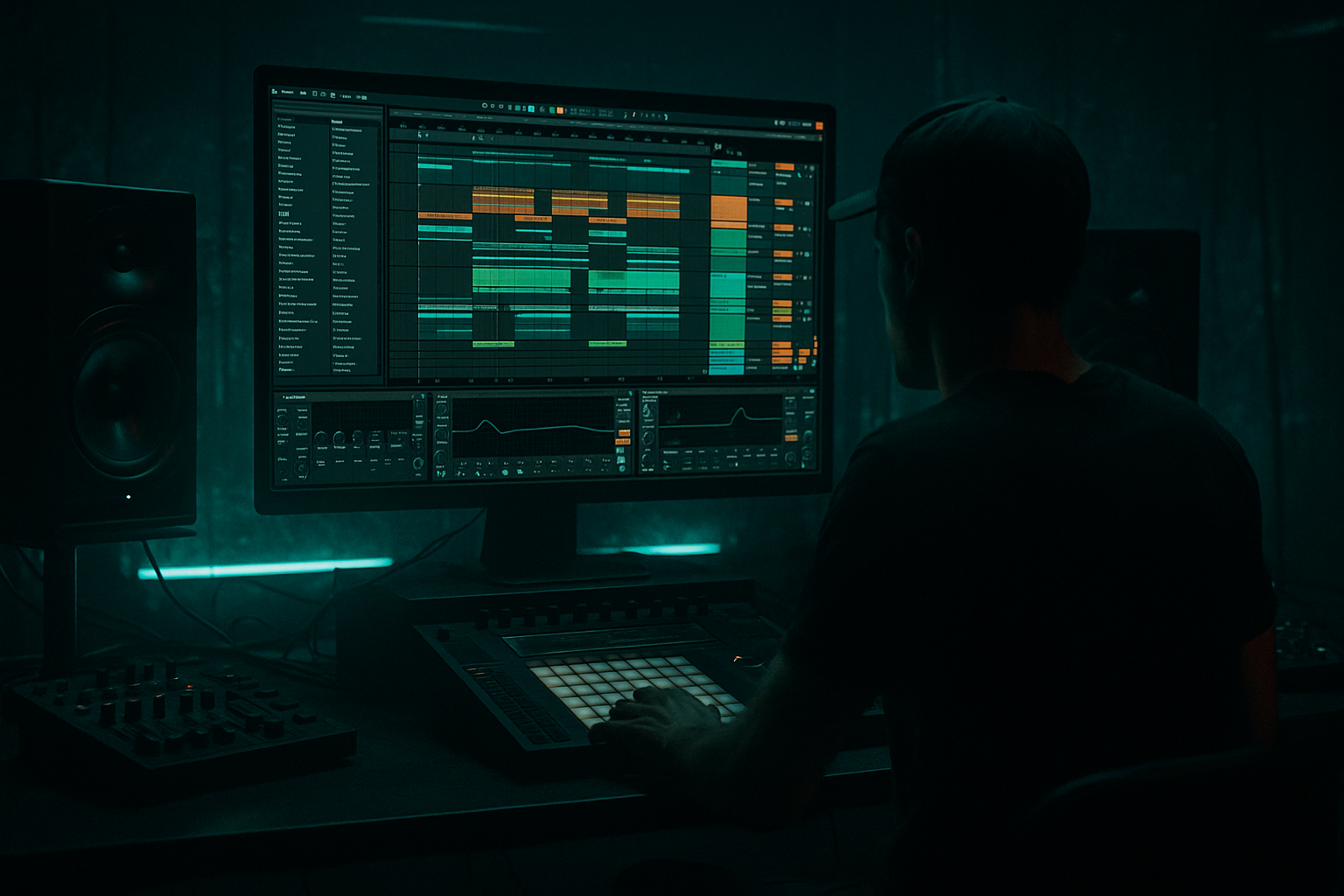
Pulling Oldskool DnB Chop from Session View into Arrangement View in Ableton Live 12
1. Lesson overview
Oldskool drum and bass chops are all about energy, variation, and controlled chaos. In Live 12, the fastest way to build that vibe is often:
1. Sketch loops in Session View
2. Jam and mutate them live
3. Record the best moments into Arrangement View
4. Refine the edit into a proper DnB tune structure
This workflow is perfect for jungle, oldskool rollers, break-led techstep, and anything that needs that cut-up, human, imperfect feel ⚡
In this lesson, you’ll learn how to:
- Build a Session View performance from breaks, bass, and atmospheres
- Trigger and mangle clips in a musically useful way
- Record your performance into Arrangement View
- Tighten the result into a structured DnB arrangement
- Keep the groove aggressive without losing clarity
- One main break loop chopped and reassembled
- One ghost-layer break for texture and swing
- A reese or sub-bass layer
- Atmospheric pads / FX
- Arrangement moments like:
- Tempo: 172–174 BPM for classic oldskool / jungle energy
- Time signature: 4/4
- Warp: On for audio clips you want to stretch and slice
- Global Quantization: set to 1 Bar to begin with
- Metronome: on while building
- Groove Pool: keep ready for later if you want MPC-style swing
- Amen
- Think
- Apache
- Funky Drummer
- A raw break sample from a break pack
- Warp On
- Warp mode: Beats
- Preserve: 1/16 or 1/8
- Transients: Transients
- Envelope: keep it fairly tight
- If the break feels too smudged, reduce warp markers and let some natural movement remain
- EQ Eight
- Drum Buss
- Saturator
- Glue Compressor
- Clip A: straight main loop
- Clip B: ghost-note variation
- Clip C: fill with extra snare hits
- Clip D: stripped-down loop for breakdowns
- Bass A: main riff
- Bass B: busier response pattern
- Bass C: low-register stab variation
- Bass D: muted or filtered version for intro/build
- Reverse hit
- Downlifter
- Impact
- Noise rise
- Quantization: 1 Bar for most clips
- Legato: use for clips that should retain musical timing
- Follow Actions: useful for evolving hats, fills, and atmospheres
- Loop On: for main drum and bass loops
- Main break loop launches every 1 bar
- Fill clip is triggered manually right before a turnaround
- Bass variation is launched on bar 8 or 16
- FX hit lands on the first beat of a new section
- Bars 1–4: atmosphere + filtered break intro
- Bars 5–8: main break enters, bass filtered or absent
- Bars 9–12: bass full weight, add top percussion
- Bars 13–16: fill, stop, or drum switch for tension
- Launching clips manually
- Triggering fills with one-shots
- Using mute/unmute for strips
- Automating filter movements in real time if needed
- clip launch buttons
- track mute
- macro controls
- scene launch
- Record on a fresh pass
- Use Capture MIDI if you jammed a MIDI bassline and forgot to record
- Re-record sections if the timing feels off
- Consolidate obvious sections
- Trim silent gaps
- Check clip boundaries
- Make sure transitions land on bar lines
- Remove accidental triggers
- Intro – 16 bars
- Build – 8 bars
- Drop 1 – 32 bars
- Breakdown – 16 bars
- Drop 2 – 32 bars
- Outro – 16 bars
- 16 bar intro
- 32 bar main body
- 8 bar switch
- 32 bar second body
- 16 bar outro
- Duplicate sections for consistency
- Remove kick or bass for 1–2 beats before a drop
- Insert a snare fill on bar 8 or 16
- Use a half-bar drop-out for tension
- Add a ghost break under the main break in breakdowns
- Auto Filter cutoff
- Reverb send amount
- Delay throw on snare or vocal chop
- Bass distortion on drop sections
- Drum Buss drive for lift in the second drop
- Auto Filter for build tension
- Echo for dubby drum throws and tail-outs
- Reverb on atmospheric elements
- Utility for mono-ing sub and gain staging
- Redux or Saturator for grit
- Drum Buss for punch and density
- Cut the drums for 1 bar before the drop, then slam back in
- Bring in a filtered break and gradually open the top end
- Use a bass call-and-response every 4 bars
- Replace the main break with a fill variation every 8 or 16 bars
- Automate the sub out in the breakdown so the drop feels huge
- If the break is too rigid, nudge slices slightly for feel
- Keep the snare confident and forward
- Allow ghost hits to stay a touch loose
- Don’t over-quantize every micro-hit
- Keep sub mono
- Leave room for the kick and snare
- Use sidechain subtly if needed
- Avoid over-layering the low end with too many sources
- EQ Eight
- Saturator
- Utility
- Compressor
- Does the track evolve every 8 or 16 bars?
- Do the drums breathe?
- Is there a clear drop impact?
- Are the bass changes musical, not random?
- Does the arrangement give a DJ something useful to mix?
- 1-bar silence before impact
- filtered drums in the intro
- sparse atmospheres before full-weight sections
- one track clean-ish
- one track saturated and crushed
- blend to taste
- EQ Eight
- Drum Buss
- Saturator
- Glue Compressor
- dense 2-bar phrase
- sparse answer phrase
- filter cutoff
- reverb send
- distortion amount
- clip gain
- return sends
- one chopped break track
- one bass track
- one atmosphere track
- one FX track
- main
- variation
- breakdown version
- bars 1–8: intro
- bars 9–16: first drop
- bars 17–24: variation
- bars 25–32: breakdown / turnaround
- tighten clip boundaries
- add one fill
- mute bass for 1 bar before the switch
- automate a filter opening into the drop
- groove
- impact
- variation
- low-end clarity
- Build strong loops and variations in Session View
- Perform the arrangement musically
- Record the clip launches into Arrangement View
- Edit the timeline into clear DnB sections
- Use automation and contrast to create energy
- Simpler
- Drum Rack
- Auto Filter
- EQ Eight
- Drum Buss
- Saturator
- Glue Compressor
- Echo
- Utility
- Reverb
---
2. What you will build
You’ll create a short oldskool-inspired DnB arrangement at 172–174 BPM with:
- intro with tension
- beat drop
- break switch
- bass variation
- fill and turnaround
The goal is not just to “copy a loop into Arrangement View” — it’s to perform the arrangement from Session View, then shape the best bits into a full track structure.
---
3. Step-by-step walkthrough
Step 1: Set up your project for DnB arrangement
Start clean and deliberate.
#### Project settings
#### Track layout suggestion
Create these tracks in Session View:
1. DRUMS MAIN – chopped break
2. DRUMS TOPS – hats, rides, perc
3. BASS – reese / sub / stab bass
4. ATMOS – pads, vinyl noise, film textures
5. FX – risers, impacts, reverses
6. VOCAL/CHOP – optional vocal hits or ragga snippets
This keeps your arrangement readable when you move to Arrangement View.
---
Step 2: Build a strong oldskool break in Session View
The heart of the lesson is the break chop.
#### Choose your source
Use one of:
Drag the break into an audio clip slot.
#### Warp settings
For oldskool DnB, don’t over-process the break into sterility.
Try:
#### Chop the break
There are two main ways:
##### Option A: Simpler slicing
1. Drag the break into a Simpler
2. Set mode to Slice
3. Slice by Transient
4. Map to MIDI
5. Play a chopped pattern from a drum rack or MIDI clip
This is excellent for controlled oldskool edits.
##### Option B: Manual clip chopping
1. Keep the break as audio
2. Duplicate the clip into several slots
3. Use clip start markers, warp markers, and clip envelopes to create:
- snare-only slices
- kick-snare patterns
- fill fragments
- reversed micro-chops
This approach is more hands-on and good if you want a ragged jungle feel.
#### Useful chain on the break track
A practical stock device chain:
- High-pass around 30–40 Hz if the break has rumble you don’t need
- Slight cut around 250–400 Hz if boxy
- Tiny boost around 6–10 kHz for snap if needed
- Drive lightly for punch
- Boom only if you want more low-end body
- Soft Clip on
- Drive very lightly to thicken the break
- Gentle glue, not smash
- Aim for 1–2 dB gain reduction
Don’t flatten the break too much. Oldskool DnB thrives on transients and grit.
---
Step 3: Create variation clips for performance
Session View shines when you create multiple versions of the same idea.
On your DRUMS MAIN track, make at least 4 clips:
On your BASS track, create:
On your FX track:
#### Why this matters
When you record into Arrangement View, these clip changes become the basis of your structure. You’re not arranging after the fact — you’re performing the arrangement.
---
Step 4: Use clip launch settings to get musical movement
In Session View, set launch behavior so the switches feel intentional.
#### Suggested launch settings
For DnB, the biggest mistake is letting clip transitions feel random. Keep the bar grid strong.
#### Example clip strategy
This keeps the groove tight and dancefloor-functional.
---
Step 5: Build the performance in Session View first
Now jam your section.
#### A practical 16-bar performance map
Perform this by:
If you have a controller, map:
This is where the track starts to feel alive.
---
Step 6: Record Session View into Arrangement View
Now capture the performance.
#### Recording method
1. Switch to Arrangement View
2. Enable Arrangement Record
3. Hit play and perform your Session View clips
4. Ableton writes your clip launches and mute actions into the timeline
You can also:
#### Important tip
Don’t try to make the first take perfect.
You want a good musical skeleton that you can clean up later.
---
Step 7: Clean up the arrangement after recording
After recording, the Arrangement View may look messy. That’s normal.
#### First pass cleanup
#### DnB arrangement structure suggestion
A classic structure might look like:
Or for more underground, DJ-friendly material:
#### Arrangement editing in DnB
Use these techniques:
---
Step 8: Turn the recorded performance into a proper DnB structure
This is where the “Session jam” becomes a “finished tune.”
#### Use arrangement automation
Common automation targets:
#### Stock device suggestions
#### Arrangement ideas rooted in DnB
---
Step 9: Tighten the groove and low end
Oldskool DnB lives or dies on pocket and low-end discipline.
#### Drum timing
#### Bass discipline
For bass:
#### Useful utility chain on bass
- cut mud around 200–400 Hz if necessary
- add harmonics for audibility on smaller systems
- mono below the crossover if using multiband processing elsewhere
- sidechain from kick/snare if the groove needs breathing room
---
Step 10: Final pass — make it feel like a tune, not a loop
Ask yourself:
A strong oldskool DnB arrangement often feels like one loop that keeps mutating just enough to stay dangerous 😈
---
4. Common mistakes
1. Over-quantizing the break
Oldskool breaks need movement. If every hit is locked perfectly, the groove can lose its swagger.
2. Making the Session View performance too busy
Too many clips = confusion.
Keep the number of performance choices manageable.
3. Forgetting to record automation
A lot of the vibe comes from filter sweeps, mutes, and FX moves. If you don’t record them, the arrangement may feel flat.
4. Using too much low-end in multiple layers
If your break, bass, and FX all compete in the sub region, the drop will feel muddy.
5. Copying the same 4-bar loop for the whole tune
DnB needs variation. Even a simple roller should evolve every 8 or 16 bars.
6. Making fills too obvious
A fill should feel like part of the groove, not a separate drum solo.
---
5. Pro tips for darker/heavier DnB
Use contrast, not just aggression
Dark DnB hits harder when the arrangement gives the drop room to breathe.
Try:
Process breaks in parallel
Duplicate the break:
Stock chain example:
Create “push-pull” in the bassline
Instead of constant movement, alternate:
This is especially effective in dark rolling DnB and techstep-inspired material.
Use Automation Lanes aggressively
Automate:
A heavy track often feels heavy because it moves in and out of density.
Use short FX throws
A snare delay throw or reverse tail into a drop can make the arrangement feel expensive without cluttering it.
---
6. Mini practice exercise
Exercise: build a 32-bar oldskool DnB performance and arrange it
#### Step 1
Set tempo to 173 BPM.
#### Step 2
Create:
#### Step 3
Make 3 clips per track:
#### Step 4
Perform a 32-bar jam in Session View:
#### Step 5
Record the performance into Arrangement View.
#### Step 6
Edit the result:
#### Step 7
Export a rough bounce and listen for:
If it still feels too loop-like, add one more drum edit every 8 bars.
---
7. Recap
Pulling oldskool DnB from Session View into Arrangement View is about turning a live chop performance into a controlled, dancefloor-ready structure.
The key workflow:
Best stock tools in Ableton Live 12:
If you want oldskool chop with real momentum, think like a drummer, a DJ, and an editor all at once. Build the loop, perform the tune, then sculpt the arrangement until it hits like a proper jungle weapon 💥

