DNB COLLEGE

Drum & Bass Ableton Live 12 Tutorials

LESSON DETAIL

Percussion layer in Ableton Live 12: resample it using Session View to Arrangement View for jungle oldskool DnB vibes (Intermediate)

An AI-generated intermediate Ableton lesson focused on Percussion layer in Ableton Live 12: resample it using Session View to Arrangement View for jungle oldskool DnB vibes in the Edits area of drum and bass production.

Back to lessons
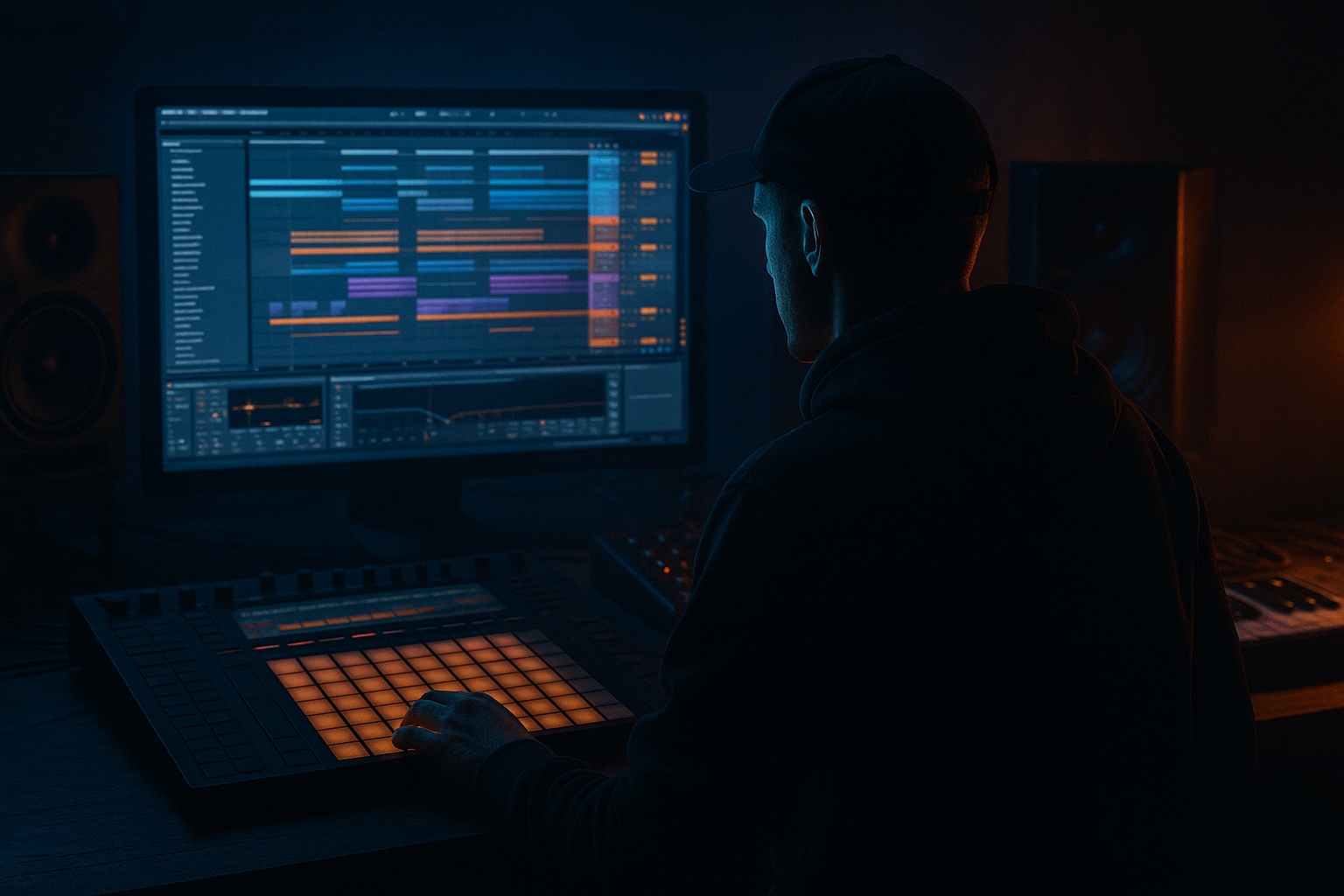
Percussion layer in Ableton Live 12: resample it using Session View to Arrangement View for jungle oldskool DnB vibes (Intermediate) cover image

Narrated lesson audio

The voice track includes the tutorial plus extra teacher commentary.

Open audio file

Main tutorial

Percussion Layer in Ableton Live 12: Resample from Session View → Arrangement (Oldskool Jungle / DnB) 🥁⚡

1. Lesson overview

In jungle and oldskool DnB, the percussion layer is where the groove gets its swagger—shakers, rides, congas, ghost hits, and noisy toppers that make the breakbeat feel alive.

In this lesson you’ll build a percussion layer in Session View, then resample it cleanly into Arrangement View so you can slice, re-edit, and “tape” it into your track like classic sampler workflows.

We’ll focus on:

  • A practical Session View performance workflow
  • Resampling methods (fast + flexible)
  • Editing for jungle bounce (gaps, fills, swing, stutters)
  • Stock Ableton devices that nail that gritty, rolling vibe
  • ---

    2. What you will build

    By the end, you’ll have:

  • A dedicated Percussion Bus (multiple layers: hats/shakers/rides/percs)
  • A resampled audio loop printed from Session View into Arrangement
  • A set of edit-ready audio clips you can chop, reverse, gate, and rearrange for that oldskool jungle energy 🎚️
  • ---

    3. Step-by-step walkthrough

    Step 0 — Set the project up for jungle/DnB editing

    1. Tempo: set 165–174 BPM (try 170 BPM for classic jungle feel).

    2. Global Quantization: set to 1 Bar (top middle of Live).

    - For faster performance-style capturing later, you can temporarily switch to 1/4 or None, but start at 1 Bar.

    ---

    Step 1 — Build a Percussion Group (Session View)

    Create a tight “top layer” that complements your main break (Amen/Think/etc.).

    1. Create 3–5 MIDI tracks (or audio tracks if using one-shots as audio):

    - `HATS (Closed hats / 16ths)`

    - `SHAKER (8ths / swung)`

    - `RIDE/OPEN HAT (offbeat / occasional)`

    - `PERC (conga, rim, foley)`

    - Optional: `NOISE TOP (vinyl/noise ticks)`

    2. Load Drum Rack on each MIDI track (or one Drum Rack with multiple pads—your choice).

    - If you want classic “sampler” behavior, use Simpler on pads (one-shot mode).

    3. Program patterns (DnB-minded):

    - Closed hat: 16th notes, then delete a few hits to create breath.

    - Shaker: 8th notes, add swing (later).

    - Perc hits: place 1–3 per bar, not constant—think call-and-response with the break.

    - Ride/open hat: sparse, often bar 2 or bar 4 to lift energy.

    Quick pattern idea (1 bar at 170 BPM):

  • Closed hats: steady 16ths, remove steps 1.3.3 and 1.4.4 (example) to create a lilt.
  • Shaker: on 1.2, 1.3, 1.4, 2.1 style placements (depending on grid).
  • Perc: small rim on the “and” after 2, conga on 4.
  • ---

    Step 2 — Groove it: Swing + micro-timing (without wrecking punch)

    Old jungle is rarely perfectly robotic.

    1. Open Groove Pool (hotkey: `Ctrl/Cmd + Alt + G`).

    2. Drag in a groove:

    - Try Swing 16-65 or Swing 16-58 as a starting point.

    3. Apply groove to shaker + hats (not your kick/snare if you want them locked).

    4. Groove settings:

    - Timing: 10–25%

    - Velocity: 5–15% (subtle)

    - Random: 2–6% (tiny humanization)

    Pro workflow: Keep kick/snare tight; let tops breathe.

    ---

    Step 3 — Create a Percussion Bus with a stock device chain

    Route all percussion to a single bus so you can “print” it like a classic hardware mix.

    1. Select your percussion tracks → `Ctrl/Cmd + G` to Group them.

    2. Name it: PERC BUS.

    Suggested PERC BUS device chain (stock):

    1. EQ Eight

    - HP filter: 150–250 Hz (24 dB/Oct)

    - Optional: small dip 3–5 kHz if harsh, small boost 8–12 kHz for air (careful).

    2. Drum Buss

    - Drive: 5–15%

    - Crunch: 0–10

    - Boom: Off (usually don’t want low end here)

    - Damp: to taste if brittle

    3. Saturator

    - Mode: Analog Clip

    - Drive: 1–4 dB

    - Soft Clip: On

    4. Glue Compressor

    - Attack: 3 ms

    - Release: Auto (or 0.3s)

    - Ratio: 2:1

    - Aim for 1–3 dB gain reduction on peaks

    5. Optional Auto Filter (for movement)

    - 12 dB LP

    - Envelope: small amount, or automate cutoff for transitions

    This chain gives you that “printed” cohesion—like bouncing tops through a cheap mixer/tape vibe 🔥

    ---

    Step 4 — Prepare Session View for resampling

    You want to perform/launch clips, then capture the output into Arrangement as audio.

    Option A (Fast + clean): Resample onto a new audio track

    1. Create a new Audio Track named: `PERC PRINT`.

    2. In the Input Type chooser of that track, select:

    - Resampling

    This records the master output (post-master).

    ⚠️ If you have heavy master processing, this will print that too.

    Option B (More controlled): Record just the PERC BUS

    This is usually best for DnB mixing flexibility.

    1. Create a new Audio Track named: `PERC PRINT`.

    2. Set Audio From to: `PERC BUS`.

    3. Set monitoring:

    - Monitor: Off (avoids doubling/feedback)

    4. On the `PERC BUS` group:

    - Set Output to Master as usual (or route to a dedicated bus).

    Why Option B rocks: You can print tops without printing your limiter/master chain.

    ---

    Step 5 — Record Session View performance into Arrangement View

    Now we “commit” the vibe like an old sampler bounce.

    1. Hit Tab to go to Arrangement View.

    2. Arm the `PERC PRINT` track.

    3. At the top, click the Arrangement Record button (big circle).

    4. Go back to Session View (Tab) and launch your percussion clips:

    - Try launching variations every 4 or 8 bars:

    - `HATS A` → `HATS B` (more gaps)

    - `SHAKER A` → `SHAKER B` (more swing)

    - `PERC Fill` on bar 8

    5. Record for 32–64 bars so you have lots of material.

    Stop recording. You should now have a long audio recording in Arrangement on `PERC PRINT`.

    ---

    Step 6 — Turn that recording into editable jungle audio

    Here’s where oldskool edits happen.

    1. Consolidate clean loops

    - Select a tight 8 or 16 bar region → `Ctrl/Cmd + J` (Consolidate).

    2. Warp settings (important!)

    - Click the consolidated clip → Clip View:

    - Warp: On

    - Mode: Beats

    - Preserve: Transients

    - Envelope: 0–20% (lower = tighter transients)

    3. Slice and rearrange

    - Duplicate the clip and create alt edits:

    - Remove the first 1/8 note of bar 1 (creates a little “suck-in”)

    - Reverse a tiny 1/16 hat at the end of bar 4

    - Create a 1-bar stutter (repeat a 1/4 or 1/8) into transitions

    4. Gate the tops for rhythmic pumping (classic jungle trick)

    - Add Gate on the printed audio:

    - Threshold: adjust so hats chop slightly

    - Return: short

    - Floor: -inf to -12 dB depending on taste

    - Or use Auto Pan (phase 0°, square wave) for rhythmic chopping:

    - Rate: 1/8 or 1/16

    - Shape: square-ish

    - Amount: 20–60%

    ---

    Step 7 — Make it sit with your breakbeat and bass

    Your printed tops should support the break, not fight it.

    1. On `PERC PRINT`:

    - EQ Eight

    - High-pass: 180–300 Hz

    - If clashing with snare snap: tiny dip 2–4 kHz

    2. Sidechain it gently to the snare/kick if needed:

    - Compressor on `PERC PRINT`

    - Sidechain from your DRUM BUS or SNARE

    - Ratio 2:1, Attack 5–10 ms, Release 50–120 ms

    - Just 1–2 dB reduction—subtle groove glue

    ---

    4. Common mistakes ❌

  • Printing with your master limiter on (Resampling mode) and then wondering why it’s smashed.
  • → Use “Audio From: PERC BUS” if you want control.

  • Too much low end in the percussion layer (mud + bass masking).
  • → High-pass aggressively; tops don’t need sub.

  • Over-swinging everything so the track feels late and sluggish.
  • → Swing hats/shakers, keep kick/snare stable.

  • No variation for 32 bars.
  • → Jungle lives on micro-edits: tiny mutes, fills, dropouts.

    ---

    5. Pro tips for darker/heavier DnB 🖤

  • Texture layer: Add a quiet noise loop (vinyl, room tone, cassette hiss) and print it with the percussion. Then band-pass it (EQ Eight) around 2–10 kHz to add grit without mud.
  • Downsample vibe (stock): Use Redux on the PERC BUS:
  • - Bit Reduction: 10–14

    - Sample Rate: 10–18 kHz

    - Mix: keep it subtle or automate for fills.

  • Transient control: If hats are spiky, use Drum Buss Damp and a small Glue clamp rather than crushing with a limiter.
  • Stereo discipline: Keep core hats narrower so the break feels wide by comparison.
  • - Use Utility on PERC PRINT:

    - Width: 70–110%

    - Bass Mono: (if you have Live’s Utility options; otherwise just high-pass first)

  • Arrangement trick: In a dark roller, drop the percussion layer for 1 bar before the drop, then slam it back in with a fill. Instant impact.
  • ---

    6. Mini practice exercise 🎯

    Goal: Create a 32-bar percussion performance in Session View and print it to Arrangement with 3 distinct edits.

    1. Build two hat clips:

    - A = steady 16ths with 2–3 gaps

    - B = more gaps + one offbeat open hat

    2. Build two shaker clips:

    - A = straight 8ths

    - B = same but with groove applied (Timing 20%)

    3. Record 32 bars into `PERC PRINT` using “Audio From: PERC BUS”.

    4. In Arrangement, create:

    - Edit 1: bar 8 mini-stutter (repeat last 1/4 note)

    - Edit 2: bar 16 dropout (mute 1/2 bar of tops)

    - Edit 3: bar 31–32 filter sweep (Auto Filter automation)

    Export a quick bounce and check: does it feel more “jungle alive” without getting messy?

    ---

    7. Recap ✅

  • Build percussion as clips in Session View so you can perform variations.
  • Route to a PERC BUS and shape it with EQ Eight → Drum Buss → Saturator → Glue.
  • Print it into Arrangement via a dedicated `PERC PRINT` track (prefer Audio From: PERC BUS).
  • Warp in Beats mode, then chop and edit like oldskool jungle: stutters, reverses, dropouts, gated movement.
  • Keep it bright, tight, and varied—and leave space for the break + bass.

If you want, tell me your current BPM and whether you’re using Amen/Think/other breaks, and I’ll suggest a percussion clip set that locks to that specific groove.


Ask GPT about this lesson

Chat with the lesson tutor, get follow-up help, or use quick actions.

Bigup 👽 Ask me anything about this lesson and I’ll answer in context.

Narration script

Show spoken script
Title: Percussion layer in Ableton Live 12: resample it using Session View to Arrangement View for jungle oldskool DnB vibes (Intermediate)

Alright, let’s build that jungle percussion swagger and then commit it to audio like it’s 1994 and you’re sampling straight off a hardware mixer.

This lesson is all about making a percussion layer in Session View, performing variations, then resampling that performance into Arrangement so you can slice it up into proper oldskool edits. Think shakers, hats, rides, little rim hits, foley ticks… the stuff that makes a breakbeat feel alive without stepping on the kick and snare.

First, set the scene.

Set your tempo somewhere between 165 and 174 BPM. I’m going to sit at 170, because it just feels right for classic jungle movement.

Now check Global Quantization. Put it on 1 Bar. That means when you launch clips in Session View, everything snaps into place on bar lines, which is perfect for tight recording and clean takes. Later, if you want more chaotic performance moves, you can drop quantization to a quarter note or even none, but start clean.

Now, we’re going to build a percussion group in Session View.

Create three to five tracks for your tops. You can do this with MIDI tracks using Drum Racks and Simpler, or use audio tracks with one-shots. I’ll describe it as MIDI tracks because it’s fast and flexible.

Make a track for closed hats, one for shakers, one for a ride or open hat, one for percussion like rim shots or congas, and optionally one for a noise top layer like vinyl ticks or cassette hiss.

On each track, load a Drum Rack, or use one Drum Rack and map multiple pads if that’s your style. If you want that classic sampler behavior, drop Simpler on pads and set it to one-shot mode so each hit is punchy and consistent.

Now let’s program patterns with a DnB brain, not a house brain.

For the closed hats, start with straight 16th notes. Then delete a few hits. This is a big jungle thing: the groove comes as much from the gaps as the notes. If it’s too constant, it sounds like a typewriter. Remove a couple of steps near the end of the bar so the loop breathes.

For the shaker, go for 8th notes to start. It’ll become the “shoulder sway” layer once we add swing.

For percussion hits, don’t write a full rhythm. Place one to three little moments per bar. A rim just after the snare, a conga at the end of the bar, a tiny foley click that answers the break. Think call-and-response with the main breakbeat. Your break is already doing a ton of syncopation, so the percussion layer is seasoning, not the main meal.

For rides or open hats, keep them sparse. Try placing an offbeat open hat only on bar 2 or bar 4 of a phrase, so it feels like energy lifting, not like it’s permanently screaming.

Cool. Now we need to make it feel human without making it feel sloppy.

Open the Groove Pool. In Live, that’s Control or Command plus Alt plus G.

Grab a swing groove. Swing 16-58 or Swing 16-65 are good starting points. Apply the groove mainly to hats and shakers. Usually, you keep the kick and snare locked, especially in jungle where the backbeat is sacred, and you let the tops do the dancing.

When you apply the groove, don’t slam it to 100%. Start with Timing around 10 to 25%. Add a little velocity change, like 5 to 15%, just for life. And Random, keep it tiny, like 2 to 6%. The goal is “performed,” not “drunk.”

Now let’s make a Percussion Bus, because oldskool workflow is all about printing a grouped sound.

Select your percussion tracks and group them. Name the group PERC BUS.

On that bus, build a simple stock device chain that gives you grit and glue, but doesn’t wreck the transients.

Start with EQ Eight. High-pass somewhere around 150 to 250 Hz. Don’t be shy. These are tops. They do not need low end, and low end here just fights your bass and muddies your break. If the hats feel harsh, do a gentle dip around 3 to 5 kHz. If you want a bit of air, a tiny lift around 8 to 12 kHz can work, but keep it tasteful.

Next, add Drum Buss. Use a bit of Drive, maybe 5 to 15%. Crunch low, like 0 to 10, unless you really want that chewed sampler sound. Keep Boom off. Boom is amazing, but not on a tops bus in most DnB mixes.

Then add Saturator. Put it on Analog Clip, drive it 1 to 4 dB, and turn Soft Clip on. This is a big part of getting that “printed” feeling without going straight into distortion.

After that, Glue Compressor. Ratio 2:1, attack around 3 milliseconds, release on Auto or about 0.3 seconds. You’re aiming for 1 to 3 dB of gain reduction on peaks. If it’s clamping harder than that, you’re probably flattening the groove.

Optional: add Auto Filter for movement, but I’d personally keep that as a performance or automation tool, not something always on, unless you’re using it very subtly.

Now we’re ready to resample, and this is the key technique: we’re going to perform in Session View, but record the result into Arrangement as audio.

Create a new audio track and name it PERC PRINT.

You have two main ways to record.

Option A is the quick way: set the input of that audio track to Resampling. That records whatever is hitting your master output. It’s fast and it works.

But here’s the warning: if your master has heavy processing, like a limiter or loudness chain, you’re going to print that too. And then when you mix later, you’ll wonder why your percussion is smashed and weirdly bright. That’s why…

Option B is usually the better DnB method: record just the PERC BUS.

On PERC PRINT, set Audio From to PERC BUS. Then set monitoring to Off to avoid doubling and potential feedback weirdness. Leave the PERC BUS output going to Master like normal.

This way, you’re printing the bus processing, but not your entire master chain. Much more controllable.

Quick teacher note on gain staging before you record: decide whether you’re printing pre-fader or post-fader on purpose. A solid approach is to keep your PERC BUS fader at unity, do tone shaping with devices, and then after printing, use clip gain on the printed audio to set level consistently. That keeps you from accidentally “double dipping” later when you automate the fader.

Now let’s record.

Hit Tab to go to Arrangement View. Arm the PERC PRINT track.

At the top, hit the Arrangement Record button, the big circle.

Now go back to Session View with Tab, and launch your percussion clips like you’re DJ’ing variations. Every 4 or 8 bars, switch something. Maybe HATS A goes to HATS B with more gaps. Maybe SHAKER A switches to a version with more groove. Drop in a little PERC fill clip on bar 8 or 16. Give yourself a performance that evolves.

Record at least 32 bars, and honestly 64 bars if you’re feeling it. The whole point is to capture happy accidents and movement.

Stop recording.

Now you should have a long audio recording on PERC PRINT in Arrangement.

This is where the jungle edit mindset really kicks in: we turn the performance into chop-ready audio.

Select a clean 8 or 16 bar section and consolidate it. Control or Command plus J. Consolidating gives you a neat clip you can duplicate and mangle without losing your place.

Click the consolidated clip and check warping. Turn Warp on. Set Warp mode to Beats. Preserve should be Transients. Then adjust the Envelope value. Lower envelope values keep transients tighter and reduce smear. Somewhere between 0 and 20% is a good range for crisp tops.

Now start creating edits like classic sampler moves.

Duplicate the clip and make an alternate version. Try removing the first eighth note of bar 1 so the tops “suck in” and the break punches through first. That tiny gap can make the whole groove feel bigger.

Try reversing one tiny sixteenth-note hat right at the end of bar 4 as a little ear-candy flick. Keep it subtle. The point is to sound like an edit, not like a reverse cymbal from an EDM sample pack.

Try a one-bar stutter going into a transition. Grab the last quarter note of the bar and repeat it. Or do an eighth-note repeat for a faster ratchet. Jungle is full of these little “rewind” style moments.

Now for a classic: rhythmic gating or chopping on the printed tops.

You can put a Gate on the printed audio and set the threshold so it trims tails and makes the hats chatter a little tighter. Keep return short. Floor can be fully down for aggressive chopping, or around minus 12 dB if you want it subtler.

Another trick: Auto Pan as a chopper. Put Auto Pan on the printed audio, set phase to 0 degrees so it’s not panning left-right, it’s acting like tremolo. Choose a square-ish shape, set rate to one-eighth or one-sixteenth, and blend the amount somewhere like 20 to 60% depending on how animated you want it. It’s a super quick way to get that rhythmic movement.

Now let’s make sure it sits with the breakbeat and bass.

On PERC PRINT, put EQ Eight and high-pass again, maybe 180 to 300 Hz depending on the sounds. If the snare loses crack because your tops are crowding the same space, do a small dip in the 2 to 4 kHz area on the tops. Tiny moves. Half a dB to two dB can be enough.

If you still want the break to punch through, sidechain the printed tops gently. Put Compressor on PERC PRINT, enable sidechain, and feed it from your drum bus or snare track. Ratio 2:1, attack 5 to 10 milliseconds so you don’t kill the transient completely, release 50 to 120 milliseconds. You’re only aiming for 1 to 2 dB of reduction. It should feel like glue, not pumping.

Now let’s cover a few common mistakes so you don’t waste an hour wondering why it’s not vibing.

One, printing with your master limiter on when you use Resampling. Again, that’s why routing Audio From PERC BUS is such a good habit.

Two, leaving too much low end in your percussion layer. High-pass it aggressively. Let your break and bass own the weight.

Three, over-swinging everything. If the whole track feels late, it loses urgency. Swing the tops. Keep the kick and snare steady.

Four, no variation. Jungle needs micro-edits: mutes, tiny fills, dropouts. If your tops are identical for 32 bars, the track feels like it’s not going anywhere.

Now a few intermediate-to-advanced upgrades you can use immediately.

One: make print lanes. Instead of one PERC PRINT track, make two. PERC PRINT CLEAN and PERC PRINT FX. Record the clean bus first with no movement effects. Then do a second pass where you perform filter sweeps, redux moments, or send throws. If your time-based effects are on returns, you can even record the return separately for that classic “send abuse” vibe you can chop like audio.

Two: if your hats go phasey when you layer shaker plus closed hat plus ride, it’s usually comb filtering. Before you print, nudge one layer by 1 to 5 milliseconds using track delay or by shifting the clip start slightly. Listen for when the top end suddenly “opens up.”

Three: do multiple takes like you’re sampling from vinyl. Instead of trying to do one perfect 64-bar performance, do three separate 16-bar passes with different clip launches. Then in Arrangement, comp the best two bars from each take into a master loop. This is faster and it often sounds more alive.

Four: use Follow Actions in Session View. Line up a few hat or shaker clips and set Follow Actions to move to the next clip every bar or two, with a chance to repeat. Then record that to Arrangement. It’s controlled randomness that still sounds intentional.

And finally, a quick practice assignment you can do right after this lesson.

Make two hat clips: one steady with a few gaps, one with more gaps and an offbeat open hat. Make two shaker clips: one straight, one with groove timing around 20%. Record 32 bars into PERC PRINT using Audio From PERC BUS. Then create three edits in Arrangement: a mini stutter at bar 8, a half-bar dropout at bar 16, and a filter sweep on the last two bars leading into the next section.

When you export a quick drum-only bounce, listen for one thing: do the tops feel more “jungle alive” without masking the snare?

That’s the whole goal. Bright, tight, varied, and committed to audio so you can chop it like a sampler.

If you tell me your BPM and which break you’re using, like Amen, Think, or something else, I can suggest specific call-and-response percussion placements that dodge the break’s key transients and make the groove lock even harder.

mickeybeam

Go to drumbasscd.com for +100 drum and bass YouTube channels all in one place - tune in!

Generating PDF preview…