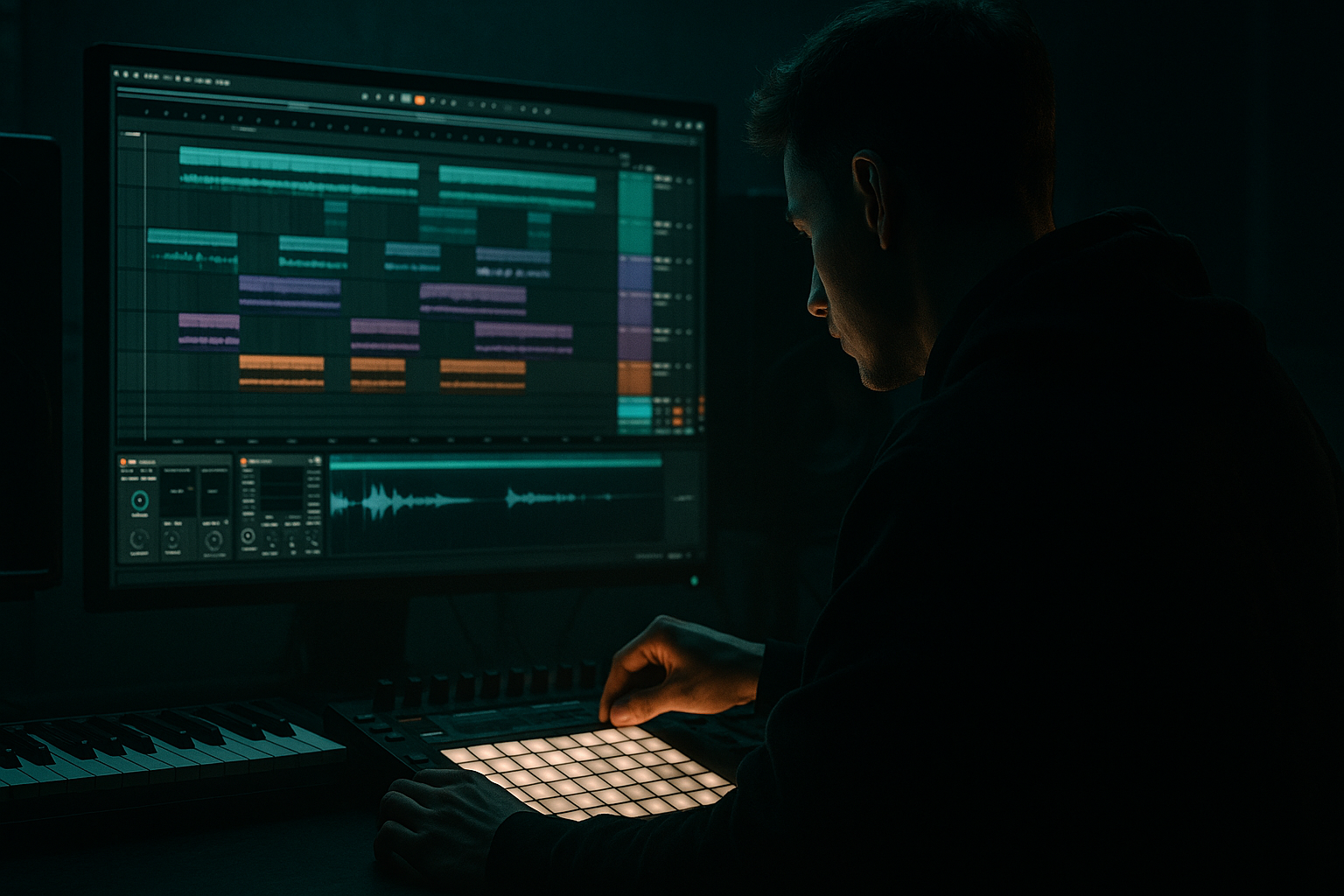
Main tutorial
Offset Jungle Percussion Layer Using Session View to Arrangement View in Ableton Live 12
1. Lesson overview
In this lesson, you’ll build an offset jungle percussion layer in Ableton Live 12 by sketching ideas in Session View, then turning that energy into a structured Arrangement View section for a drum and bass / jungle track.
This technique is huge for making drums feel alive. Instead of just looping the main break, you’ll create a second percussion layer that deliberately hits slightly off the grid, off the break accents, or with staggered clip lengths. The result is that classic skittering, rolling, unstable jungle movement without destroying the groove.
We’ll focus on:
- Building a main breakbeat foundation
- Adding an offset percussion layer that creates tension and motion
- Using Session View clips to generate variations fast
- Dragging those ideas into Arrangement View and turning them into a real intro/build/drop section
- Using stock Ableton devices to make it hit harder and sit properly in a dense DnB mix 🔥
- A main drum break or chopped break pattern
- A secondary percussion layer that is rhythmically offset
- A Session View performance with:
- An Arrangement View section that sounds like a proper jungle/DnB drum passage
- A compact stock-device chain for:
- Neuro / dark rollers
- Jungle revival
- Amen-inspired break edits
- Half-time-to-double-time transitions
- Percussion-heavy intros and breakdowns
- 170–174 BPM for classic jungle/DnB feel
- 172 BPM is a safe default if you want a balanced modern roll
- Drum Buss
- EQ Eight
- Glue Compressor
- Optional: Saturator
- rimshots
- foley ticks
- closed hats
- shakers
- edited break fragments
- tiny snare ghost hits
- metallic percussion
- reversed tiny cymbal tails
- slightly after strong snare hits
- between kick/snare accents
- on offbeats that don’t mirror the main break
- with subtle triplet or swung placement
- Hit 1: `1.2.3`
- Hit 2: `1.4`
- Hit 3: `2.1.2`
- Hit 4: `2.3.4`
- Hit 5: `3.2`
- Hit 6: `3.4.2`
- Hit 7: `4.1.3`
- Hit 8: `4.4`
- 1/16
- 1/32
- occasional triplet placements
- a few notes nudged manually by a few milliseconds
- turning off full auto-quantize when recording
- using Groove Pool
- manually nudging audio clip transients
- slightly offsetting note positions in the MIDI editor
- MPC 16 Swing
- MPC 17 Swing
- MPC 18 Swing
- a subtle swing groove from a chopped break reference
- 20–45% groove amount
- Main Break: mostly tight
- Offset Perc: slightly looser
- Ghost Hits: varied and humanized
- use EQ Eight to notch `4–8 kHz`
- reduce transient intensity
- lower the clip gain before processing
- Clip A: Sparse
- Clip B: Busier
- Clip C: Fill / turnaround
- Clip A: only 4–5 hits per bar
- Clip B: adds ghost notes and extra hat ticks
- Clip C: includes fast doubles or a reverse hit into the next bar
- Scene 1: Main groove intro
- Scene 2: Groove + offset layer
- Scene 3: Groove + busier offset
- Scene 4: Fill into drop
- clip changes
- layered density shifts
- fill moments
- evolving energy
- Bars 1–4: main break only
- Bars 5–8: add offset percussion quietly
- Bars 9–12: open up the filter, increase density
- Bars 13–16: add fill clip / turnaround
- Next section: drop into full bass + drums
- Filter cutoff on offset layer slowly opening
- Reverb send rising in transition moments
- Drum Buss drive slightly increasing before a drop
- Utility width widening in the build, then narrowing on impact
- Is the offset layer answering the snare?
- Does it create anticipation before the next bar?
- Does it avoid masking the main kick/snare backbone?
- Is there enough empty space for bass later?
- let the main break own the backbeat
- let the offset layer own the micro-motion
- keep fills short and purposeful
- leave room for sub and reese later
- Main Break: your anchor
- Offset Perc: usually 6–12 dB quieter
- Ghost hits: even lower
- FX/percussion accents: used sparingly
- In mono, does the rhythm still make sense?
- Does the offset layer disappear when the bass enters?
- Are the high frequencies sharp but not fizzy?
- Is the groove still strong at low volume?
- EQ Eight
- Glue Compressor
- Saturator
- Limiter only if needed, and very lightly
- high-pass hard
- saturate lightly
- pan subtly
- automate reverb only on transitions
- reverse a hat or rim
- bounce it to audio
- place it 1/32 before a snare-adjacent accent
- Drive: low to medium
- Transients: positive
- Boom: usually off or very controlled
- Soft clip on if needed
- closed in the intro
- brighter in the build
- narrowed again for impact
- reduced ghost notes
- fewer hats
- sudden dropouts before the snare
- 1 main break
- 1 offset percussion layer
- 1 hat layer
- 1 fill clip
- Bars 1–4: main break only
- Bars 5–8: add sparse offset hits
- Bars 9–12: increase density and open filter slightly
- Bars 13–16: add a fill and a turnaround into the next section
- Use only stock Ableton devices
- Keep the offset layer high-passed above `250 Hz`
- Add at least one automation move
- Perform the clip switches in Session View, then record into Arrangement View
- Session View helped you explore rhythmic ideas fast
- The offset percussion layer added tension and motion
- Groove, timing, and clip variation made the drums feel human and unstable
- Arrangement View turned that performance into a real track section
- Stock devices like Drum Buss, EQ Eight, Saturator, Auto Filter, Glue Compressor, and Utility helped shape the sound into something release-ready
- a rack preset recipe for the offset percussion chain
- a MIDI pattern example for jungle-style ghost percussion
- or a full 16-bar Ableton arrangement template for this technique.
---
2. What you will build
By the end, you’ll have:
- clip variations
- mutes
- scene launches
- fills and turnarounds
- transient shaping
- filtering
- saturation
- glue compression
- spatial movement
This works especially well for:
---
3. Step-by-step walkthrough
Step 1: Set up your drum project
Start in Ableton Live 12 with a tempo between:
Create these tracks:
1. Main Break
2. Offset Perc
3. Top Loop / Hats
4. Ghost Hits
5. Drum FX (optional)
If you already have a bassline, keep it muted for now. We’re locking the groove first.
---
Step 2: Load and prepare your main break
Drag in a classic break sample, such as an Amen, Think, or similar chopped break source.
On the Main Break track, try this stock chain:
- Drive: `5–12%`
- Crunch: low to moderate
- Boom: use carefully, or bypass if your bass is already heavy
- High-pass around `25–35 Hz`
- Small dip at `200–350 Hz` if muddy
- Gentle shelf if the break is dull
- Ratio: `2:1`
- Attack: `10 ms`
- Release: `Auto` or `0.3 s`
- Just `1–3 dB` of gain reduction
- Soft Clip on
- Drive: `2–6 dB`
Goal:
You want the main break to be solid and legible, but not overcooked. The offset layer is what will add the nervous energy.
---
Step 3: Create the offset percussion layer
Now build the second layer. This is the core of the lesson.
Good sample choices
Use short, sharp sounds like:
Think movement, not full drum kit.
In the MIDI clip or audio clip, build an offset pattern:
Use a 1-bar or 2-bar loop, but place hits:
A simple example in a 1-bar loop:
That doesn’t mean every hit should be loud. The trick is to make the layer feel asynchronous but controlled.
Important timing note:
Don’t quantize everything to the exact same grid resolution. Use:
In Ableton, you can do this by:
---
Step 4: Add controlled offset with Groove Pool
This is where the “alive” part happens.
Try one of these Groove Pool approaches:
Apply groove to the Offset Perc clip at around:
Use less groove on the main break, more on the secondary percussion.
That contrast creates tension.
Best practice:
This keeps the main loop driving while the offset layer “simmers” around it.
---
Step 5: Design the Offset Perc device chain
The offset layer needs to live in the mix without becoming noisy.
Suggested stock chain:
1. Auto Filter
- High-pass around `200–500 Hz`
- Mild resonance if needed
- Automation-ready cutoff for movement
2. Drum Buss
- Drive: `3–8%`
- Transients: `+5 to +20`
- Use carefully; too much makes it brittle
3. Saturator
- Drive: `1–4 dB`
- Soft Clip on
4. Echo or Delay
- Very low feedback
- Filtered repeats only
- Use subtly for width and smear
5. Utility
- Width: `70–120%`
- Keep low-end mono if any exists
If the layer is too harsh:
---
Step 6: Use Session View as a performance lab
Now switch into Session View and create variations as if you’re DJing the drum part.
Create 3 clip variations on the Offset Perc track:
Each clip should share the same core sound but differ rhythmically.
#### Example clip ideas:
Scene suggestion:
Launch clips live and listen for where the groove starts to feel too busy. You want movement, not clutter.
---
Step 7: Record the Session View performance into Arrangement View
This is where the performance becomes a song section.
In Arrangement View:
1. Arm your recording or hit global record.
2. Launch the session clips in sequence.
3. Perform mutes and clip switches in real time.
4. Stop recording after 8–16 bars.
Ableton will capture your session performance directly into the timeline.
Arrangement goal:
You now have a performance-based drum section with:
This is much more interesting than drawing a static loop across the timeline.
---
Step 8: Refine the arrangement shape
Once you’ve got the recorded section, edit it into a proper DnB arrangement.
A strong jungle/DnB drum structure might look like this:
Automation ideas:
---
Step 9: Make it feel like DnB, not generic breakbeat
The key is the interaction between the offset layer and the main break.
Ask yourself:
A very DnB-friendly approach is:
---
Step 10: Final mix balancing
Rough level targets:
Quick mix checks:
Stock mastering-safe chain for the drum bus:
Don’t flatten the drums. Jungle lives on snap and motion.
---
4. Common mistakes
1. Making the offset layer too loud
If the layer is too present, it starts sounding like a second main break instead of a supporting texture.
Fix: lower the clip gain, high-pass more aggressively, and keep it behind the main break.
---
2. Quantizing everything identically
Perfectly rigid placement kills the jungle feel.
Fix: use slight timing offsets, groove, and manual nudging.
---
3. Overloading the high end
Offset percussion often lives in the same space as hats, ride noise, and break fizz.
Fix: carve space with EQ Eight and use Auto Filter to tame the top.
---
4. Using too many busy layers at once
Three interesting drum ideas can become a mess fast.
Fix: in the arrangement, only let one secondary layer be “featured” at a time.
---
5. Ignoring the bass relationship
A great percussion layer that fights the sub will weaken the whole track.
Fix: leave rhythmic gaps where the bass can breathe, especially before drop hits.
---
6. Forgetting arrangement purpose
A cool loop is not automatically a usable section.
Fix: perform your clips with an end goal: intro, build, fill, drop, breakdown.
---
5. Pro tips for darker/heavier DnB
1. Use filtered metallic percussion
Dark DnB loves short metallic or industrial hits.
This gives you that grimy warehouse energy.
---
2. Layer with tiny reverse transients
A tiny reversed tick before a hit can make the rhythm feel sinister and urgent.
Try:
---
3. Use Drum Buss sparingly but strategically
For darker material, Drum Buss can make offset percussion feel meaner.
---
4. Sidechain the offset layer to the kick and bass
Use Compressor or Shaper to duck the percussion slightly when the kick or sub hits.
This keeps the layer from clouding the low-mid punch.
---
5. Automate filter movement like a synth
Don’t just set the filter and forget it.
Dark DnB percussion often feels alive because the top end shifts over time:
---
6. Use space like a weapon
A heavy drop often hits harder when the percussion layer is not constantly active.
Leave bars with:
That negative space creates pressure.
---
6. Mini practice exercise
Exercise: Build a 16-bar offset percussion evolution
Task:
Create a 16-bar DnB drum section in Ableton Live 12 using:
Rules:
Constraints:
Bonus challenge:
Make the offset layer feel like it’s “arguing” with the break, but still locking to the groove.
If it feels too obvious, make it subtler.
If it feels too dead, increase swing or add a delayed ghost hit.
---
7. Recap
You’ve just built a classic DnB/jungle workflow:
The big takeaway:
In drum and bass, the best percussion layers don’t just add more hits — they create forward motion, syncopation, and pressure. That offset relationship is what makes the groove feel alive ⚡
If you want, I can also provide:

