Main tutorial
1. Lesson Overview
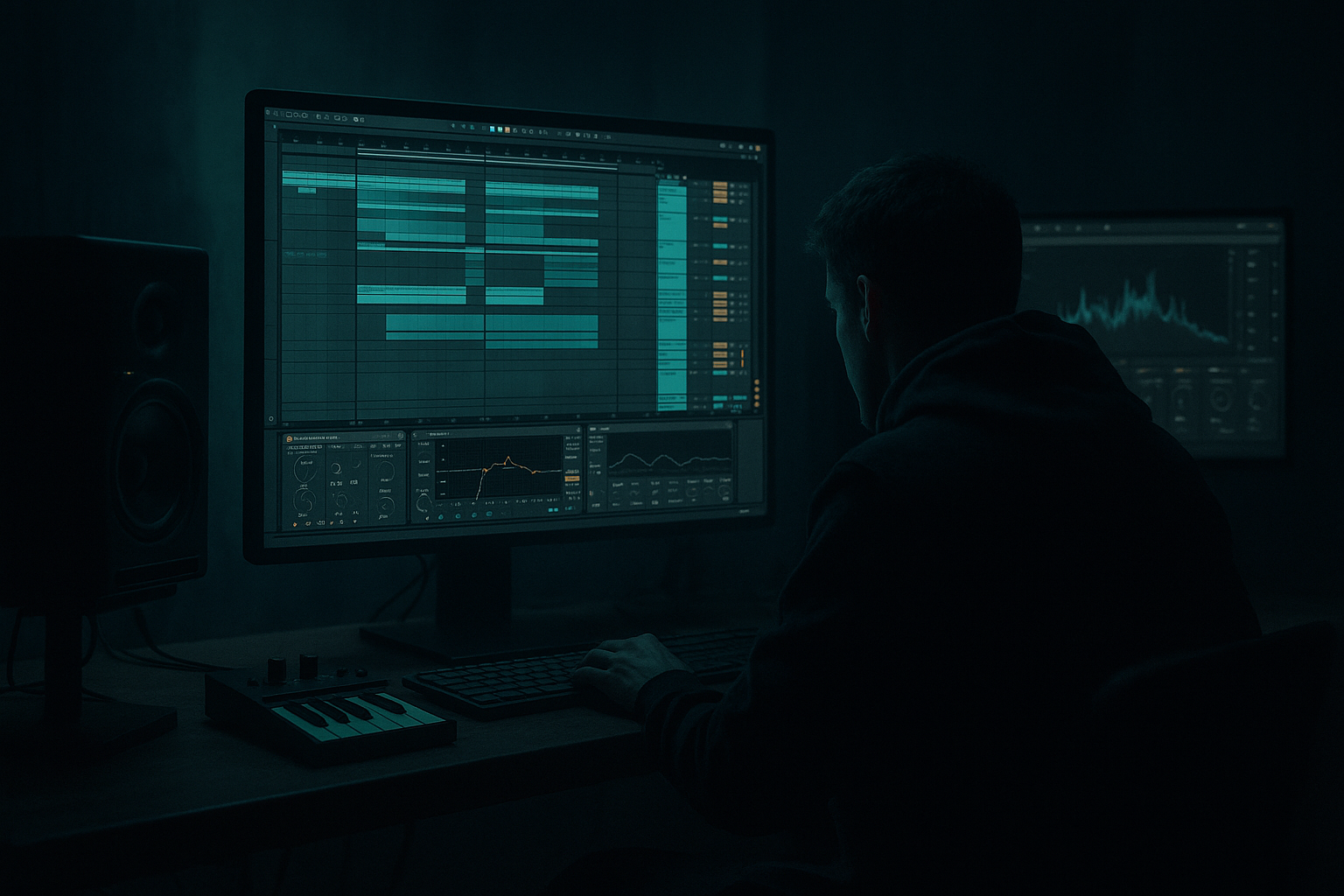
This advanced Edits lesson walks you through a focused blueprint titled "J Majik Ableton Live 12 hoover synth blueprint using Session View to Arrangement View". You will build a multilayer hoover (classic rave “hoover” / J Majik–style) synth Rack using only Ableton Live 12 stock devices, create playable variations and automation in Session View, then record and polish the best takes into Arrangement View for a Drum & Bass production. Emphasis is on sound-design detail (Wavetable + Operator layering), smart macro control, clip-based modulation in Session, and a clean transfer workflow into Arrangement for editing, automation refinement, and resampling.
2. What You Will Build
- A 3-layer Instrument Rack hoover synth (Wavetable lead + Operator FM grit + noise/air layer), tailored for Drum & Bass.
- Mapped macros for expressive control: Filter Cutoff, Unison Detune, Sub Level, Stereo Spread, and Grit.
- Session View performance setup with 4 clip variations (short stabs, long pad, gated pattern, pitch-sweep) using clip envelopes and follow actions.
- A recorded, edited Arrangement section with tightened automation, sidechain, EQ, and a resampled audio stem ready for further processing and mix placement.
- Overusing Unison Voices: Too many unison voices widen and clutter the low-mid spectrum, causing phasey bass that collides with kick/sub. Fix: reduce voices, lower spread, or high-pass low unison octave.
- Mapping Macros without range limiting: If you map full device range to a Macro you’ll get extreme jumps. Always set min/max controller ranges in the Rack’s Macro mappings.
- Recording Session into Arrangement without Global Record armed: You’ll trigger clips but not capture them. Remember to arm record before launching.
- Over-saturating before exporting: Excessive saturation pre-mix causes clipping on bounce. Use Utility gain staging and check headroom.
- Neglecting sidechain: Hoover leads in DnB constantly compete with kick; failing to create ducking will muddy the low end.
- Not checking phase in mono: Wide chorus and unison can collapse in mono—use Utility to check Width = 0 for mono phase issues.
- Use Wavetable’s Filter FM subtly to emulate the resonant, vocal character of classic hoovers—map FM amount to a macro for dynamic changes.
- For a classic “breathy” hoover, map velocity to filter envelope amount and envelope decay to create expressive stabs.
- When mapping Unison Detune to a Macro, set a curve (right-click Macro knob) so small knob movements correspond to musical detune — use finer resolution near center.
- Use clip-based modulation extensively: automating macros inside clips keeps different arrangements clean and allows you to jam variations without cluttering Arrangement automation lanes.
- Commit to audio stems early for CPU headroom, then treat the audio with transient shaping and mid/side EQ for mix-friendly placement.
- For more “J Majik” style grit: blend in a low-level bus of distorted midrange (Operator + Saturator) and automate its send to bring forward the aggressive harmonic content on fills or drops.
3. Step-by-Step Walkthrough
Note: use an empty Live set, set Tempo ~174 BPM (common DnB). Use fresh MIDI track(s).
A. Create the Instrument Rack and Layers
1. Create a new MIDI Track (Cmd/Ctrl+Shift+T). Drop an Instrument Rack into it.
2. Layer slot A — Wavetable (Main hoover body)
- Drag Wavetable into Rack Chain A.
- Oscillator setup:
- Osc A: Saw-ish wavetable (choose a bright position), Unison = 6–8 voices, Detune 0.08–0.14, Spread = 70–100.
- Osc B: Slightly different wavetable shape an octave up or shifted in position to introduce harmonics; Unison 3–4, small detune.
- Osc C: Use as a sub/low sine (octave -1) with level lower for weight.
- Global:
- Global Detune moderate if needed; use Voices total = match unison choices.
- Filter:
- Use a Multimode low-pass (24 dB) with Drive 4–8, set Cutoff ~2–4 kHz to start, Resonance 0. MAP Filter Cutoff to Macro 1 (range: 200 Hz - 6 kHz).
- Modulation:
- Use Wavetable’s Matrix: route an LFO or Envelope to slightly modulate wavetable position and filter cutoff. LFO rate synced to 1/8 or 1/16 for rhythmic movement. Set small depth to keep the “vocal” motion.
3. Layer slot B — Operator (FM edge and grit)
- Drag Operator into Chain B of the Rack.
- Patch for metallic bite:
- Osc A: Sine or Triangle at base pitch.
- Osc B: modulating Osc A at a ratio slightly detuned (e.g., ratio 1.5–2.2) with low amount to taste.
- Add slight pitch envelope on B for a pluck attack to accent stabs.
- Detune Operator slightly (+/- a few cents) to avoid static phase and to make the hoover “growl”.
- Low-pass the Operator output with a simple Auto Filter after Operator (optional) to tame top-end; map Operator level to Macro 3 (Grit).
4. Layer slot C — Noise / Air / High-end detail
- Use Wavetable or Simpler/Sampler:
- Wavetable: choose a noise or harsh waveform with a high-pass filter > 2 kHz.
- Simpler: load a short vinyl/noise sample, loop or one-shot to taste and map filter envelope.
- Use Envelope Attack ~5–15 ms, Decay short for short stabs, longer for pad versions.
- Map Noise Level to Macro 5 (Air).
5. Macro Setup and clean routing
- Macro 1: Filter Cutoff (main Wavetable cutoff).
- Macro 2: Unison Detune (map Wavetable Unison Detune and Spread—set macro range so 0 = subtle, max = wide supersaw).
- Macro 3: Grit (map Operator level, FM amount, and a bit of Saturator Dry/Wet).
- Macro 4: Sub Level (map Osc C level in Wavetable).
- Macro 5: Air (noise level).
- Optionally map Chain Volumes to a “Layer Balance” macro (right-click chain volume -> Map to Macro).
B. Insert FX Chain (stock devices)
1. On the Instrument Track (post Rack), insert:
- Saturator (drive ~2–6 dB, dry/wet adjustable via Macro 3 for grit).
- EQ Eight: high-pass below 40 Hz, gentle shelf/boost ~3–6 kHz if needed, notch problem frequencies.
- Chorus-Ensemble (mild) or Phaser (subtle) to widen the hoover.
- Compressor with sidechain enabled (we’ll configure sidechain later).
- Utility for mid/side or width adjustment (map width to a Macro if desired).
2. For stereo width control, use Utility after Chorus; map Width to Macro 2 or a dedicated Macro.
C. Session View: Clips, Clip Envelopes, and Performance Setup
1. Create a 1-bar MIDI clip; draw root-chord stabs typical of a hoover (e.g., power-chords or triads leaving space for drums).
- For DnB, short stabs on off-beats work; create alternate long pad version (2 bars).
2. Add variation clips in the scene:
- Clip A: short stabs, velocity high, Gate length 1/8.
- Clip B: long pad (hold chord), lower velocity.
- Clip C: gated pattern (use velocity or note-length changes).
- Clip D: pitch sweep (use Clip Envelope: automate Transpose or Map a Rack Macro and automate it in the clip envelope).
3. Clip Envelopes:
- For expressive control without automating the track, open Clip View -> Envelopes -> Device -> Map one envelope to the Rack Macro(s) (e.g., Cutoff Macro). Draw LFO-like curves or stepped automation per clip.
- Use Follow Actions to alternate between two clip variations for live unpredictability (e.g., 1 bar -> 2 bar follow action).
4. Set quantization and global follow actions to taste to ensure your recorded launch timing is tight when capturing into Arrangement.
D. Sidechain and Kick Interaction
1. Create a Return Track or route the kick bus into the sidechain input:
- On the hoover synth track's Compressor, enable Sidechain, choose the kick track as input, set Ratio ~3:1, Attack fast, Release 50–120 ms for pumping typical in DnB.
2. Optionally use an LFO on Utility Gain to create rhythmic ducking synced to tempo for creative pumping.
E. From Session View to Arrangement View — Capture Performance
1. Prepare scenes: group the 4 clips into a Scene (or multiple scenes) that you will trigger in performance.
2. Arm Global Record (top transport) and set Arrangement Record quantization off (or global quantize to 1/16 if you want clip-launch quantized).
3. Launch scenes/clips in performance while recording (press Global Record then launch clips). Live will record every clip launch and automation into Arrangement View.
- Tip: press Scene Launch to move between clip sets; Live will record clip content + automation of mapped Macros and clip envelopes.
4. Stop Recording. Switch to Arrangement View (Tab). You will see the MIDI clips and automated parameters captured across tracks (Instrument track + Device and macro automations).
F. Editing & Resampling in Arrangement
1. Clean automation lanes: collapse and tidy the Macro automations. Trim automation nodes and set smooth curves for natural sweeps.
2. Consolidate (Cmd/Ctrl+J) best takes into a single region.
3. Optional submix: duplicate the Instrument track, freeze and flatten one duplicate to Audio to commit sound and free CPU.
4. Resample:
- Create a new audio track, set its Input to Resampling, arm it, and record the consolidated arrangement region (or use Export > Render Selected Tracks).
- This gives you an audio stem you can process further with frequency-specific FX (e.g., transient shaping, distortion).
5. Final FX on audio stem:
- EQ Eight for surgical cuts.
- Glue Compressor for glue in the bus (short attack for snap).
- Dynamic Tube or Saturator for coloration.
- Send to Reverb/Delay returns (short plate + delay for width) — keep reverb short for DnB clarity.
4. Common Mistakes
5. Pro Tips
6. Mini Practice Exercise
Goal: Build one Scene with 4 hoover variations, perform and record a 16-bar section into Arrangement, then resample.
Steps:
1. Build the Instrument Rack as specified (Wavetable + Operator + Noise), map at least 3 macros: Cutoff, Detune, Grit.
2. Create four 1-bar clips in Session View: short stab, long pad, gated chop, pitch sweep. In two of them automate Macro 1 (Cutoff) via the clip envelope.
3. Set up sidechain compressor with a kick track as input.
4. Arm Global Record. Launch the four clips in sequence to produce a 4-bar cycle, repeat to fill 16 bars while manipulating Macro 2 (Detune) manually or via Clip envelopes.
5. Stop recording. Switch to Arrangement, consolidate the best 16 bars, and resample to an audio track.
6. Apply EQ Eight to remove 30–40 Hz rumble, add a Glue Compressor with a ~4:1 ratio for glue, then add short plate reverb on a send (~15–30 ms pre-delay, short decay).
What to check: Are your Macro automation moves captured? Does the audio stem maintain punch when mono-checked? Is the hoover ducking properly with the kick?
7. Recap
You now have a complete "J Majik Ableton Live 12 hoover synth blueprint using Session View to Arrangement View": a three-layer hoover Instrument Rack with mapped macros, Session View clip-based modulation and variations, a reliable performance-to-Arrangement capture workflow, and a resampling/editing process for finalization. Use the macro ranges, clip envelopes, and careful unison/stereo management to keep the hoover powerful but clean in a Drum & Bass mix. Repeat the Mini Practice Exercise to internalize the Session -> Arrangement transfer and tighten your production workflow.

