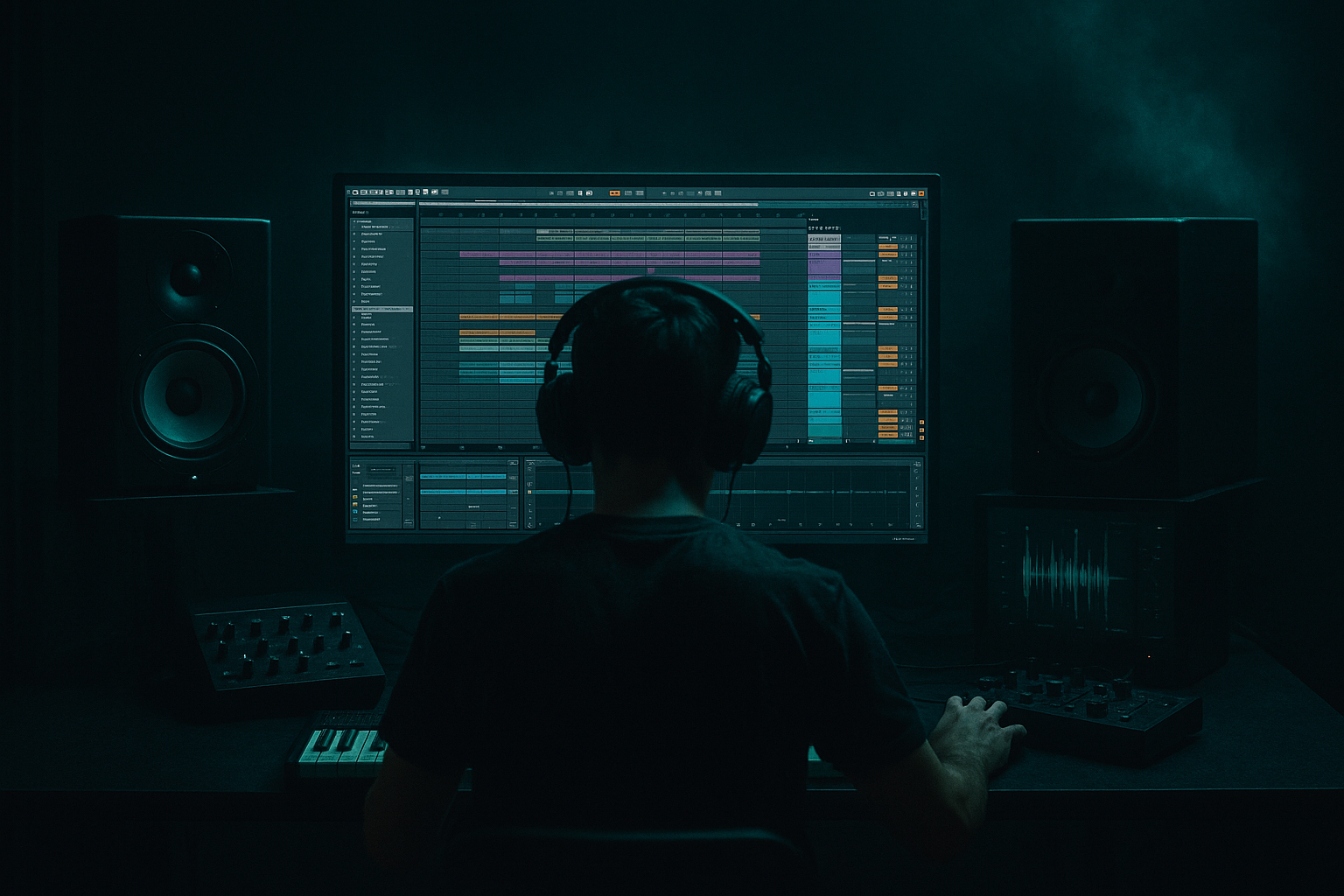
Main tutorial
Future Jungle Blueprint: Edit Carve in Ableton Live 12
Future Jungle lives and dies by how you open space in the edit. The “carve” is that precision slice of arrangement and sound design where you strip the drum and bass loop down, shape tension, then slam it back in with more impact. In Ableton Live 12, this is a killer technique for making your DJ tools feel mixable, clean, heavy, and performance-ready 🔥
---
1. Lesson Overview
In this lesson, you’ll build a Future Jungle edit carve: a DJ-friendly intro/outro or breakdown-style section that removes low-end clutter, creates tension with syncopated cuts, and sets up a hard return to the full-weight groove.
This is especially useful in drum and bass because:
- DJs need clean phrase transitions
- Jungle and future jungle thrive on quick arrangement movement
- Carves give your track that “worked in the set” energy
- You can use them to highlight drum edits, bass switches, reverb throws, and filter tension
- a stripped intro section
- a low-end removal strategy
- a chopped drum tension pattern
- a filtered bass tease
- a re-entry hit designed for DJ mixing or drop impact
- Bars 1–4: drums only, filtered and loopable
- Bars 5–8: added ghost chops / FX / bass fragments
- Bars 9–12: carve down harder, tension rises
- Bars 13–16: rebuild into a full-phrase return
- a DJ intro
- a mid-track breakdown
- a drop lead-in
- a custom edit for blending into another tune
- a strong amen or break-driven drum loop
- a sub or Reese bassline
- at least one signature stab, vocal, or atmospheric element
- chopped Amen / Think / Apache style breaks
- sub-driven bass with midrange reese movement
- ragga vocal one-shots or jungle sirens
- dub chords, pads, or stabby synth hits
- sub-bass below 100 Hz
- full drum kit layers that make the loop too dense
- sustained pads or long atmospheres that blur the transition
- any busy top-layer percussion that competes with the kick/snare
- Band 1: High-pass at around 30–40 Hz if needed
- Band 2: narrow cut around 180–350 Hz if the low-mids are muddy
- Band 3: low-pass the bass during the carve to 400–1.5kHz depending on how much movement you want
- Filter type: Low-Pass
- Cutoff automation:
- Resonance: keep moderate, around 10–20%
- mute the kick on every 2nd bar
- leave just snare + top break
- remove the last 1/8th note of bar 4
- insert a 1-beat silence before the return
- Bar 1: full break, but filtered
- Bar 2: remove kick, keep snare + hats
- Bar 3: bring kick back, but reduce top-end
- Bar 4: snare fill + reverse hit + silence before bar 5
- Mode: low-pass or band-pass
- Cutoff: automate between 200 Hz and 1.5 kHz
- Resonance: 15–30%
- Envelope off unless you want extra motion
- Drive: 2–6 dB
- Soft Clip: On
- Output: trim to match level
- Width: reduce to 70–100%
- Use mono below 120 Hz if needed by keeping sub separate and muted during the carve
- the top harmonics
- a short stab
- a pitch-bent reese fragment
- a vocalized or formant-style bass hit
- Decay Time: 2.5–5 sec
- Pre-delay: 20–35 ms
- Low Cut: 200–400 Hz
- High Cut: 7–10 kHz
- Dry/Wet: use send level, not 100% wet
- Sync: 1/4 or 3/8
- Feedback: 20–45%
- Filter: band-limit the repeats
- Modulation: subtle
- Ping Pong: on if you want width
- Downsample: very subtle
- Bit Reduction: minimal
- Mix: low
- snare hits
- vocal chops
- bass fragments
- final reversed cymbal
- Keep phrases in 8s and 16s
- Make the intro and outro loopable
- Avoid too many surprise fills in the mix-in zone
- Leave room for an incoming tune’s kick and bass
- Don’t overcrowd the top end in the first 8 bars
- Bars 1–8: intro groove, minimal bass, clean drums
- Bars 9–16: carve down and tension build
- Bars 17–24: main drop section
- Bars 25–32: exit carve for mix-out
- an introduction carve
- an outro carve
- EQ Eight frequency bands
- Auto Filter cutoff
- Reverb send amount
- Echo feedback
- Utility gain
- Pitch on vocal chops or drum fills
- Reverb freeze for tension moments
- Start cutoff high
- Dip it down over 4 bars
- Open it sharply on the return
- Full bass on bar 1
- Muted sub on bar 2
- Top bass only on bar 3
- Full return on bar 4
- Automate Echo send only on the last snare of a phrase
- Let the tail wash into the next section
- a ragga vocal chop
- a dub siren
- a reverse piano hit
- a Junglist amen slice
- a tape-stop stab
- a rewinded break fill
- Simpler for slicing vocal hits
- Warp markers for tight timing
- Reverse on audio clips
- Drum Rack for quick one-shot triggering
- Sampler if you want more playable control
- at the end of bar 4
- at bar 8 as a transition
- or right before the main return
- Drive: subtle, around 5–15%
- Crunch: low to moderate
- Boom: only if the intro needs more weight
- Damp: reduce harshness if needed
- Ratio: 2:1 or 4:1
- Attack: 10–30 ms
- Release: Auto or 0.3 s
- Threshold: only 1–3 dB of gain reduction
- Cut sub rumble if carve sounds cloudy
- Add a gentle shelf around 8–12 kHz if needed
- Only catch peaks
- Don’t flatten the groove
- keep sub mono with Utility
- use Saturator or Overdrive on a parallel layer for aggression
- use a narrow midrange emphasis around 700 Hz–1.5 kHz for bite
- Drum Buss
- Saturator
- Glue Compressor
- optional Redux
- use Redux subtly
- resample breaks and chop them again
- add slight timing drift with groove templates
- experiment with Warp modes like Beats and Complex for texture
- drums only
- no sub bass
- low-pass filter on a pad or atmospheric loop
- add top bass harmonics only
- introduce one vocal chop
- automate a short echo throw on the last snare
- reduce drums further
- remove kick on bar 11
- add a reversed cymbal into bar 13
- open filter
- restore full bass
- bring in one fill or reese hit
- end with a clean mixable tail
- Use only stock Ableton devices
- Use no more than 3 sends
- Keep the whole carve loopable
- Make it work at 170 BPM
- EQ Eight for frequency carving
- Auto Filter for movement and space
- Echo and Reverb for tension throws
- Utility for mono control and level shaping
- Drum Buss, Glue Compressor, and Limiter for bus polish
- strip the low end
- keep the rhythm alive
- tease the bass instead of fully exposing it
- use phrase-based automation
- make the return hit harder than the carve
- a device-by-device Ableton template
- a MIDI/audio arrangement diagram
- or a follow-up lesson on carve fills and drop re-entry design
We’ll focus on a practical Ableton workflow using stock devices, arrangement decisions, and movement techniques that work in 140–174 BPM jungle/DnB.
---
2. What You Will Build
By the end, you’ll have a 16-bar edit carve that includes:
Final result
Think of it like this:
This can be used as:
---
3. Step-by-Step Walkthrough
Step 1: Start with a solid 8- or 16-bar loop
Choose a section of your tune that already has:
For future jungle, your source material might include:
Ableton workflow
1. Drop your loops into Arrangement View
2. Set the project to 170 BPM if you want classic future jungle energy
3. Consolidate key regions with Cmd/Ctrl + J
4. Color-code:
- drums
- bass
- atmospheres
- FX
- vocal one-shots
This keeps the carve process fast and readable.
---
Step 2: Build the “carve” skeleton by removing the weight
The first move is not adding stuff — it’s subtracting intelligently.
What to strip first
For the carve section, mute or automate out:
Practical EQ carve
On your bass group, use EQ Eight:
On the drum bus, use Auto Filter:
- open: around 18–20 kHz
- carved: pull down to 4–8 kHz
This gives you that tunnel-like tension without killing the groove.
---
Step 3: Create a loopable drum edit with rhythmic negative space
A great jungle carve should still feel like it’s moving, even when it’s stripped.
Make the drums do the work
Take your break loop and create one of these edits:
That last move is huge. Silence before the drop or switch is one of the most effective DJ tools in DnB.
In Ableton:
1. Duplicate your drum loop across 4 bars
2. Use Split (`Cmd/Ctrl + E`) to cut at key transient points
3. Delete selected slices to create holes
4. Apply short fades if needed to avoid clicks
5. Use Clip Envelopes for volume shaping if you want more precision
Good carve pattern idea
That gives you a phrase that DJs can mix over while still sounding intentional.
---
Step 4: Add a filtered bass tease instead of full bass
Future Jungle bass should not just disappear — it should ghost itself into the carve.
Use a bass tease layer
Duplicate your bass and make a “carve version”:
#### Device chain example:
Simpler / Sampler or audio clip
→ EQ Eight
→ Auto Filter
→ Saturator
→ Utility
Settings
#### Auto Filter
#### Saturator
#### Utility
Technique
Instead of playing the full bassline, keep only:
This keeps the listener aware of the bass identity while preserving room for the drop.
---
Step 5: Use return FX for carve tension
Your carve should sound like it is opening up space and then pulling back in.
Stock Ableton return chain
Create a return track with:
Reverb
→ Echo
→ Utility
→ optional Redux
#### Reverb settings
#### Echo settings
#### Redux
Use lightly for a gritty jungle tear-out texture:
How to use it
Automate send levels on:
This is how you get those dramatic “space opens / space collapses” moments that make future jungle edits feel premium.
---
Step 6: Make the carve DJ-friendly
Since this is a DJ tool, your carve must be usable in a mix.
Key rules
Arrangement suggestion
A strong DJ tool carve structure:
If you’re making a standalone edit, create both:
This gives you proper utility for mixing in actual sets.
---
Step 7: Use automation to make the carve feel alive
Automation is what turns a static loop into a proper future jungle arrangement.
Automate these:
Practical automation moves
#### 1. Filter sweep into the return
#### 2. Bass mute and tease
#### 3. Snare echo throw
These micro-automations are the difference between a loop and a proper carve.
---
Step 8: Add one signature jungle texture
Future Jungle benefits from a small number of strong identity elements.
Choose one:
Ableton stock tools for this
Placement
Put the signature sound:
Keep it short. The carve should feel like it’s hinting, not explaining.
---
Step 9: Group and process the carve bus
Once your carve is built, process the whole section as a bus.
Recommended group chain
Drum Buss
→ Glue Compressor
→ EQ Eight
→ Limiter
#### Drum Buss
#### Glue Compressor
#### EQ Eight
#### Limiter
This keeps the DJ tool controlled but still alive.
---
4. Common Mistakes
1. Leaving too much sub in the carve
If the low end stays constant, the carve stops feeling like a transition. Remove or drastically reduce sub before the return.
2. Over-filtering the drums
If you low-pass too hard, the break loses identity. Keep enough snare crack and transient detail so the rhythm still hits.
3. Too many effects
Reverb, echo, reverse, stutters, and fills all at once will smear the groove. Use 1–2 main tension devices and commit.
4. Ignoring phrase length
A carve that lands on awkward 6-bar or 10-bar phrasing will feel bad in a DJ mix. Stay with 8s and 16s.
5. No re-entry contrast
If the return isn’t clearly bigger than the carve, the whole move feels flat. The impact must be obvious.
---
5. Pro Tips for Darker/Heavier DnB
Use contrast in the upper mids
Darker DnB often gets powerful when the carve removes 500 Hz–3 kHz clutter, then lets a nasty midrange return hit hard.
Make the bass return mono and focused
For the drop:
Try parallel drum crush
Create a return or parallel track with:
Blend it under the carve for weight without killing dynamics.
Use negative space like a weapon
A single empty beat before the drop can feel heavier than another fill. In darker jungle, restraint hits harder than clutter.
Add controlled degradation
For that grimey future jungle feel:
---
6. Mini Practice Exercise
Exercise: Build a 16-bar edit carve in one session
Take one 8-bar DnB loop and create:
#### Bars 1–4
#### Bars 5–8
#### Bars 9–12
#### Bars 13–16
Constraints
Goal
When you play it back, it should feel like a proper DJ intro that can blend into another tune without fighting it.
---
7. Recap
A Future Jungle edit carve is all about subtraction, tension, and precise re-entry. In Ableton Live 12, you can build it quickly using:
Remember the core idea:
That’s how you turn a loop into a DJ-ready future jungle weapon ⚡
If you want, I can also turn this into:

