Main tutorial
1. Lesson Overview
"DJ Rap edit: rebuild a rave piano hit from scratch in Ableton Live 12 for 90s-inspired darkness"
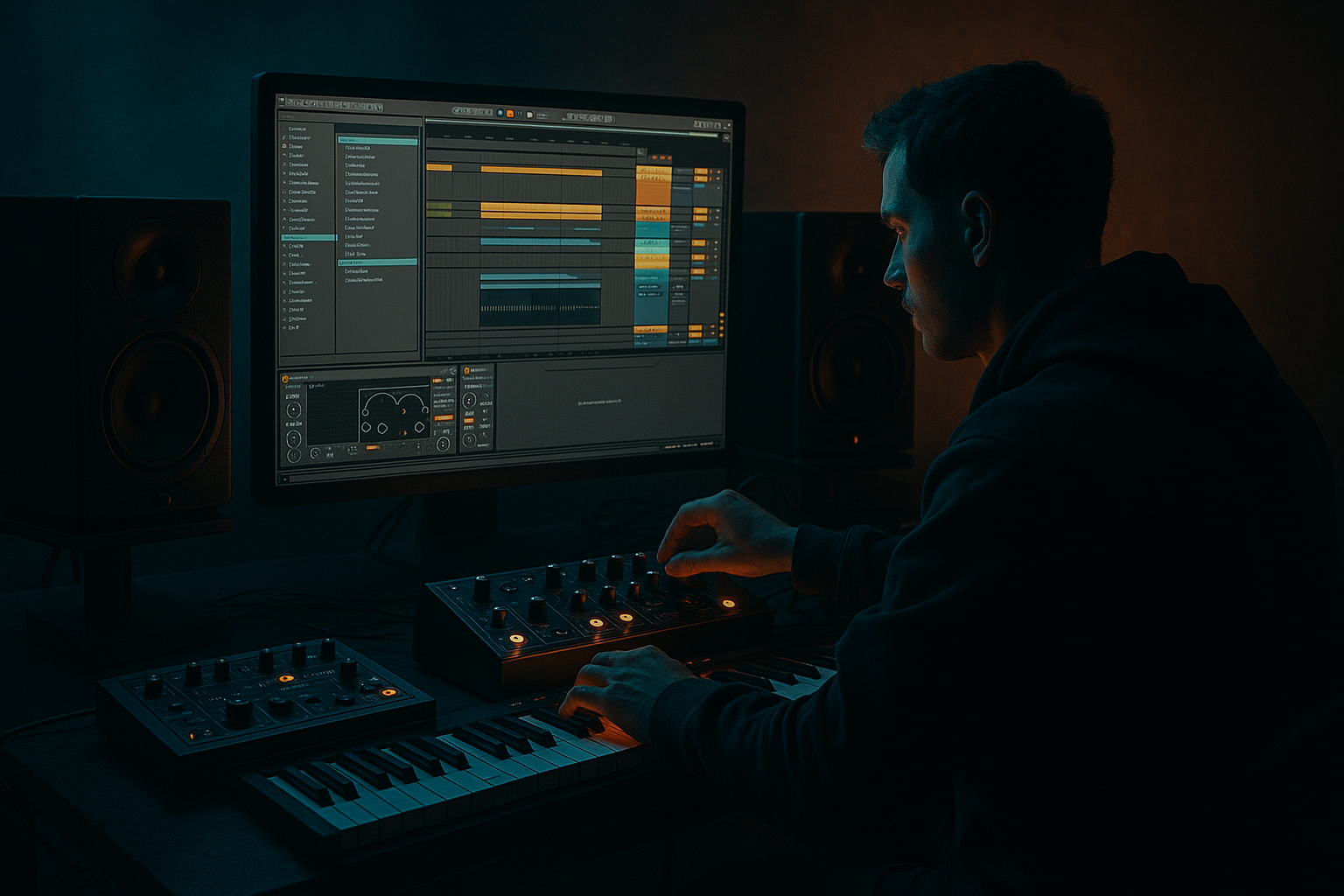
In this advanced Vocals lesson you’ll reconstruct a classic rave piano hit with a dark 90s Drum & Bass aesthetic inside Ableton Live 12 — but with a twist: the main body of the hit is derived from a processed vocal one-shot and layered with synth and sampled piano elements. The goal is a punchy, slightly menacing piano stab that sits like a DJ Rap-style edit in the mix: vocal character, detuned piano weight, tight transient, gated dark reverb, and club-ready groove. Everything uses Ableton Live 12 stock devices and practical routing so you can reproduce and adapt the patch immediately.
2. What You Will Build
- A layered piano hit patch (Instrument Rack) playable chromatically.
- Main layers:
- An Audio Effects Rack for the hit with:
- Macros to control tune, decay, grit, reverb wet/darkness, and stereo width.
- Overly long decay: Piano hits that ring too long muddy fast DnB arrangements. Keep decay tight and use gated reverb for tails.
- Too much high-frequency reverb: Adds thickness but kills the “dark” 90s vibe. Filter the reverb (HP/LP) to remove bright air.
- Neglecting the transient: Not having a clear click reduces presence in club systems. Layer a short click and EQ it for presence.
- Ignoring formant when pitching vocals: Pitching a vocal massively without preserving formant makes it unnatural — use formant-preserving methods or combine with synthetic carriers.
- Overuse of bit reduction: Redux is powerful; too much creates harshness and destroys definition.
- Stereo low end: Don’t widen sub layers — keep them mono.
- Macro-driven sound design: Map a single Macro to multiple devices (decay, reverb wet, saturation) to create live “DJ Rap edit” style swaps between an aggressive club hit and a squashed radio-friendly hit quickly.
- Dual processing chains: Keep one parallel dry chain and one heavily processed chain. Blend to taste; it keeps intelligibility while adding character.
- Use transient shaping via sidechain compression: If you don’t have a transient shaper, emulate one by copying your click to an auxiliary channel and compressing the main body briefly with a short attack to bring out the click.
- Create velocity layers: Map different samples or different processing chains to velocity ranges to simulate dynamic piano behavior.
- Reference playback on club-style headphones/speakers: the hit must punch through the snare/clap in DnB mixes — adjust EQ and transient accordingly.
- Use Live’s Freeze/Flatten for CPU-heavy chains when building variations and samples to free resources.
- Use Sampler to turn vocal stabs into playable tonal hits.
- Layer with Wavetable/Operator for the top and sub weight.
- Keep envelopes tight, use gated reverb + reverse pre-hit for 90s flavor.
- Glue with saturation, bus compression, and subtle bit reduction for grit.
- Map Macros for performance-ready DJ-edit variations and automate them for arrangement dynamics.
- Vocal-derived body (pitched/processed vocal one-shot turned into a tonal hit)
- Synthetic piano top (Wavetable/Operator with fast envelope for attack)
- Sub/low-thump (sine/filtered sample)
- Click/transient layer (high passed sample or noise through transient shaping)
- Saturation/character (Saturator/Overdrive/Redux)
- Tight gated dark reverb (Hybrid Reverb + Gate)
- Delay + chorus-style modulation for 90s movement
- Bus compression/sidechain glue for context
3. Step-by-Step Walkthrough
Note: Throughout, use Ableton Live 12 stock devices: Simpler/Sampler, Wavetable, Operator, Instrument Rack, EQ Eight, Saturator, Glue Compressor, Compressor, Hybrid Reverb, Echo, Grain Delay, Redux, Auto Filter, Utility, Vocoder (only if you want to make vocal textures more harmonic — optional here), Frequency Shifter, Chorus/Ensemble.
A. Prep: choose and trim your vocal material
1. Pick a short vocal stab — a vowel, exhale, or consonant transient works. Keep it mono if possible. Duplicate it to a new audio track.
2. Clean it: use EQ Eight to remove rumble (HP @ 50–80 Hz), remove unwanted sibilance (narrow cut ~5–8 kHz if needed). Shorten to a tight one-shot (use clip fade-ins to remove clicks).
3. Convert to a Sampler instrument: Drag the audio clip into Sampler (or load in Simpler in Classic mode if you prefer simpler mapping). Set Sampler to one-shot or to a mapped zone across the keyboard (key zone covering C1–C5 depending on desired range).
B. Design the vocal-derived body
4. Pitch the sample: In Sampler, use the Transpose control to tune the sample to middle C as the root. Use coarse pitch in semitones to map the timbre across the keyboard. For 90s darkness, pitch down 0–12 semitones for overall darker tone; use fine-tune for small adjustments.
5. Envelope: Set Attack: 0–10 ms (near zero for attack), Decay: 120–350 ms (experiment; shorter decay yields more percussive hits), Sustain: low (0–.2), Release: 120–350 ms for a piano-like ring.
6. Filter & velocity mapping: Use Sampler’s filter (LP24) with cutoff ~1.2–2.5 kHz and resonance small. Map velocity to cutoff so harder hits open the filter more; set Velocity->Filter amount ~10–25%.
7. Formant preservation & movement: Add Frequency Shifter after Sampler with small Shift (+/- 5–25 Hz) in “Pitch” mode to alter formant color; use Frequency Shifter’s granular/phase style to add metallicness if desired. Alternatively, insert the Vocoder (if pursuing a more synthetic vocal-harmonic body) — see extra vocoder notes below.
C. Build the synthetic piano top
8. Create a Wavetable or Operator patch: New MIDI track > Wavetable.
- Osc A: Sine or narrow saw with slight detune (0.05–0.15).
- Osc B: Bright saw or pulse low-level mixed for presence.
- Filter: Lowpass (24 dB) with slow envelope modulation on cutoff to simulate hammer -> body; Envelope: Attack 1–7 ms, Decay 100–200 ms, Sustain 0, Release 150–300 ms.
- Add a bit of FM (if using Operator) or table modulation for harmonic belliness. Reduce polyphony to 4 or 6 to keep CPU low.
9. High-frequency bite: Add a small Grain Delay on “classic” short settings (Delay time ~10–30 ms, Spray small, Pitch +10–20%), dry/wet very low — just enough to add high-frequency scatter.
D. Sub/Low-thump and transient click
10. Sub layer: Create a third chain using Operator or a clipped sine sample mapped to the same key range but low-only (chain key zone C1–C2). Use a short pitch envelope to give a quick thump: Attack 0 ms, Decay 100–200 ms, no sustain.
11. Click: Use a high-passed transient sample (hat or short noise burst) in Simpler in slice mode or one-shot. High-pass at 1–2 kHz and route through a Saturator with Drive 1–3 dB, Tone down to taste; keep very short (Decay 40–80 ms).
E. Instrument Rack and layering
12. Group the Sampler (vocal), Wavetable (top), Sub (Operator/Sampler), and Click into an Instrument Rack (Cmd/Ctrl+G).
13. Use Chain Selector or key zone to have all layers triggered across the same keys. Balance dry levels: usually vocal body -3 to -6 dB, top +0 to -3 dB, sub -6 to -10 dB, click +1–3 dB relative to body.
14. Macro mapping: Map macros for:
- Macro 1: Tune (map root transpose of Sampler, Wavetable coarse)
- Macro 2: Decay (map Sampler/Synth envelopes’ decay + Sub decay)
- Macro 3: Grit (map Saturator Drive + Redux bit depth)
- Macro 4: Reverb Wet (map the return/chain reverb send)
- Macro 5: Width (map Utility Width + Chorus amount)
- Macro 6: Filter cutoff (global timbre)
F. Effects chain for character and 90s darkness
15. Pre-buss (inside Instrument Rack or on return):
- EQ Eight: gentle dip ~300–600 Hz to prevent boxiness, slight boost ~200–350 Hz for 90s weight if needed.
- Saturator: set to “Analog Clip” or “Soft Sine,” Drive 2–6 dB, output -1 dB.
- Glue Compressor: slow attack 10–30 ms, release auto, threshold to taste for 2–4 dB gain reduction to glue layers.
16. Reverb (Hybrid Reverb on return): set short pre-delay (10–20 ms), decay 0.6–1.2 s, damping high (to darken high end), tone or HP filter on reverb send cut highs >5–6 kHz. Keep wet low (10–25%) for the hit bus; use a gate on the reverb return to make it rhythmic and tight.
- Reverb gating: Insert Gate after Hybrid Reverb with threshold set so reverb tail is chopped quickly. Optionally sidechain the Gate from the hit bus to shape the tail rhythmically.
17. Reverse pre-hit swell: Create a duplicate of the vocal sample on an audio track; reverse it, add long Hybrid Reverb (large wet 60–90%), automute/reverse fade so the reverb swells into the hit, then cut so the reverb doesn’t overlap the hit transient. This creates the classic 90s reverse-reverb pre-hit.
18. Delay/Echo: Use Echo or Grain Delay after reverb on the return for subtle stereo doubling. Short delay times 40–120 ms, low feedback, wet 10–20% to keep it rhythmic and not wash out clarity.
19. Darkening chain: Insert EQ Eight at the end with a low-pass filter around 10–12 kHz and a slight boost ~200–500 Hz to emphasize 90s mid warmth. Add Redux sparingly (bit depth 10–12, downsample off or high) for lo-fi grit.
G. Context and mixing
20. Create a Drum & Bass bus: route the piano hit to a hit bus with sidechain compression to the kick/snare if needed (Glue Compressor on the hit bus with kick as sidechain input). This ensures hits duck properly.
21. Stereo placement: Use Utility to mono the sub and keep the vocal-derived body slightly off-center subtly (10–20% L/R) for width but keep the low end mono.
22. Automation: Automate Macro Decay and Reverb Wet per bar to create variations; for DJ Rap edit style, create a short variant (staccato) and a long variant (sustained with reverb tail gated).
H. Optional: Using the Vocoder for extra vocal-harmonic body (if you want a more synthetic vocal piano)
23. Set up a modulator: send the processed vocal sample to an audio track and set it as the Vocoder's Modulator (or use Vocoder’s sidechain input).
24. Carrier: Use a Wavetable or Operator instance as carrier (rich harmonic content — several oscillators: saw + square). Set Vocoder to use External as modulator and carrier to the synth track routed into Vocoder.
25. Configure Vocoder: Bands 16–32 to taste; attack short; ensure “Transform” behavior you prefer. Use EQ Eight to sculpt intelligibility: boost 1–3 kHz for human vowel clarity, cut too much sibilance.
26. Blend: Use Vocoder dry/wet and a parallel chain so original Sampler body remains audible; tune carrier pitch to keyboard so the vocal-derived harmonics sit musically.
I. Final polish
27. Bus processing: On the hit bus, add Multiband Dynamics or Compressor sidechained to transient for punch. Use a limiter if peaks exceed headroom.
28. Create multiple variations (short, medium, long) and map them to Live’s Sampler slices or Drum Rack pads for quick DJ-edit performance.
4. Common Mistakes
5. Pro Tips
6. Mini Practice Exercise
1. Load a short vocal vowel (1–2 seconds). Create a Sampler instrument mapping it across 2 octaves.
2. Design three layers (vocal body, synthetic top with Wavetable, sub with Operator) and place them in an Instrument Rack.
3. Create a short gated reverb on a return: Hybrid Reverb -> Gate. Save as a preset.
4. Map 3 Macros: Decay, Grit (Saturator + Redux), Reverb Wet. Automate a 16-bar section where:
- Bars 1–4: Decay low, Grit low, Reverb low (clean short hit)
- Bars 5–8: Decay medium, Grit high, Reverb medium (DJ Rap edit “dark” variant)
5. Export the hit as a single-shot sample at different root notes (C2, C3) for future quick use.
7. Recap
You rebuilt a rave piano hit for a "DJ Rap edit: rebuild a rave piano hit from scratch in Ableton Live 12 for 90s-inspired darkness" using a vocal-derived body layered with synths and sub, all inside Ableton Live 12 stock devices. Key takeaways:
Apply the exercise, iterate on macros and envelope settings, and save Instrument Rack presets labeled for quick recall during DJ-style edits.

