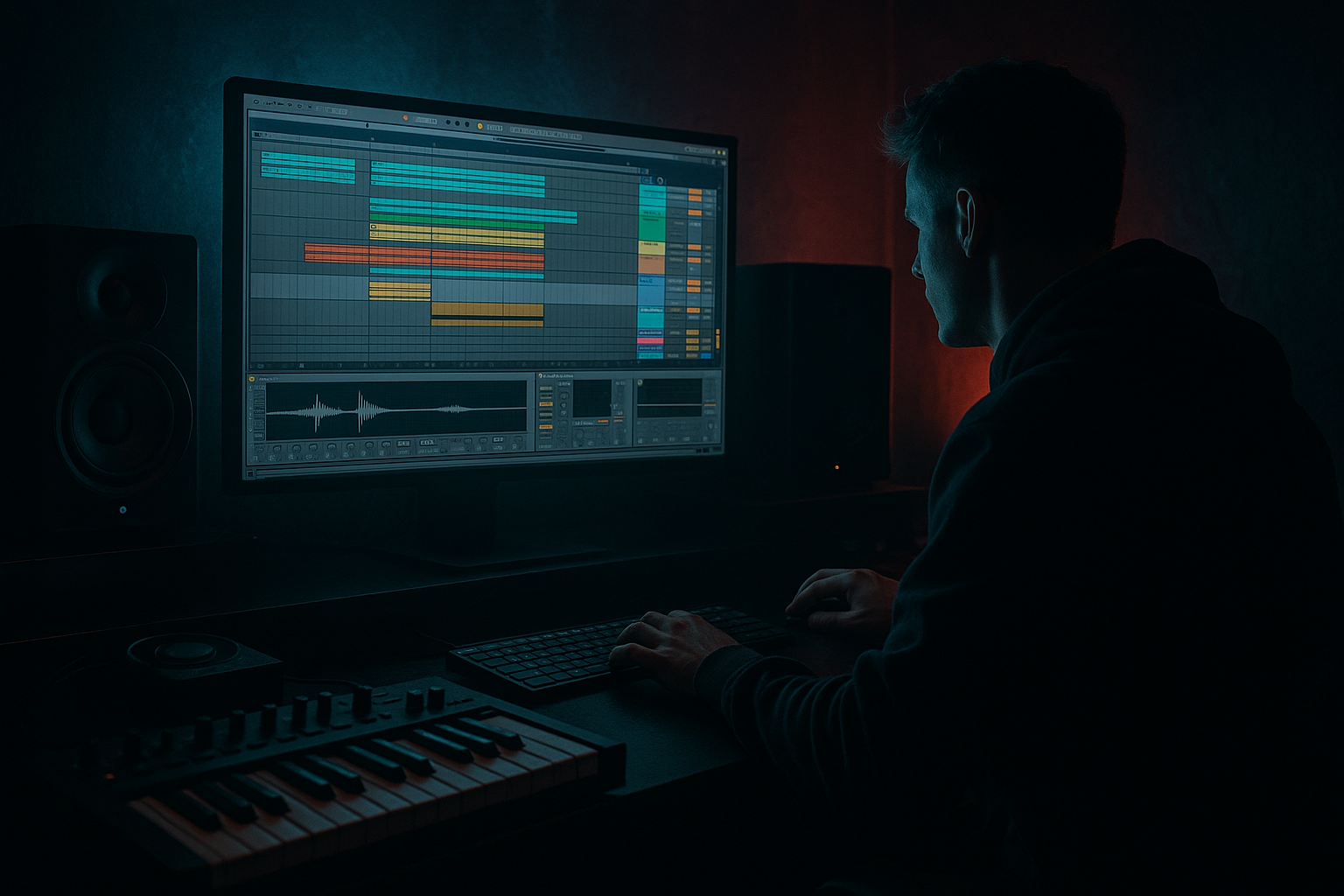
Main tutorial
Darkside Reese Patch Humanize Using Groove Pool Tricks in Ableton Live 12
Advanced Drum & Bass / Jungle FX Tutorial 🎛️🌑
1. Lesson overview
In darkside DnB and jungle, the reese bass is often the emotional engine of the track — but if it’s too rigid, it sounds like a loop. Humanizing a reese patch with groove pool tricks in Ableton Live 12 gives it that unstable, swinging, “played by a tired machine” feel that works brilliantly in oldskool rollers, techstep, and jungle-inspired atmospheres.
This lesson shows you how to:
- build a dark, wide reese patch
- add micro-timing variation without losing low-end power
- use Groove Pool to push a bassline into a more human, shuffled, oldskool feel
- preserve sub clarity while introducing movement in the mids
- turn a sterile MIDI bassline into something that feels alive, haunted, and groove-heavy 🖤
- clean sine/sub layer
- mono, stable, no groove swing
- detuned saw/triangle stack
- chorus/ensemble movement
- distortion and filtering
- Groove Pool timing offsets applied only to the mids layer
- Groove Pool swing and timing settings
- clip groove assignment
- note length variations
- velocity shaping
- subtle track delay and automation offset
- optional MPE-style note humanization using Live 12 editing workflow
- a bass that still hits hard in a DnB mix
- but feels less robotic and more like an old DAT tape performance from 1995 ⚡
- Saturator
- Auto Filter
- Chorus-Ensemble
- EQ Eight
- Utility
- Track 1: SUB
- Track 2: REESE MID
- Use Operator with sine wave or Analog
- Keep it mono
- No groove application
- No chorus, no wide effects
- Add EQ Eight:
- This is where all the groove and humanization happens
- High-pass around 90–140 Hz using EQ Eight or Auto Filter
- Apply distortion, movement, and groove to this layer only
- sub stays punchy and consistent
- reese becomes expressive and alive
- long notes on the root
- a few syncopated off-beat hits
- occasional semitone movement for tension
- one or two shorter stabs at the end of the phrase
- Bar 1: root note held, then a short note on the “and” of 2
- Bar 2: root note variation, then a slightly early pickup into the next bar
- bass on the gaps between kick/snare
- occasional overlap for weight
- leave room for breakbeats to breathe
- the MIDI groove library
- extracted grooves from drum loops
- custom swing feels from old breakbeats
- 16th swing
- mild push/pull
- not too much quantize destruction
- MPC 16 Swing style grooves
- classic drum machine swing
- subtle break-derived grooves
- Timing: start at 20–40%
- Random: 0–10%
- Velocity: 0–20% for bass unless you want dynamic accents
- Base: leave around default unless you want tighter movement
- phase-stable
- locked to the grid
- consistent with kick drum relationships
- arrive slightly late
- lean into the beat
- feel like a human performer on top of a machine groove
- shorten some notes to create articulation
- lengthen certain notes to make them “swell”
- avoid identical note lengths throughout the loop
- make root notes in the first bar slightly longer
- make syncopated notes short and punchy
- create contrast between phrases
- held notes: 1/2 to 1 bar
- accented stabs: 1/16 to 1/8
- pickup notes: slightly shorter than the grid
- filter amount
- saturation input
- volume envelope
- MIDI expression on layered instruments
- set stronger notes around 90–110
- weaker ghost notes around 40–70
- accent off-beats with moderate velocity spikes
- filter cutoff
- wavetable position
- amp envelope attack
- saturation drive amount
- try +3 ms to +12 ms
- listen in context with the drums
- filter cutoff
- resonance
- distortion drive
- amp volume
- Amen-style breaks
- Think-style breaks
- chopped hardcore breaks
- EQ Eight
- Saturator
- Auto Filter
- Chorus-Ensemble
- Redux for grit
- Dynamic Tube for aggression
- Drum Buss if you want added weight and smack
- Utility for mono control
- high-pass the mid layer before widening
- distort after filtering for a more controlled bite
- use chorus subtly to keep movement
- keep the low end mono or removed entirely from this layer
- Drive lightly
- Boom off or very subtle
- Crunch can add character on the mids
- filter the reese low
- reduce groove amount
- keep it foggy and restrained
- full groove applied
- mid layer more active
- slight delay and movement exposed
- automate groove-like filtering and resonance
- use pauses and stutters
- let the bass “breathe”
- increase randomness slightly or alter note placements
- change groove intensity for freshness
- add a variation layer with a new swing feel
- intro: 10–20%
- drop: 25–40%
- variation bars: 15–30%
- low-pass sweeps
- saturation peaks on accented notes
- filter envelope changes at phrase ends
- lower velocity
- shorter duration
- reduced filter cutoff
- less grid-locked
- more like a live, swinging performance
- still tight enough for a hard DnB drop
- no groove
- groove only
- groove + note-length editing
- groove + delay + automation
- build a split sub + mid reese system
- keep the sub locked and clean
- apply Groove Pool swing to the mid layer only
- vary note lengths and velocities
- use tiny track delay and automation for phrase movement
- extract grooves from breaks for authentic jungle energy
- keep the bass heavy, dark, and controlled with stock Ableton devices
- a rack preset recipe
- a step-by-step Ableton session template
- or a matching jungle drum programming lesson to pair with the bass.
This is especially useful if your bassline is repeating too cleanly across 1–2 bars and you want more rolling tension without resorting to random automation chaos.
---
2. What you will build
You will create a 2-layer darkside reese bass patch in Ableton Live 12:
Layer 1: Sub foundation
Layer 2: Reese movement layer
Then we’ll humanize it using:
The end result:
---
3. Step-by-step walkthrough
Step 1: Build a solid reese patch
Create a new MIDI track and load Wavetable or Operator.
#### Option A: Wavetable reese
1. Load Wavetable
2. Osc 1: Saw, unison 2–4 voices, slight detune
3. Osc 2: Saw or triangle, detune slightly differently from Osc 1
4. Set Osc 2 volume lower than Osc 1
5. Add Filter 1:
- Type: Low-pass 24 dB
- Cutoff: around 120–250 Hz depending on note range
- Drive: 5–15%
6. Add LFO to filter cutoff:
- very slow rate: 1/2 to 1 bar
- subtle depth: just enough movement to keep the reese alive
#### Option B: Operator reese
1. Load Operator
2. Use two or more oscillators with saw-like or harmonically rich waveforms
3. Detune slightly
4. Use a filter section or add Auto Filter after Operator
5. Drive the tone using saturation later in the chain
Recommended bass processing chain
Use this as a starting point:
Wavetable/Operator → Saturator → Auto Filter → Chorus-Ensemble → EQ Eight → Utility
Suggested settings:
- Analog Clip on
- Drive: 2–6 dB
- Soft Clip on if needed
- Low-pass 24 dB
- Cutoff automated later
- Slight resonance: 5–15%
- Mode: Ensemble or Chorus
- Amount low to moderate
- Keep the low end mono by filtering after this or splitting bands
- Cut unnecessary lows in the mids layer if needed
- Dip harshness around 2–5 kHz if it bites too much
- Width: adjust carefully
- Bass mono strategy if splitting layers
---
Step 2: Split sub and reese layers
This is crucial for clean DnB low end. Keep the sub stable, and humanize the mid bass.
#### Method
Create two MIDI tracks:
Copy the same MIDI clip to both tracks.
#### Sub track settings
- low-pass if needed
- keep everything below about 80–120 Hz depending on arrangement and key
#### Reese mid track settings
This split gives you the best of both worlds:
---
Step 3: Write a simple dark DnB bassline
For oldskool/jungle vibes, avoid overly technical note patterns at first.
Try a 2-bar loop with:
Example feel:
Think in call-and-response with the drums:
---
Step 4: Open the Groove Pool and choose the right groove
In Ableton Live, open the Groove Pool from the bottom panel.
Drag in grooves from:
For jungle and darkside DnB, try grooves that have:
Good starting points:
#### Suggested groove settings
Once you pick a groove, adjust:
For dark DnB, don’t overdo timing.
You want human feel, not sloppy bass.
---
Step 5: Apply groove to the reese mid layer only
This is where the trick becomes powerful.
1. Select the REESE MID MIDI clip
2. In the Clip View, choose the groove from the groove selector
3. Press Commit if you want to bake it in, or leave it non-destructive while testing
4. Adjust groove amount per clip
#### Why only the mid layer?
Because the sub should remain:
The mid layer can:
---
Step 6: Use groove with note length changes
A huge part of “humanized bass” is not only timing — it’s note length behavior.
In Live 12’s MIDI editor:
#### Practical approach
For a 2-bar bassline:
Try this:
This makes groove feel intentional, not random.
---
Step 7: Add velocity shaping for perceived “hand-played” movement
Even on a reese, velocity can matter if it drives:
#### Practical use
If your instrument responds to velocity:
If your synth doesn’t respond directly, map velocity to:
This gives the groove more personality.
A bassline with identical velocities often sounds pasted in place.
---
Step 8: Add micro-timing with clip groove plus track delay
Here’s where advanced humanization gets very effective.
#### Method A: Groove Pool timing only
Use the groove selector on the bass clip and set a mild timing swing.
#### Method B: Track Delay on the mid layer
On the REESE MID track, add a tiny Track Delay:
This can make the bass feel like it’s leaning back slightly behind the break.
Be subtle. Too much delay and your bass feels late rather than alive.
#### Method C: Push/pull with automation
Automate:
Do this in short phrase-level movements, not every note.
That gives a performer-like quality without overcomplication.
---
Step 9: Use groove extraction from a breakbeat for authentic jungle feel
If you want a more oldskool jungle feel, extract groove from a break loop.
#### Workflow
1. Load a breakbeat loop into an audio track
2. Right-click and choose Extract Groove
3. Apply that groove to your bass clip
4. Dial the groove amount way down at first
This is excellent if your drums are already break-based.
The bass will lock into the natural swing language of the break instead of a generic grid swing.
Try it with:
This often creates that “bass and drums are dancing together” effect.
---
Step 10: Tame the reese with effects so groove stays musical
Humanized bass can get messy if you don’t control the tone.
#### Useful stock Ableton devices
#### Suggested mid-layer chain
EQ Eight → Saturator → Auto Filter → Chorus-Ensemble → Dynamic Tube → Utility
Suggested workflow:
If using Drum Buss:
---
Step 11: Arrange the groove across sections
Humanized reese work shines when arrangement changes are deliberate.
#### Intro
#### Drop
#### Breakdown
#### Second drop
A great dark DnB arrangement often evolves bass motion subtly every 8 or 16 bars.
---
4. Common mistakes
1. Applying groove to the sub
This is the fastest way to lose low-end solidity.
Keep the sub locked and clean.
2. Over-swinging the bass
If the groove amount is too high, the bass sounds drunk instead of human.
Use small amounts and test against the drums.
3. Forgetting to edit note lengths
Timing alone is not enough.
Short/long articulation makes the groove believable.
4. Too much unison width in the low mids
Wide reese movement can ruin club translation.
High-pass the moving layer and keep sub mono.
5. Randomizing everything
A little randomness is great.
Too much makes the bass feel unstable and amateur.
6. Not checking in context with the break
Oldskool DnB groove only works if bass and drums talk to each other.
Always audition with the full beat.
---
5. Pro tips for darker/heavier DnB
Use groove as a phrase tool, not a default
Instead of applying the same swing to every loop, vary groove strength across sections:
Offset one layer, not both
A tiny track delay on the mid layer can create a huge sense of depth.
The sub remains locked while the reese “floats” behind it.
Combine groove with automation curves
Dark bass feels more alive when groove is paired with:
Use small pre-delay-like bass movement
If you want a haunted, behind-the-beat vibe, slightly delay the mid layer, then automate it back tighter for impact moments.
Resample your groove
Once the bass groove is working:
1. freeze/flatten or resample it
2. chop it into audio
3. nudge a few hits manually
4. reprocess with Warp if needed
This can create the messy, broken, oldskool feel that MIDI alone sometimes misses.
Try ghost notes
Add very quiet off-grid notes in the mid layer:
They can add a subliminal shuffle feel without cluttering the drop.
---
6. Mini practice exercise
Build a 2-bar darkside reese loop using this method:
Task
1. Create a sub track and a reese mid track
2. Program a 2-bar bassline with:
- 4–6 notes total
- at least one held note
- at least two short syncopated notes
3. Apply a groove to the mid layer only
4. Set groove timing between 20–35%
5. Add a tiny track delay on the mid layer: +5 ms
6. Use EQ to keep the mid layer out of the sub range
7. Automate filter cutoff over the 2 bars
Goal
Make the loop feel:
Then compare:
You’ll hear how each layer of humanization changes the feel. 🎚️
---
7. Recap
To humanize a darkside reese patch in Ableton Live 12:
The key mindset is this:
humanize the movement, not the foundation.
That’s how you get a reese that feels like it’s breathing inside the groove while still hitting like proper DnB artillery. 🖤🥁
If you want, I can also turn this into:

