Main tutorial
1. Lesson Overview
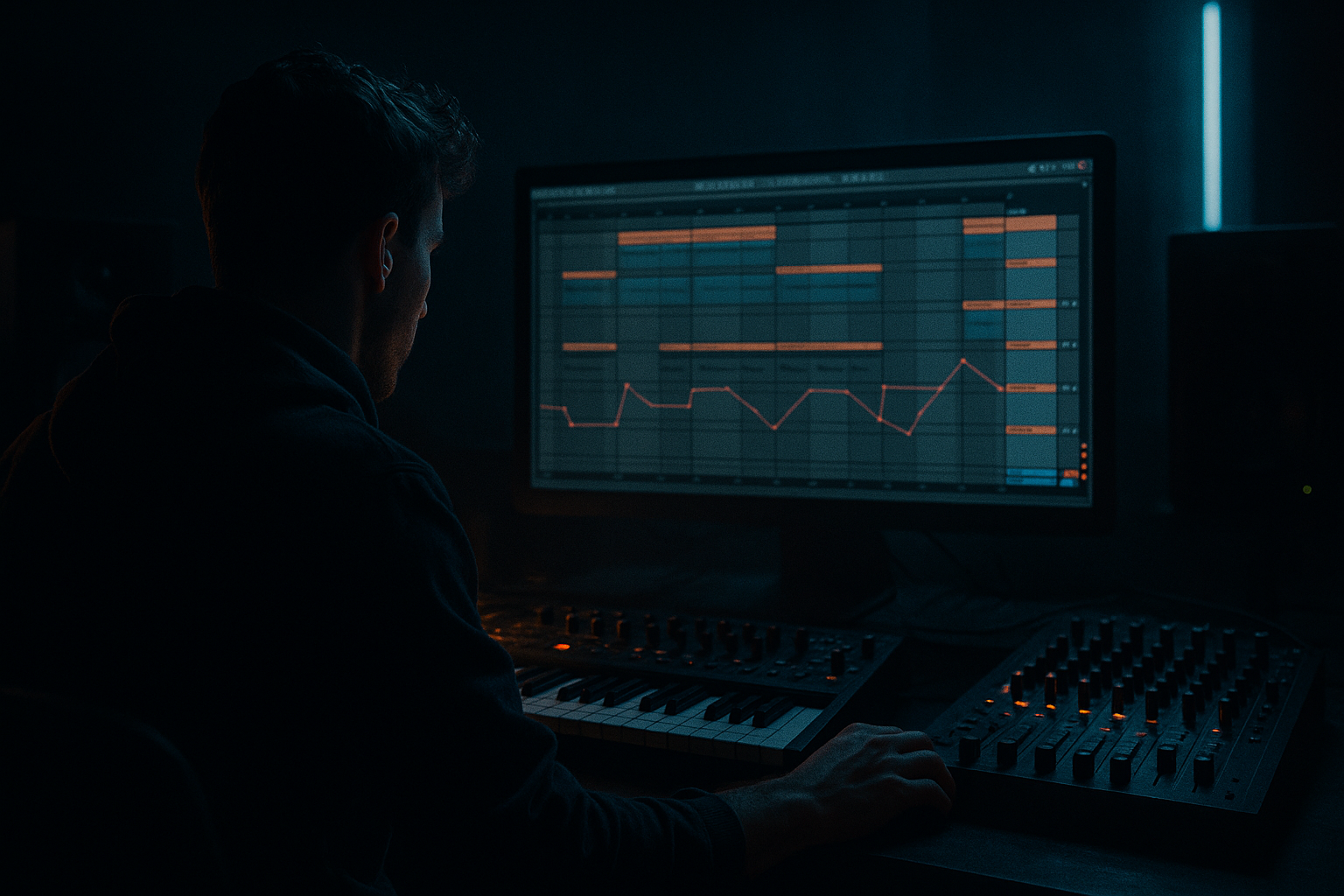
"Clipz edit: stretch a delay throw from scratch in Ableton Live 12 using Session View to Arrangement View" — an advanced, hands-on lesson showing how to design a Drum & Bass atmosphere technique where you create a delay throw (wet delay ping/pong tail) live in Session View, capture it to Arrangement, and then creatively stretch and sculpt that tail into a long ambient atmosphere element using only Ableton Live 12 stock devices and clip/warp tools. This is ideal for adding dramatic sub-second-to-many-second delay tails that morph into pads, riser-like atmospheres, or wet transitions without leaving the core mix.
2. What You Will Build
- A Session-View-triggered “delay throw” that you can send from any drum or vocal clip.
- A clean return chain using Echo, EQ Eight, Saturator, and reverb to create a musically useful wet tail.
- A recorded audio capture of the delay tail in Arrangement View.
- A stretched, warped, and texture-enhanced audio clip (the Clipz edit) that sits as a long atmospheric bed or transition element in your Drum & Bass track.
- Recording too short a tail: If you stop capture too soon you won’t have enough material to stretch cleanly. Always capture a couple of seconds extra.
- Overusing Complex Pro without testing: Complex Pro is safe, but for extreme stretches Texture (granular) sometimes yields more musical results. Test both.
- Warping the attack: If you warp the initial transient heavily you’ll ruin the perceived punch. Always anchor the initial transient with a Warp Marker.
- Not cleaning low end before stretching: Sub frequencies smear when stretched; use HP filter before Echo or on the recorded clip.
- Recording mix bleed: If you didn’t isolate the return during resampling you'll capture unwanted elements. Mute other tracks or use a dedicated resample cue mix.
- Too-high feedback on Echo during capture: That can produce runaway self-oscillation or clipping. Tame feedback and use saturation carefully.
- Use a second return for reverb-only: Send the wet Echo return into another return with only long reverb (set to 100% wet) to get separate control over reverb tail versus echo repeats. Record them together or separate for more flexibility.
- Freeze/Flatten alternative: If you need super-high-quality offline stretching, export (File > Export Audio) the captured clip at high sample rate, re-import and warp—this avoids CPU spikes and gives cleaner results.
- Use automation to “stretch” perception: Instead of extreme time-stretching (which can sound artificial), automate lowpass cutoff to slow down perceived motion while stretching by a moderate amount. Combines both feel and audio fidelity.
- Doppler-like pitch movement: Duplicate the stretched clip, transpose one an octave up and low-pass it, pan oppositely and set tiny delay offsets — creates huge width and movement.
- Save as a Clip Preset: Once you craft a great Clipz edit, freeze/flatten or consolidate and save to a user folder as a reusable clip.
3. Step-by-Step Walkthrough
Note: The walkthrough references the exact lesson title where indicated: "Clipz edit: stretch a delay throw from scratch in Ableton Live 12 using Session View to Arrangement View".
Preparation (Session View set up)
1. Create return track and send routing
- Create Return Track A (Cmd/Ctrl+Alt+T then rename to “A – DelayThrow”).
- Set the track to Stereo and ensure the Master/Return knob is visible.
- On your drum or vocal audio track, set Send A to around +6 to start (adjust later).
2. Build the DelayThrow return chain (stock devices)
- Device 1 – EQ Eight: Cold high-pass to remove sub mud. HP at ~80–120 Hz, gentle Q, -12 to -24 dB/oct slope if available. Remove low frequency energy that will swallow bass.
- Device 2 – Echo: Use Ableton’s Echo (stock). Settings to start:
- Delay Mode: Sync
- Left delay: 1/8T (triplet 8th) ; Right delay: 1/4 (or 1/8 for tighter ping-pong)
- Feedback: 40–60% (this controls length pre-stretch)
- Diffusion: 0–15% (keeps clarity)
- Delay time filtering: Tone knobs a touch darker (Cut filter around 6–8 kHz)
- Dry/Wet: 100% (return track should be fully wet)
- Ping-pong: Toggle on for stereo movement
- Device 3 – Saturator: Insert Soft clip, Drive 1–2 dB to glue the echoes.
- Device 4 – Reverb (Hybrid Reverb or Stock Reverb): Use a Plate or Large Hall, Size large, Decay 3–8 s (depending on desired tail length). Set Dry/Wet around 20–30% so reverb fattens without overwhelming repeated echoes.
- Device 5 – Utility: Use for gain staging and stereo width (set width 100–150% carefully).
3. Create a dedicated Session clip to “throw”
- On your drum or vocal track, create a short Clip (1–2 bars) that will be used as the source for the delay throw. If drums, use a snare or snare group hit; if vocal, a short spoken phrase or word.
- Set its launch quantization to 1 Bar or None depending on whether you want precise sync or immediate triggering.
- Prepare a follow-action if you want multiple repeats automatically (optional).
Live testing and capturing the throw
4. Preview and tune
- Solo the source track and set Send A so the echo is audible on the return. Adjust Echo feedback and reverb decay until you get a pleasing wet tail that rings out for several seconds but is not too muddy—this is your raw delay throw.
5. Capture the throw to Arrangement (the core Session-to-Arrangement step)
- Create a new Audio Track (name it “Resample-DelayThrow”).
- Set its Input to “Resampling” and Arm the track for recording (Record Arm).
- Important routing: Ensure only the Return Track and the source are audible during capture (use track mutes if necessary) so the recorded material is just the wet signal you want.
- In Arrangement, place the playhead where you want the recorded throw to land.
- In Session View, trigger the source clip (or let follow action trigger it). Immediately press Arrangement Record (global) or click Record in Arrangement to capture the live output. Let the wet tail decay fully before stopping the recording—capture some extra seconds (2–6 s) beyond audible decay to give you room to stretch.
- Stop recording and check the captured audio clip in Arrangement.
Stretching the captured throw (Clipz edit)
6. Consolidate and prepare the recorded clip
- In Arrangement, select the recorded audio (Resample-DelayThrow) clip, right-click and Consolidate (Cmd/Ctrl+J) to make a clean clip.
- Double-click the clip to open Clip View; enable Warp if it isn’t already.
- Set Warp Mode to Complex Pro (best for full-spectrum material) or Texture if you plan granular-like stretching. Start with Complex Pro.
7. Basic time-stretch (musical approach)
- Decide on the target length (e.g., original 3s tail -> stretch to 12s).
- Place a Warp Marker at the start of the tail (usually start of clip) and another one where you want material to start stretching (e.g., after the initial transient or first repeats). Lock the transient section by not moving warp markers there.
- Move the last Warp Marker to the right to lengthen the clip to desired length. Complex Pro will preserve tonality and transient integrity for most material. Listen for artifacts and choose Textural mode if you prefer granular texture.
8. Creative stretching: segmented Clipz edit
- Make multiple Warp Zones:
- Zone 1: 0—0.5 s (initial hit) — keep unwarped.
- Zone 2: 0.5—2 s (mid repeats) — set to subtle stretch (e.g., 1.5–2x).
- Zone 3: 2 s—end (tail) — heavy stretch (4x–6x) for ambient pad.
- Set different Warp Modes per zone by slicing into separate clips (Cmd/Ctrl+E to split) and choosing different Warp Modes or different Transients values. This gives a natural-sounding preserved attack and a lush stretched tail.
- Crossfade split clips by small fades (1–10 ms) to avoid clicks.
9. Texture enhancement with Grain Delay (optional stock device)
- After consolidating the stretched clip (or while still in the return chain), drop Grain Delay onto the audio track:
- Set Delay (L/R) small, Spray to taste (10–40%), Feed to 0–30% for added repetition, Pitch to -12 to +12 semitones for harmonic smearing.
- Use Spread to widen stereo and mix around 20–30%. This produces granular texture and can mask time-stretch artifacts.
10. Spectral equalization and de-noising
- Insert EQ Eight after the stretched clip to tame resonances created by stretching.
- Use a gentle high-pass (e.g., 80–120 Hz) and a low-pass or bell cuts to prevent harsh top-end build-up.
- Use a subtle Gate/Compressor with slow attack to shape the long tail dynamics if needed.
11. Automation and final placement (Session-to-Arrangement loop complete)
- Automate volume automation and Utility width for movement—e.g., stereo width starts narrow then slowly opens.
- If you recorded multiple throws in Session View, repeat capture and comp the best result in Arrangement. Use Arrangement’s automation to blend the Clipz edit under drums during transitions.
4. Common Mistakes
5. Pro Tips
6. Mini Practice Exercise
Goal: Create one 2–4 second delay throw from a snare in Session View and turn it into a 10–15s atmospheric bed in Arrangement using the exact Clipz edit workflow.
Steps:
1. In Session View, create a one-bar snare clip on a drum track. Set Send A to +8.
2. Build a return “A – DelayThrow” with the Echo settings from Step 2 above.
3. Arm a Resample audio track and record a single throw from Session into Arrangement. Capture at least 4 seconds of decay.
4. Consolidate the recorded audio, enable Warp → Complex Pro, anchor the first 0.25s, and stretch the final tail to reach 12s total.
5. Add Grain Delay and subtle EQ Eight to shape texture. Automate Utility width from 40% to 140% over the tail.
6. Export a 30-second render and compare A/B against an unstretched throw to hear the Clipz edit effect.
7. Recap
This lesson "Clipz edit: stretch a delay throw from scratch in Ableton Live 12 using Session View to Arrangement View" walked through a complete, advanced workflow: design a return-chain delay throw in Session View (Echo + Reverb + EQ + Saturation), capture the wet output via Resampling into Arrangement, and perform surgical stretching and texturing using Warp markers, Warp Modes (Complex Pro / Texture), Grain Delay, and EQ. Key practices: preserve the transient, capture extra tail length, remove sub frequencies pre-stretch, and split into zones for natural preservation of attack vs. extreme tail morphing. Use the mini exercise to lock the technique into your Drum & Bass production toolbox so you can generate unique atmospheric Clipz edits for drops, breaks, and transitions.

