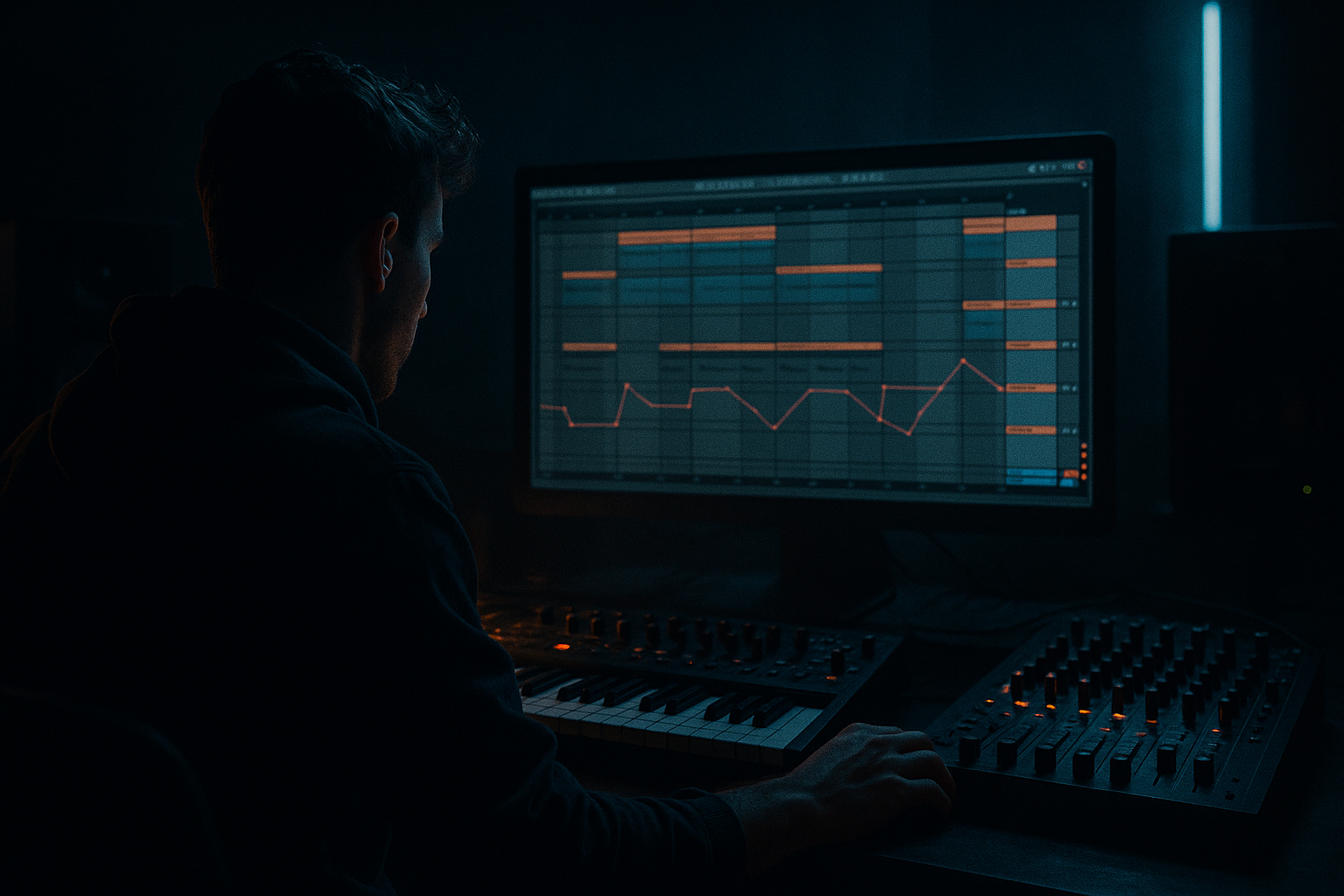
Main tutorial
Apache: Switch-Up Rebuild for Rewind-Worthy Drops in Ableton Live 12
Beginner Sampling Tutorial for Jungle / Oldskool DnB Vibes
1. Lesson overview
In this lesson, you’ll learn how to take a classic “Apache” break-style sample or similar oldskool jungle break material and turn it into a switch-up drop that feels like it deserves a rewind. 🔥
The goal is not just to loop a breakbeat. We’re building a drop section with movement:
- a first phrase that sets up the groove,
- a switch-up that surprises the listener,
- and a rewind-friendly payoff with heavier impact, tighter drum edits, and classic jungle energy.
- Audio clips
- Warp markers
- Slice to New MIDI Track
- Drum Rack
- stock devices like Simpler, Drum Buss, EQ Eight, Saturator, Echo, and Utility
- dusty breakbeats
- chopped drums
- short vocal or horn hit accents
- deep sub support
- gritty, energetic oldskool atmosphere
- Set tempo to 160–170 BPM for a jungle/oldskool DnB feel
- Make sure your master is clean with no clipping
- Create these tracks:
- Preserve: 1/16
- Transient Loop Mode: Off for now
- Beats mode: for clean transient preservation
- zoom in
- add warp markers only where needed
- avoid over-warping every little hit unless the timing is really off
- tight enough to groove
- loose enough to keep that human jungle swing
- High-pass gently around 25–35 Hz to remove unnecessary rumble
- If the break is muddy, cut a little around 200–400 Hz
- If the hats are harsh, tame a narrow peak around 6–9 kHz
- Drive: 5–20%
- Crunch: low to moderate
- Boom: use carefully; set by ear
- Transients: slightly positive if you want more snap
- Use Soft Sine or Analog Clip
- Drive lightly, around 2–6 dB
- Reduce output so you don’t clip
- Use Width only if the break is stereo and you need to control it
- For a more focused oldskool punch, you can reduce width slightly
- Slicing by: Transients
- Create one slice per: Transient
- rearrange kick/snare placements
- repeat a snare for tension
- create fill variations
- cut the break into classic jungle stutter edits
- Keep the main kick/snare feel of the break
- Add a few extra ghost hits if they groove
- Leave space for bass
- Bar 1: mostly original break feel
- Bar 2: add one or two extra chops for movement
- louder on main kick/snare hits
- lower velocity on ghost notes
- vary repeated hits slightly
- right before the drop
- halfway through the drop
- as a fill into the next phrase
- remove the kick for half a bar
- repeat a snare slice rapidly
- reverse a break hit
- shift the rhythm into a stutter pattern
- add a vocal stab or horn hit
- Beat 1: kick
- Beat 1.3: snare
- Beat 2: quick break chop
- Beat 2.2: another chop
- Beat 3: snare
- Beat 4: fill with fast chopped hats
- a reversed cymbal
- a reverse break slice
- a tape stop-style effect
- a short vocal shout like “Apache!” or “rewind!”
- Reverb on a hit, then bounce it and reverse it
- Echo with a long feedback tail
- Simple Delay for rhythmic repeats
- Auto Filter for a rising or falling sweep
- Use Operator
- Sine wave for sub
- Add a second oscillator or subtle saturation for harmonics if needed
- Oscillator A: Sine
- Octave: low
- Filter: low-pass if needed
- Add a little amplitude envelope punch:
- hit on the downbeat
- answer the snare
- leave room for the break
- Use Wavetable with a detuned saw
- Or a filtered Analog patch
- Keep the note short and punchy
- Low-pass filter around 200–800 Hz depending on the sound
- Saturation moderate
- Keep sub mono with Utility if needed
- 2 bars intro tension
- 4 bars main break groove
- 1 bar switch-up
- 1 bar rewind cue
- 4 bars drop payoff
- Use mute automation on the break for the switch-up
- Bring bass in after the first drum phrase
- Drop the bass out for a half-bar before the rewind cue
- Reintroduce the full groove after the cue
- vinyl noise
- rain texture
- dark pad
- distant ambience
- Auto Filter to high-pass atmos
- Reverb to push them back
- Utility to reduce stereo width if the sound gets too wide
- filter cutoff on the break or bass
- reverb send before a switch-up
- volume for fill hits
- Echo feedback for transition moments
- open a low-pass filter over 4 bars
- slam it closed right before the drop
- increase saturation slightly into the switch-up
- automate a snare delay for a few hits only
- A little drive goes a long way
- Too much destroys the punch
- 1/32 snare flicks
- duplicated break slices with lower velocity
- reverse ghost hits before key accents
- bar starts with drum statement
- bass answers on the offbeat
- switch-up breaks the pattern
- full groove returns
- commit to a groove
- add texture
- create variations fast
- 1 Apache-style break loop
- 1 chopped switch-up
- 1 bass note or stab
- 1 rewind cue
- light atmosphere
- a short delay on one accent
- a subtle crash at the start of the drop
- how to warp and clean a break
- how to slice it into a Drum Rack
- how to program a switch-up
- how to make a rewind cue
- how to support the groove with a simple bass layer
- how to arrange the drop for maximum impact
- contrast
- rhythm changes
- space
- energy control
- memorable breaks
This is a very common technique in jungle, oldskool DnB, rolling DnB, and ragga-influenced breakbeat music. In Ableton Live 12, you can do this using:
By the end, you’ll know how to build a drop that feels like:
> “Here comes the break… now flip it… now rewind the crowd.” 😈
---
2. What you will build
You’ll create a short arrangement section with:
1. An Apache-style break loop as the main rhythmic foundation
2. A switch-up bar or two where the rhythm changes to create excitement
3. A layered bass hit or sub stab to give the drop weight
4. A simple arrangement with tension, release, and DJ-friendly energy
5. A version that can be used in:
- intro buildup
- drop 1
- switch-up
- rewind cue
Final sound goal
Think:
---
3. Step-by-step walkthrough
Step 1: Set up your project
Open a new Ableton Live 12 set and do this first:
- Try 165 BPM as a sweet spot
1. Break Loop Audio
2. Drum Rack Chops
3. Sub / Bass
4. FX / Rewind Cue
5. Optional: Atmos / Pad
If you already have an Apache-style sample or break loop, drag it into Audio Track 1.
> Tip: If your sample is not already tempo-matched, don’t panic. We’ll warp it properly in a minute.
---
Step 2: Warp the break correctly
For jungle and DnB, the break needs to lock tightly to the grid.
1. Double-click the sample to open it in the Clip View
2. Turn Warp on
3. Set the warp mode:
- Use Beats for drum loops
4. Choose a starting warp marker on the first transient
5. Set the loop length to 1, 2, or 4 bars depending on the sample
#### Good starting settings:
If the break sounds loose:
#### Goal
You want the break to feel:
---
Step 3: Clean and shape the break
Now let’s make the break more usable in a mix.
Add these devices to the Break Loop Audio track:
#### Suggested device chain:
1. EQ Eight
2. Drum Buss
3. Saturator
4. Utility
#### EQ Eight starting points:
#### Drum Buss settings:
#### Saturator:
#### Utility:
This gives you a more aggressive, mix-ready break without killing the vibe.
---
Step 4: Chop the break into usable pieces
This is where the switch-up magic begins.
Right-click the break clip and choose:
Slice to New MIDI Track
In the dialog:
Ableton will create a Drum Rack with the slices mapped to pads.
Now you can reprogram the break as MIDI.
#### Why this matters
Instead of being stuck with one loop, you can:
---
Step 5: Build a main groove pattern
Open the MIDI clip created by slicing.
Start with a basic 2-bar pattern:
#### Beginner-friendly approach:
Use velocity changes to make it breathe:
This keeps it from sounding like a rigid drum machine loop.
---
Step 6: Create the switch-up
Now let’s make it feel like a rewind moment.
A switch-up is a short section where the groove changes to surprise the listener. In jungle/DnB, this can happen:
#### Easy switch-up ideas:
#### Example 1-bar switch-up pattern:
This creates a “wait… what just happened?” effect.
---
Step 7: Add a rewind cue
A rewind-worthy drop often has a moment that screams, “bring that back!”
You can create this with:
#### Stock Ableton options:
#### Easy rewind cue method:
1. Take one snare or vocal chop
2. Render it to audio
3. Reverse it
4. Place it before the switch-up
5. Add a small reverb tail
That creates a classic transition into the drop.
---
Step 8: Build the bass layer
Oldskool jungle needs bass, even if the lesson is sampling-focused. Keep it simple.
Create a new MIDI track with Operator, Wavetable, or Analog.
#### Beginner bass approach:
#### Simple Operator settings:
- Attack: 0 ms
- Decay: short
- Sustain: moderate
- Release: short
#### Bass rhythm
Keep it sparse:
A jungle drop gets powerful when the bass and break are not fighting each other.
---
Step 9: Layer a sub stab or reese accent
If you want the drop to hit harder, add a short bass stab or reese-style accent.
#### For darker oldskool energy:
#### Processing chain:
1. EQ Eight
2. Saturator
3. Auto Filter
4. Utility
#### Starting settings:
This gives the drop a bit more menace.
---
Step 10: Arrange the drop like a DJ tool
Now put everything into a short arrangement.
A simple structure:
#### Arrangement ideas:
This makes the section feel intentional and performance-ready.
---
Step 11: Add atmosphere without clutter
Jungle often sounds bigger because of space and texture, not because every element is loud.
Add subtle background layers:
#### Use stock Ableton devices:
Keep atmos low in the mix so the break stays the star.
---
Step 12: Automate energy
Automation is what turns a loop into a drop.
Automate:
#### Great automation moves:
This creates the “build and snap” feeling that makes jungle so exciting.
---
4. Common mistakes
1. Over-warping the break
Too many warp markers can make the groove feel stiff and unnatural.
Fix: only place markers where timing correction is necessary.
2. Making the break too loud
The break should cut, but not dominate the whole mix.
Fix: turn it down and let saturation do the work.
3. Adding too much bass
If the bass is huge all the time, the drop loses contrast.
Fix: use short bass phrases and leave space.
4. No switch-up
A straight loop can work, but it won’t feel like a rewind moment.
Fix: create at least one intentional rhythmic change.
5. Ignoring mono compatibility
Deep jungle bass needs to stay solid in mono.
Fix: keep sub frequencies centered using Utility.
6. Using too many layers
Beginner productions often get cluttered fast.
Fix: keep the core to break, bass, and a few accents.
---
5. Pro tips for darker/heavier DnB
Tip 1: Dirty the break slightly
Use Drum Buss or Saturator to add grime.
Tip 2: Cut lows from everything except kick/sub
Use EQ Eight to high-pass non-bass elements.
This keeps the low end focused and heavy.
Tip 3: Use ghost notes and micro-edits
Tiny snare rolls and chopped hats are classic jungle language.
Try:
Tip 4: Make the drop feel like a call-and-response
Let the break answer the bass.
For example:
Tip 5: Keep the sub simple, but menacing
A single deep note with good sound design often hits harder than a busy bassline.
Tip 6: Use resampling
Bounce your chopped break to audio and chop it again.
This is huge in DnB because it lets you:
Tip 7: Think like a selector
Ask yourself:
“Would a DJ want to rewind this?”
If the answer is yes, you’re probably building strong drum energy and memorable transitions.
---
6. Mini practice exercise
Exercise: Build a 4-bar rewind drop
Create a 4-bar section using only:
#### Task:
1. Put the break in a loop for 2 bars
2. Slice it to MIDI and create a fill in bar 2
3. Add a reversed hit before bar 3
4. Bring in a bass stab on bar 3
5. Repeat the groove with one extra snare chop in bar 4
#### Challenge:
Make the drop feel exciting using only four elements.
If it feels too empty, add:
This exercise teaches you arrangement discipline, which is essential in jungle and oldskool DnB.
---
7. Recap
You now know how to build an Apache-style switch-up rebuild in Ableton Live 12 for rewind-worthy jungle DnB drops. ✅
What you learned:
Key idea to remember:
A great jungle drop is not just about loud drums. It’s about:
Start with a strong break, make one bold switch-up, and let the rewind moment land with confidence. That’s the oldskool DnB formula right there. 🥁⚡
If you want, I can also turn this into a screen-by-screen Ableton Live 12 workflow, or give you a ready-to-use device chain preset list for the break, bass, and rewind FX.

