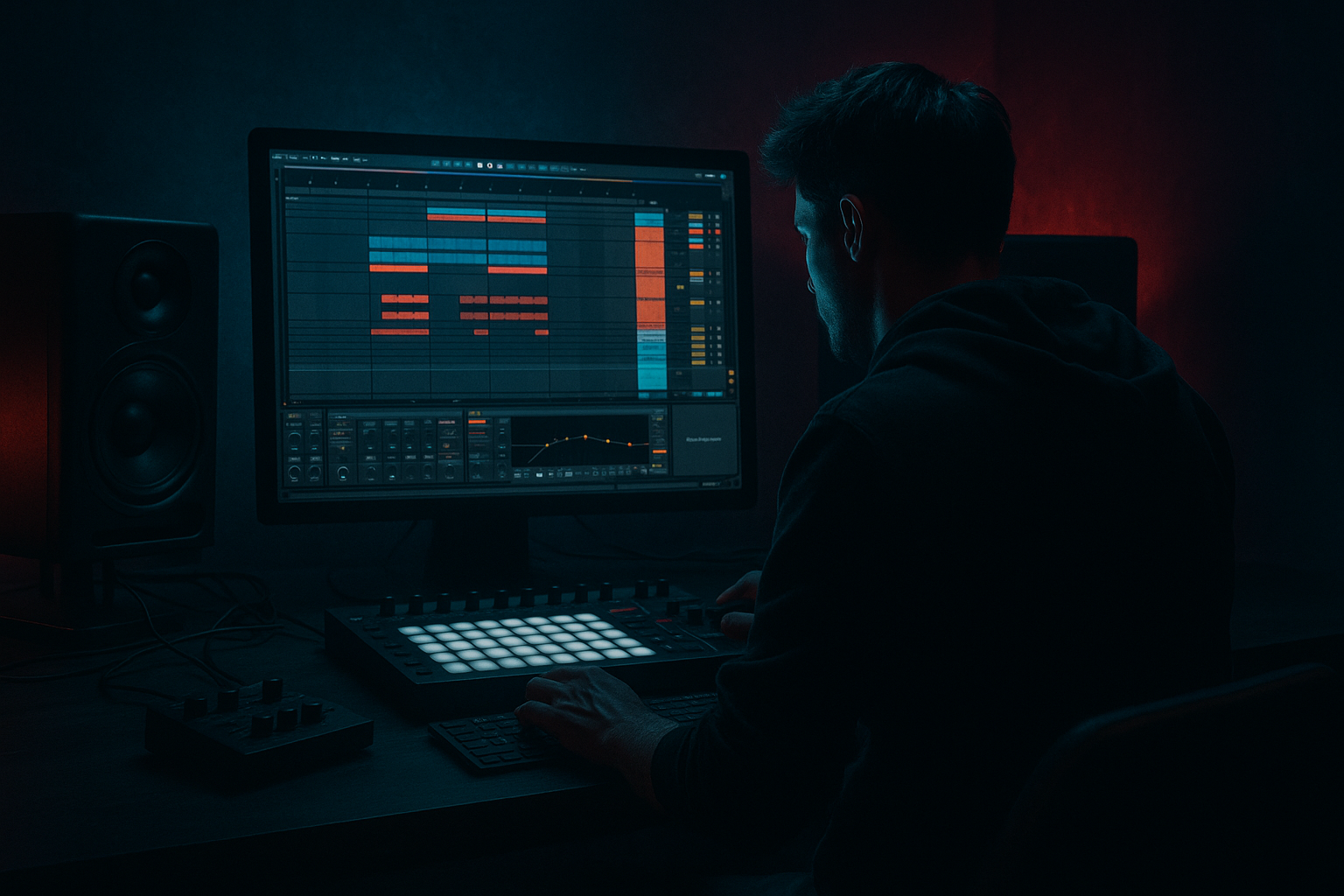
Main tutorial
1. Lesson Overview
In this beginner lesson you'll create an Adam F reverb swell: slice and arrange in Ableton Live 12 with DJ-friendly structure. We’ll build a long, wet reverb tail from a stab or vocal hit, resample that tail, slice it into playable pads, and arrange loopable, DJ-friendly versions (intro/outro-friendly bars, one-shot drops, and session clips). All steps use Ableton Live 12 stock devices and workflows so you can reproduce this technique with things you already have.
2. What You Will Build
- A long, musical reverb tail built from a short stab or vocal hit.
- A resampled “reverb swell” audio file warped to project tempo.
- A Drum Rack of sliced reverb slices (Simpler per pad) you can play/pattern.
- A Session/Arrangement layout with loopable 8/16 bar DJ-friendly sections:
- Capturing the tail too short: record longer than you think. You can always crop; you can’t recover a chopped tail.
- Leaving Dry in the reverb return when resampling: results in transient bleed. If you want pure reverb, put Dry/Wet at 100% on the return or resample the return input directly.
- Using Beats warp mode on a long harmonic tail: causes artifacts. Use Complex/Complex Pro for dense reverb tails.
- Slicing with too few slices: gives limited rhythmic options. Too many slices makes programming fiddly. Start with 8–16 slices per bar and adjust.
- Forgetting to EQ low end before slicing: low rumble will muddy all slices. High-pass around 120–200 Hz before slicing.
- Exporting loops without fade or zero crossings: creates clicks when looped. Use small fades or ensure warp markers align cleanly.
- Reverse only some slices: mixing forward and reversed slices produces the classic pre-drop swell effect attributed to Adam F-style transitions.
- Use an additional return with Auto Filter or Echo to create filtered or delayed versions of the same slices for layering.
- For DJ-friendly keys and mixing, transpose several slices by ±3–7 semitones and save them as separate stems labeled by key.
- Create both tempo-locked (warped) and free-tailed versions: warped clips loop perfectly in sets; free tails are more natural when dropped live.
- Use Utility’s Width to create narrow slices for low-volume background and full-width for dramatic build-ups.
- Save a Session view scene that contains your loop clips and one-shot for instant launching in live DJ sets.
- A full one-shot swell for transitions,
- Loopable slices for extended intros/outros,
- Filtered/automated variations for mixing-ready use.
3. Step-by-Step Walkthrough
Note: Keep an example stab or short vocal hit ready. Tempo for Drum & Bass: 170–174 BPM is common.
A. Prepare the source and reverb send
1. Create an Audio Track and drop your stab/vocal sample. Name it “Stab”.
2. Create a Return track (press Cmd/Ctrl+Alt+T if needed) and insert Ableton Reverb on it.
- Device settings starter: Size ~ 100–150, Decay 10–20s (very long), Diffusion high, Low Cut ~200 Hz to remove mud, High Cut ~8–10 kHz to tame top.
- Set Reverb’s Dry/Wet to 100% if you’ll resample only the reverb return. Alternatively keep Dry/Wet lower if you want bleed, but 100% is clearer for capture.
3. Send the “Stab” track to the Reverb return with the Send knob (e.g., Send A) around 0–12 dB so the hit triggers the long tail.
B. Capture a long reverb tail (resample)
4. Create a new Audio Track called “Reverb Resample” and set its Audio From to “Resampling” OR set it to record from the Reverb return by choosing the return as the input (Return A) — Resampling is simplest.
5. Arm the “Reverb Resample” track and in Arrangement view record while triggering a single stab on the Stab track. Record at least the full decay you want (6–20 seconds). Stop recording after the tail finishes.
6. Trim the clip: zoom in, find the start (just after the hit or at the hit if you want the transient), and crop the tail. Consolidate (Cmd/Ctrl+J) to create a clean audio file.
C. Warp and clean the tail
7. Double-click the reverb clip, enable Warp. Use Complex Pro/Complex warp mode for natural tails. Set a single Warp marker at the start and check the clip fits project tempo — this lets you loop or slice in time.
8. Use an EQ Eight to remove low rumble (high-pass around 120–200 Hz) and tame any harsh peaks. Add Utility to control width (narrow for background, wider for atmospheric). Optionally apply Saturator lightly for character.
D. Create the swell one-shot and the sliced loop
9. Make a one-shot: duplicate the consolidated clip and label “Swell - One Shot”. This stays as a long audio event you can drag into Arrangement for transitions.
10. Create a copy you’ll slice: duplicate again, set its Warp to a steady grid (ensure start is aligned to bar), and decide slice length: for DJ-friendly looping choose 1/4 or 1/8 bars depending on desired granularity (common: 8 slices across 1 bar = 1/8 notes).
11. Right-click the copy and choose “Slice to New MIDI Track”. In the dialog:
- Slicing Preset: “Warp Markers” or “Transient/1/8” depending on your choice. For rhythmic control choose “1/8” or “1/16”.
- Output: Drum Rack (Creates a Drum Rack with a Simpler on each pad).
12. Live creates a MIDI track with a Drum Rack where each pad contains a Simpler containing a slice. Rename this track “Reverb Slices”.
E. Edit slices in Drum Rack (stock tool workflow)
13. Open the Drum Rack and click each pad’s Simpler. Useful edits:
- Shorten Start/Length for tighter hits.
- Enable Release in Simplers so slices ring naturally when played.
- Reverse specific slices: in Simpler’s Sample box, click the Reverse button for that slice to create a swelling inwards effect.
- Transpose pads by ±3–12 semitones for musical variation.
- Add an instance of Auto Filter to the Drum Rack chain or use a group Return for per-slice filtering.
14. Add an EQ Eight on the Drum Rack group to clean up the combined sound, and a Glue Compressor very lightly to glue the pads.
F. Program patterns and DJ‑friendly variations
15. Create a 4-bar MIDI clip in Arrangement or Session for the Drum Rack:
- Program the main pulse (e.g., play slice 1 on beats 1 and 3) and create a reversed slice hit on bar starts for the classic swell onto a downbeat.
- Use velocity variations to vary the tail length (lock velocity to Simpler amplitude).
16. Make loopable variations:
- Create an 8-bar “Intro Loop” with lowpass filter automation (Auto Filter cutoff from low to high).
- Create a 16-bar “Outro Loop” where you remove low frequencies and reduce reverb width for DJ mixing.
- Keep a single 16–32 bar arrangement with the long one-shot swell at the end for drops and transitions.
G. Make it DJ-friendly and export options
17. Label clips clearly (e.g., “Swell - Intro Loop 8B LPF”, “Swell - One Shot 16B”).
18. To make clips immediately usable in DJ setups, consolidate final loop clips and export as stems: select the loop region, File > Export Audio/Video, Set Render Start/Length to loop length, render WAV 24-bit. Export both full tail and looped slices as separate files.
19. Optionally save the Drum Rack as a preset: right-click Drum Rack > Save Preset. This gives you reusable "Adam F reverb swell" kit.
4. Common Mistakes
5. Pro Tips
6. Mini Practice Exercise
Objective: Make a 1-bar sliced loop with a reversed pre-hit and an 8-bar intro-friendly loop.
Steps:
1. Use any short stab at 174 BPM. Route to Reverb return with Reverb Decay = 12s, Dry/Wet = 100%.
2. Resample one stab and record at least 12 seconds. Trim and warp to tempo using Complex Pro.
3. Duplicate the clip, set to slice every 1/8, then Slice to New MIDI Track.
4. In the created Drum Rack, reverse slice 1, shorten slices 2–4, and transpose slice 5 up +5 semitones.
5. Create a 1-bar MIDI clip playing reversed slice on beat 4 (as pre-hit) and slice 1 on the downbeat. Loop.
6. Copy that pattern to an 8-bar scene and automate Auto Filter cutoff from 200 Hz to 8 kHz across the 8 bars. Save as “Practice_Swell_Set”.
7. Recap
You just learned how to create an Adam F reverb swell: slice and arrange in Ableton Live 12 with DJ-friendly structure. Steps covered: send a stab to a dedicated long Reverb return, resample the long tail, warp and EQ the resample, Slice to New MIDI Track to create a Drum Rack of Simplers, edit/reverse/transposed slices, program loopable patterns, and arrange/export DJ-ready loops and one-shots. Use labeling, save presets, and export stems to make the swell instantly usable in DJ mixes. Practice the mini exercise to internalize the process and start building a library of swells for your Drum & Bass sets.

