DNB COLLEGE

Drum & Bass Ableton Live 12 Tutorials

LESSON DETAIL

A Little Sound masterclass: stack the vocal atmosphere in Ableton Live 12 for deep jungle atmosphere (Beginner · Groove · tutorial)

An AI-generated beginner Ableton lesson focused on A Little Sound masterclass: stack the vocal atmosphere in Ableton Live 12 for deep jungle atmosphere in the Groove area of drum and bass production.

Back to lessons
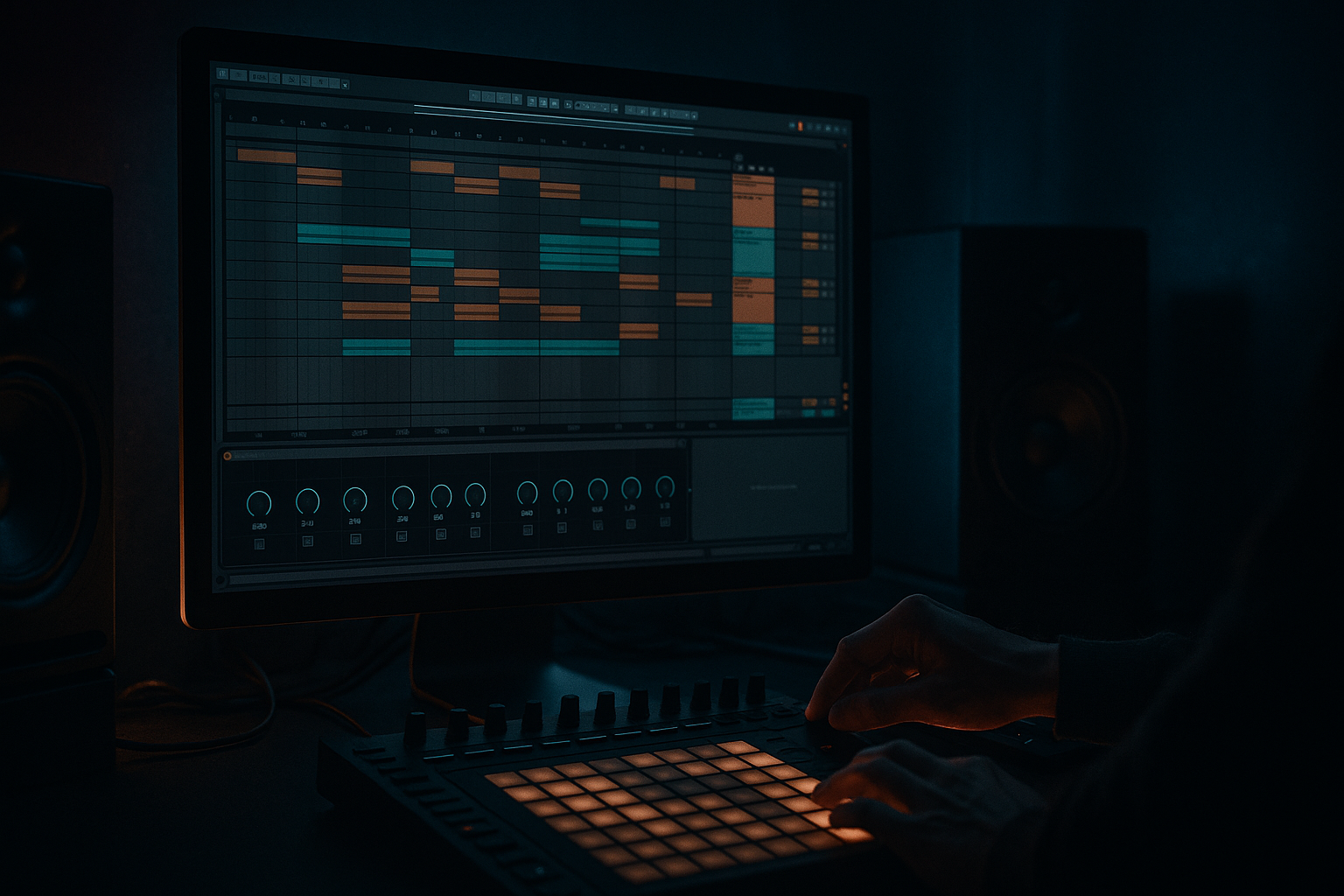
A Little Sound masterclass: stack the vocal atmosphere in Ableton Live 12 for deep jungle atmosphere (Beginner · Groove · tutorial) cover image

Narrated lesson audio

The voice track includes the tutorial plus extra teacher commentary.

Open audio file

Main tutorial

1. Lesson Overview

"A Little Sound masterclass: stack the vocal atmosphere in Ableton Live 12 for deep jungle atmosphere" walks you through a practical, beginner-friendly workflow to build a lush, layered vocal pad fleet that sits in a Drum & Bass groove. You’ll use only Ableton Live 12 stock devices (Simpler/Sampler, Wavetable, Vocoder, Grain Delay, Reverb, EQ Eight, Saturator, Glue Compressor, Utility, etc.), stack several vocal layers, set up a vocoder layer (modulator + carrier), shape intelligibility, and blend the stack into a jungle rhythm with sidechain and groove feel.

2. What You Will Build

  • A grouped “Vocal Atmosphere” with 4 complementary layers:
  • 1. Chopped rhythmic dry vocal (timed to the groove)

    2. Reversed/blurred ethereal layer (ambient wash)

    3. Pitched low sub-vocal (adds weight)

    4. Vocoder pad (synth carrier shaped by the vocal modulator)

  • Sends for long & short reverb, a grain-delay shimmer, and a gentle sidechained bus to sit together with the drums.
  • A grouped channel with simple macro controls to blend layers into a deep jungle context.
  • 3. Step-by-Step Walkthrough

    Note: Keep your project tempo around 170–176 BPM for deep jungle feel. I’ll use 174 BPM examples.

    A. Prep: source and basic routing

    1. Create a new audio track and import a short vocal sample or phrase (1–6 seconds). Name it “Vox_Raw”. Set Warp on, Mode = Complex Pro (or Complex) for smooth timestretching if you’ll change clip length.

    2. Duplicate this track 3 times (Cmd/Ctrl + D) so you have four tracks: Vox_Raw, Vox_Chop, Vox_Blur, Vox_Sub. Create one instrument track named “Vox_Vocoder_Carrier”.

    B. Layer 1 — Chopped rhythmic dry vocal (groove)

    3. On Vox_Chop: drag your vocal clip into Simpler (Classic mode) for flexible playback. In Simpler, enable Slice/1-Shot depending on whether you want chops or one-shot slices.

    4. Create chops: either manually crop short slices in the clip view or use Simpler’s start marker automation. Use the Groove Pool: Open Groove tab, choose a DnB swing (e.g., “Push 8-16%” or “Triplet shuffle”), and apply to Vox_Chop clip for subtle swing. Set clip quantize to 1/16 or 1/32 for tight rhythm; nudge slightly off-grid for humanized feel.

    5. Insert EQ Eight after Simpler: high-pass at ~140 Hz (Gentle slope) to avoid mud. Slight boost +2–3 dB around 2–4 kHz for presence if needed.

    6. Add Saturator (Soft Clip) with Drive ~2–4 dB to add warmth.

    7. Group Vox_Chop into the Vocal Atmosphere group later; for now set Dry/Wet 100% on track. Pan slightly (e.g., -10%).

    C. Layer 2 — Reversed / blurred ethereal layer

    8. On Vox_Blur: duplicate the clip, right-click > Reverse (or reverse in Clip View). Drop into Simpler or leave as audio clip.

    9. Insert Grain Delay (stock): set Spray ~15–35% (small randomization), Grain Size ~10–20 ms, Pitch +3–7 semitones for shimmer, Feedback ~25–35%, Dry/Wet ~35%. This creates micro-granular texture.

    10. Place Reverb after Grain Delay (or send to long reverb bus). Reverb settings: Size Large, Decay 3–6 s, Diffusion medium, High Damping for less harsh top end. Send amount 25–40%.

    11. EQ Eight: high-pass at ~400 Hz on this layer to keep it airy (you want the blur in upper mid/treble).

    D. Layer 3 — Pitched low sub-vocal

    12. On Vox_Sub: load the vocal into Sampler or Simpler and transpose down -12 to -24 semitones (try -12 then -24 for a deeper weight). Use “Repitch” warp mode if pitching audio to avoid formant artifacts, but Sampler is usually cleaner.

    13. Low-pass with EQ Eight: cut above ~1.2–1.5 kHz to give a warm sub-filtered layer. High-pass only up to ~50–80 Hz if needed.

    14. Add Utility to mono the low frequencies (Width = 0%) so sub energy is centered. Add Saturator with gentle drive and soft clipping to make it audible on small speakers.

    E. Layer 4 — Vocoder pad (modulator + carrier) — required vocoder workflow

    This section follows the required vocoder steps: setting up a modulator signal, choosing/creating a carrier, configuring Ableton Vocoder, shaping intelligibility, and blending.

    15. Modulator signal:

  • Use your original Vox_Raw track (or a dedicated clean take) as the modulator. Clean it up: EQ Eight high-pass at 120 Hz, de-ess in-band if sibilance appears (use EQ Eight to gently notch ~6–8 kHz).
  • 16. Carrier creation:

  • On the instrument track “Vox_Vocoder_Carrier”, load Wavetable (stock). Choose a warm, harmonically rich wavetable: e.g., Saw/Classic saw + detune. Set Osc1 Wave to Saw, Osc2 slightly detuned, Unison 4 with Detune 0.08 for width.
  • Filter: low-pass around 6–8 kHz gently; Envelope sustain long (ADSR sustain 70–90%) to make a pad.
  • Set amplitude envelope to slow attack ~20–40 ms, long release 500–800 ms for smooth tails.
  • 17. Routing for Vocoder:

  • Put Ableton Vocoder device on the Vox_Vocoder_Carrier track (the instrument track with Wavetable). In the Vocoder device, open the Sidechain chooser (top-left of the device). Select Vox_Raw (the vocal) as the sidechain Input. This routes the vocal as the Vocoder modulator and uses the synth as the carrier.
  • If using a different routing style: you can place Vocoder on the vocal track and set “Carrier” to receive audio from the synth track—either approach works; the core is: synth = carrier, vocal = modulator via sidechain.
  • 18. Configure Ableton Vocoder:

  • Bands: set to 32–40 bands for clearer intelligibility. More bands = more speech detail.
  • Attack: ~10–30 ms for transients; Release: ~150–300 ms so words don’t smear too much.
  • Formant: experiment around 0 to +2 to keep natural timbre or shift to +3–6 for more synthetic vowels.
  • Filter: engage high-pass (or low-pass) inside Vocoder if you want to limit low-frequency modulation.
  • Dry/Wet: start at 60% wet, then reduce as needed to sit in mix.
  • 19. Shaping intelligibility:

  • Pre-process modulator: compress the vocal slightly (Glue Compressor, ratio 3:1, fast attack, medium release) so its dynamics drive the vocoder more consistently. Add a little gain so bands get more input.
  • In the Vocoder, increase Bands and lower Release for clearer consonants. If sibilance becomes sharp, insert EQ Eight after Vocoder and gently notch or reduce treble, or use Multiband Dynamics to limit harsh highs.
  • Add an EQ before the Vocoder on the modulator: boost 1–4 kHz slightly to emphasize intelligibility if words are lost.
  • 20. Blend the effected voice in context:

  • On the Vox_Vocoder_Carrier track: add Utility to set Width ~70–90% (wider but not extreme). Add a small amount of Chorus-Ensemble for movement, then a short Delay (Echo) with ping-pong off and low feedback to sit in stereo.
  • Automate Vocoder Dry/Wet or use an Audio Effect Rack macro to blend the vocoder on/off. Keep the vocoder as a supportive pad (level -6 to -10 dB relative to lead elements).
  • Send the vocoder to the same long reverb bus as the Blur layer, but a little less send (20–25%) to keep it more present.
  • F. Grouping, mixing, and groove integration

    21. Create a Group track called “Vocal Atmosphere”. Put Vox_Chop, Vox_Blur, Vox_Sub, Vox_Vocoder_Carrier inside it.

    22. Create two Return tracks: Reverb_Long and Reverb_Short (or use Hybrid Reverb if available). Reverb_Long settings as earlier (Decay 4–6 s), Reverb_Short Decay 0.8–1.5 s. Send amounts: Chop low sends (10–20%), Blur high sends (35–60%), Vocoder mid (20–30%).

    23. Sidechain glue: Create a new Aux/Buss (or use the Group) with Glue Compressor. Set input from Vocal Atmosphere Group. In Glue, enable Sidechain input = Kick or Kick+Sub (drum bus). Ratio 4:1, Attack 10 ms, Release 150–250 ms, Threshold so you get 2–5 dB of ducking on kicks. This keeps the vocal pad breathing with the groove.

    24. Final EQ: On the group, insert EQ Eight, do broad cuts: high-pass ~50 Hz, gentle dip 200–400 Hz if boxy, slight presence boost 2–3 kHz if desired.

    25. Save a preset: Optionally save the Vocal Atmosphere group as a Live Set or Template for re-use.

    4. Common Mistakes

  • Overcrowding low frequencies: stacking pitched-down vocal layers without HP filtering makes the mix muddy. Always HP each layer appropriately.
  • Too many bands or extreme Vocoder wet: too much vocoder wet or too narrow bands can ruin intelligibility or make the mix too synthetic. Balance wet/dry.
  • No sidechain to kick: pads that don’t duck with the kick overwhelm DnB groove. Use subtle sidechain (2–6 dB) rather than hard pumping unless intentional.
  • Neglecting rhythmic placement: atmospheric vocal chops that ignore groove sound disjointed. Use the Groove Pool or nudges to lock to the rhythm.
  • Over-processing single layer: avoid making every layer the same effect (e.g., every layer with heavy reverb) — give each layer a distinct role.
  • 5. Pro Tips

  • Use an Audio Effect Rack on the group with macro knobs: Dry/Wet for Ambience, Low Cut, and “Vibe” (saturator amount) so you can quickly tweak the whole stack.
  • For quick stereo width control: place a Utility before reverb sends to keep mono low frequencies and wide highs (width automation can create movement).
  • Use the Vocoder sparsely on pre-chorus/transition sections to highlight vocals; keep verses more intelligible.
  • Duplicate the vocoder chain, pitch the carrier by +7 semitones and mix low to make an otherworldly formant pad.
  • When in doubt about intelligibility, bypass reverb and large delays — if the vocal reads clean dry, then reintroduce ambience.
  • If you want vocal tails to bloom only where space allows, automate the return send levels to increase reverb in breakdowns and relax in dense sections.

6. Mini Practice Exercise

Goal: Build a 30-second loop with three vocal layers (Chop, Blur, Vocoder) that rhythmically grooves at 174 BPM.

Steps:

1. Import a 2–4 second vocal phrase on Vox_Raw.

2. Create Vox_Chop: load into Simpler, slice into 1/16–1/32 chops, apply a subtle Groove and swing 10–12%.

3. Create Vox_Blur: duplicate the clip, reverse it, add Grain Delay and long reverb send.

4. Create a Wavetable pad and add Vocoder with Vox_Raw as sidechain modulator. Set Bands = 32, Release 200 ms, Dry/Wet 60%.

5. Group them, add Glue sidechain from Kick (2–4 dB ducking), HP each layer appropriately. Export a 30-second loop and compare it to a reference jungle track to check sit-in-the-mix balance.

7. Recap

In this beginner Groove lesson — "A Little Sound masterclass: stack the vocal atmosphere in Ableton Live 12 for deep jungle atmosphere" — you learned a practical, stock-device workflow to build a layered vocal atmosphere: rhythmic chops, reversed blur, low sub-vocal, and a vocoder pad. You set up the vocoder correctly (modulator = vocal, carrier = synth pad), configured bands and attack/release for intelligibility, and blended everything with EQ, reverb sends, and sidechain so the pad breathes with the drums. Use grouping, macro controls, and the Groove Pool to lock your vocal stack into the deep jungle pocket.


Ask GPT about this lesson

Chat with the lesson tutor, get follow-up help, or use quick actions.

Bigup 👽 Ask me anything about this lesson and I’ll answer in context.

Narration script

Show spoken script
Welcome. This is "A Little Sound masterclass: stack the vocal atmosphere in Ableton Live 12 for deep jungle atmosphere." In this beginner Groove lesson, I’ll walk you through a practical workflow using only Ableton Live 12 stock devices to build a lush, layered vocal pad fleet that sits in a Drum & Bass groove. We’ll stack four complementary vocal layers, set up a vocoder with a modulator and carrier, shape intelligibility, and blend everything into a deep jungle rhythm with sidechain and groove feel. Keep your project tempo around 170 to 176 BPM — I’ll be using 174 BPM as an example.

What you’ll build: a grouped Vocal Atmosphere with four layers —
1. a chopped rhythmic dry vocal timed to the groove,
2. a reversed, blurred ethereal wash,
3. a pitched low sub-vocal for weight,
4. and a vocoder pad where a synth carrier is shaped by the vocal modulator.
You’ll also create sends for long and short reverb, a grain-delay shimmer, and a gentle sidechained bus so the whole stack breathes with the drums. Finally, we’ll place the stack in a group with simple macro controls so you can blend it into a jungle context.

Step-by-step walkthrough:
Prep and routing:
1. Create a new audio track and import a short vocal sample or phrase, one to six seconds. Name it Vox_Raw. Turn Warp on and use Complex or Complex Pro for smooth time-stretching if you plan to change clip length.
2. Duplicate this track three times so you have four audio tracks: Vox_Raw, Vox_Chop, Vox_Blur, and Vox_Sub. Create an instrument track named Vox_Vocoder_Carrier for the vocoder carrier synth.

Layer 1 — Chopped rhythmic dry vocal:
3. On Vox_Chop, drag your vocal into Simpler in Classic or Slice mode for flexible playback. Use Slice if you want quick chops or Classic for one-shots.
4. Create chops by cropping short slices in the clip view or automating Simpler’s start marker. Open the Groove Pool, choose a DnB-style swing — for example, Push 8–16% or a triplet shuffle — and apply it to the Vox_Chop clip. Quantize the clip to 1/16 or 1/32 for tight rhythm and nudge slightly off-grid for a humanized feel.
5. Insert EQ Eight after Simpler. High-pass around 140 Hz to remove mud and, if needed, add a gentle presence boost of plus two to three dB around two to four kilohertz.
6. Add a Saturator in Soft Clip mode with about two to four dB of drive for warmth.
7. Keep Vox_Chop dry for now, pan slightly left or right — try minus ten percent — and later we’ll group it.

Layer 2 — Reversed, blurred ethereal layer:
8. On Vox_Blur, duplicate the clip and reverse it in Clip View. You can leave it as an audio clip or put it in Simpler.
9. Add Grain Delay: set Spray between fifteen and thirty-five percent for small randomness, Grain Size around ten to twenty milliseconds, pitch up by three to seven semitones for shimmer, feedback twenty-five to thirty-five percent, and Dry/Wet around thirty-five percent.
10. Place Reverb after Grain Delay or send the channel to a long reverb return. Make the reverb large, decay between three and six seconds, medium diffusion, and high-frequency damping to soften the top end. Use send amounts between twenty-five and forty percent on the channel, or more depending on taste.
11. EQ Eight on this layer: high-pass around four hundred hertz so this blur lives in the airy upper mid and treble.

Layer 3 — Pitched low sub-vocal:
12. On Vox_Sub, load the vocal into Sampler or Simpler and transpose down. Try minus twelve semitones first, then minus twenty-four for a deeper weight. If using audio transpose, Repitch warp mode can help avoid formant artifacts, but Sampler usually gives a cleaner result.
13. Low-pass with EQ Eight and cut everything above about one point two to one point five kilohertz to keep it warm and filtered. Only high-pass up to fifty to eighty hertz if needed.
14. Add Utility and set Width to zero percent so the low frequencies are mono and centered. Add gentle Saturator with soft clipping so the sub reads on small speakers.

Layer 4 — Vocoder pad, carrier and modulator:
15. The modulator is your original vocal. Use Vox_Raw or a clean take. Clean it up first: EQ Eight high-pass at one hundred twenty hertz and notch sibilance around six to eight kilohertz if needed.
16. On Vox_Vocoder_Carrier load Wavetable. Choose a harmonically rich carrier — a saw wave, with a second slightly detuned saw and Unison set to four with small detune, around zero point zero eight. Low-pass filter gently around six to eight kilohertz. Set the amplitude envelope to a slow attack of about twenty to forty milliseconds and a long release around five hundred to eight hundred milliseconds. Keep sustain high so it behaves like a pad.
17. Put Ableton’s Vocoder device on the Vox_Vocoder_Carrier track. In the Vocoder, open the sidechain chooser and select Vox_Raw as the sidechain input. This configures the vocal as the modulator and the synth as the carrier. You can alternatively place Vocoder on the vocal and receive the carrier, but the result is the same: synth carrier, vocal modulator.
18. Configure the Vocoder: set Bands between thirty-two and forty for good intelligibility. Attack around ten to thirty milliseconds, Release about one hundred fifty to three hundred milliseconds. Tweak Formant between zero and plus two to retain naturalness, or up to plus three to six for more synthetic vowels. Engage internal filtering if you want to limit low-frequency modulation and start Wet around sixty percent, then reduce as needed to sit in the mix.
19. Shape intelligibility: compress the modulator before the Vocoder using Glue Compressor — ratio three to one, fast attack, medium release — so the vocoder gets a consistent input. Boost one to four kilohertz on the modulator if the words are getting lost. If sibilance becomes harsh, add EQ after the Vocoder or Multiband Dynamics to tame high frequencies.
20. Blend the vocoder into the mix: add Utility set to about seventy to ninety percent width, a touch of Chorus-Ensemble for movement, and a short Delay with low feedback. Automate Vocoder Dry/Wet or map it to a macro for quick blending. Send the vocoder to the long reverb bus but use a smaller send than the blur layer — around twenty to twenty-five percent.

Grouping, mixing, and groove integration:
21. Create a Group track called Vocal Atmosphere and place Vox_Chop, Vox_Blur, Vox_Sub, and Vox_Vocoder_Carrier inside it.
22. Create two Return tracks: Reverb_Long and Reverb_Short. Reverb_Long uses a decay around four to six seconds. Reverb_Short around zero point eight to one point five seconds. Send amounts: Chop low, around ten to twenty percent; Blur high, thirty-five to sixty percent; Vocoder medium, twenty to thirty percent.
23. Create a sidechain on the group with Glue Compressor. Route the kick or the drum bus into the sidechain. Set Glue ratio around four to one, attack ten milliseconds, release one hundred fifty to two hundred fifty milliseconds, and adjust threshold so you get about two to five dB of ducking on kicks. This makes the pad breathe with the groove.
24. On the group, add EQ Eight for final shaping: high-pass around fifty hertz, a gentle dip from two hundred to four hundred hertz if it’s boxy, and a slight presence boost around two to three kilohertz if needed.
25. Save this as a preset or template so you can reuse the Vocal Atmosphere group later.

Common mistakes to avoid:
- Overcrowding the low end by stacking pitched-down layers without high-pass filtering. Always HP each layer appropriately.
- Using too much vocoder wet or extremes in band counts — balance wet/dry so you don’t lose intelligibility or over-synthesize the vocal.
- Not sidechaining to the kick — a pad that doesn’t duck will overwhelm the DnB groove. Aim for subtle ducking.
- Ignoring rhythmic placement — atmospheric chops that ignore groove sound disjointed. Use the Groove Pool or nudges.
- Over-processing a single layer — don’t put heavy reverb on every layer. Give each layer a distinct role.

Pro tips:
- Build an Audio Effect Rack on the group with macro knobs for Ambience, Low Cut, and Vibe so you can tweak the whole stack quickly.
- Put a Utility before reverb sends to keep low frequencies centered and highs wide. Automating Width creates movement.
- Use the vocoder sparingly in transitions or pre-choruses to highlight vocals while keeping verses intelligible.
- Duplicate the vocoder chain and pitch the carrier by seven semitones for otherworldly formant pads blended low in the mix.
- If intelligibility is questionable, bypass reverb and large delays — if it reads clean dry, then add ambience back in.
- Automate send levels so tails bloom only when space allows.

Mini practice exercise — thirty-second loop at 174 BPM:
1. Import a two to four second vocal phrase on Vox_Raw.
2. Make Vox_Chop: load into Simpler, slice into 1/16 to 1/32 chops, and apply a subtle Groove of ten to twelve percent swing.
3. Make Vox_Blur: duplicate and reverse the clip, add Grain Delay and a long reverb send.
4. Create a Wavetable pad and add a Vocoder with Vox_Raw as sidechain modulator. Set Bands to thirty-two, Release to two hundred milliseconds, Dry/Wet to sixty percent.
5. Group them, add Glue sidechain from the kick for two to four dB of ducking, high-pass each non-sub layer, and export a thirty-second loop. Compare it to reference jungle tracks to check how your vocal atmosphere sits in the mix.

Recap:
You now have a practical stock-device workflow to build a layered Vocal Atmosphere for deep jungle: rhythmic chops, reversed blur, a low sub-vocal, and a vocoder pad with a synth carrier modulated by the vocal. You learned how to set up the vocoder, configure bands and attack/release for intelligibility, and how to blend everything with EQ, reverb sends, and subtle sidechain so the pad breathes with the drums. Use grouping, macro controls, and the Groove Pool to lock the stack into the DnB pocket.

Final workflow mantra:
Start dry, define roles — who provides low, mid, high, and movement — process each voice for its role, then create shared ambience via sends. Use subtle sidechain and group macros to lock the whole Vocal Atmosphere into the deep jungle mood. Small moves add up.

That’s the masterclass. Save a template, color-code your tracks, and practice the thirty-second loop to make this approach your own.

mickeybeam

Go to drumbasscd.com for +100 drum and bass YouTube channels all in one place - tune in!

Generating PDF preview…